Feature accesses allow for greater configurability and can be enabled at the tenant, course, or branch level depending on the feature. These features can be turned on/off within Console or BluePrint.
Below please find Feature accesses related to User, Branch, and Group Analytics in Console.
Features can be controlled via Console, and BluePrint. Note that your selections will save and take effect immediately and will update respective admin tools automatically (if a feature access can be controlled in Tenant Dashboard and Console, turning it on via Tenant Dashboard will update its status in Console)
To toggle setting on/off from Console at the tenant level follow instructions found here.
To toggle setting on/off from Console at the branch level follow instructions found here.
To toggle setting on/off from BluePrint Configuration follow instructions found here.
Sessions Report Feature Access
Sessions Report
Description: When enabled the Sessions Report section, along with its subsidiary pages, will be accessible to users with the correct access context. The Sessions Report will display under the Analytics tab within Console as Session Detail Reports. The Session Reports section will display the Sessions Report Table when enabled. Default State: OFF
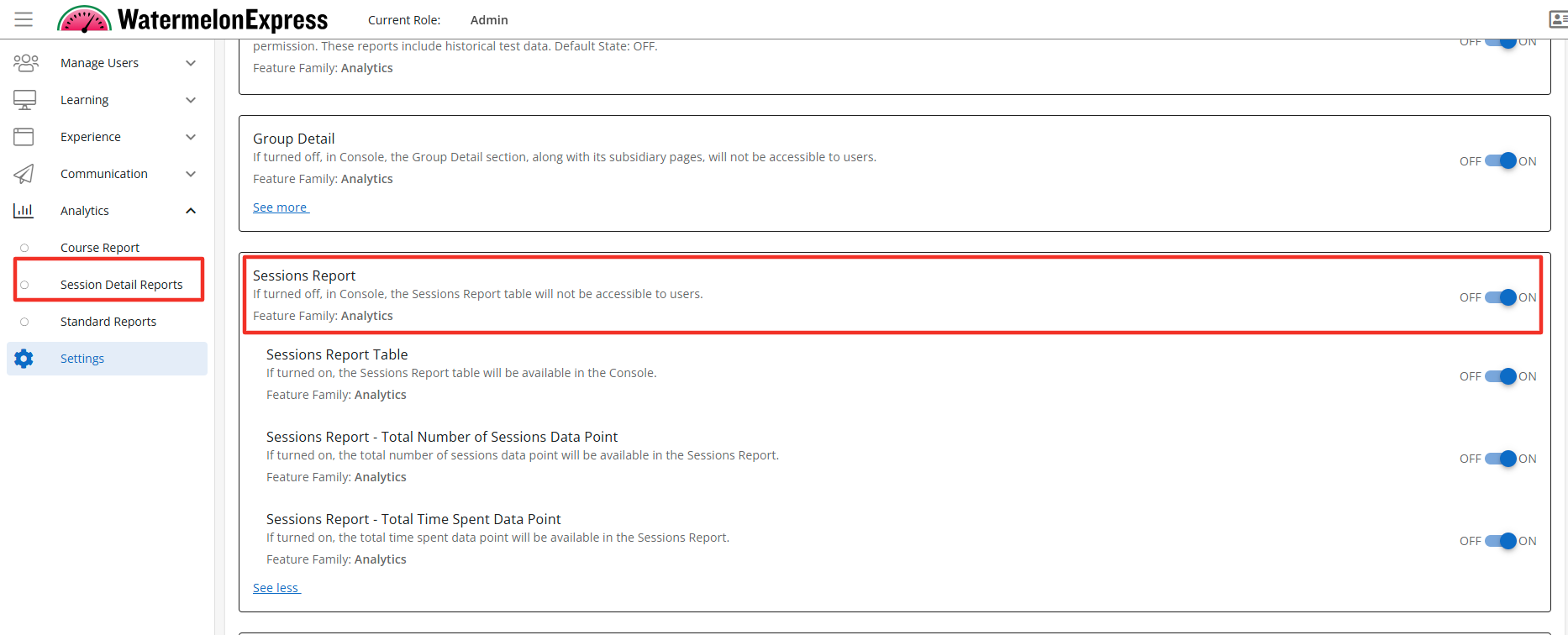
Configuration Level(s): Enabled at the Tenant and Branch level. Configurable by Admins or users with "Update Tenant" permission from Console.
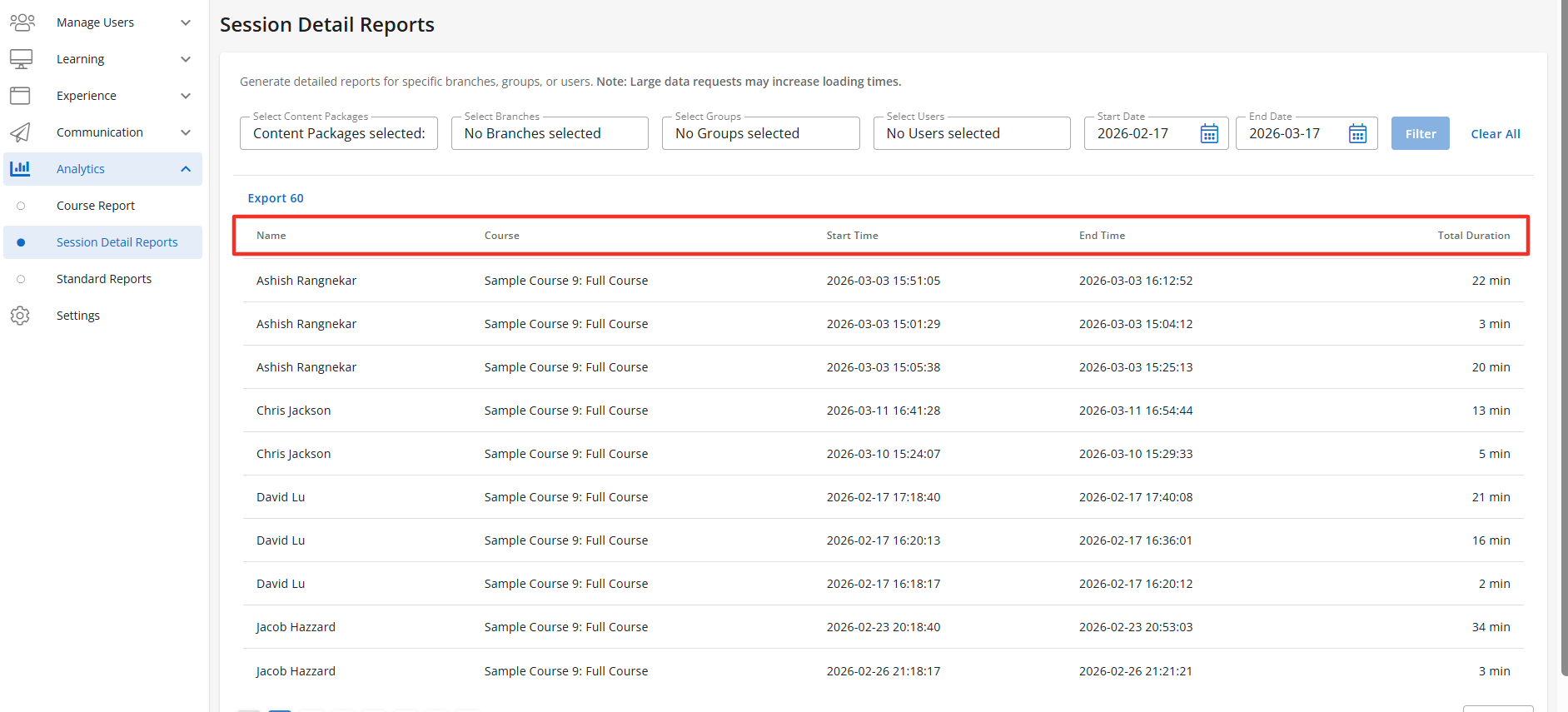
Sessions Report Table
Description: When enabled the Sessions Report Table will be accessible to users with the correct access context. The Session Reports Table will display the learners name, course, start time, end time, and total duration of the session. Default State: OFF
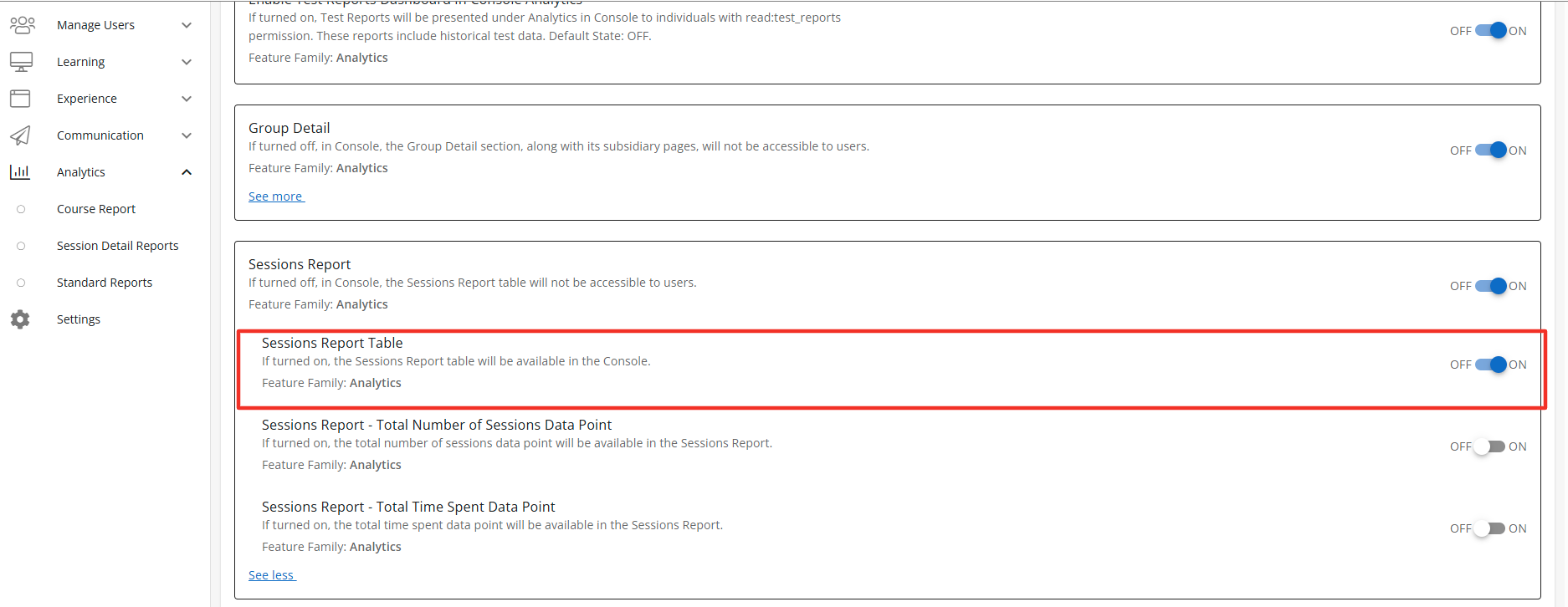
Configuration Level(s): Enabled at the Tenant and Branch level. Configurable by Admins or users with "Update Tenant" permission from Console
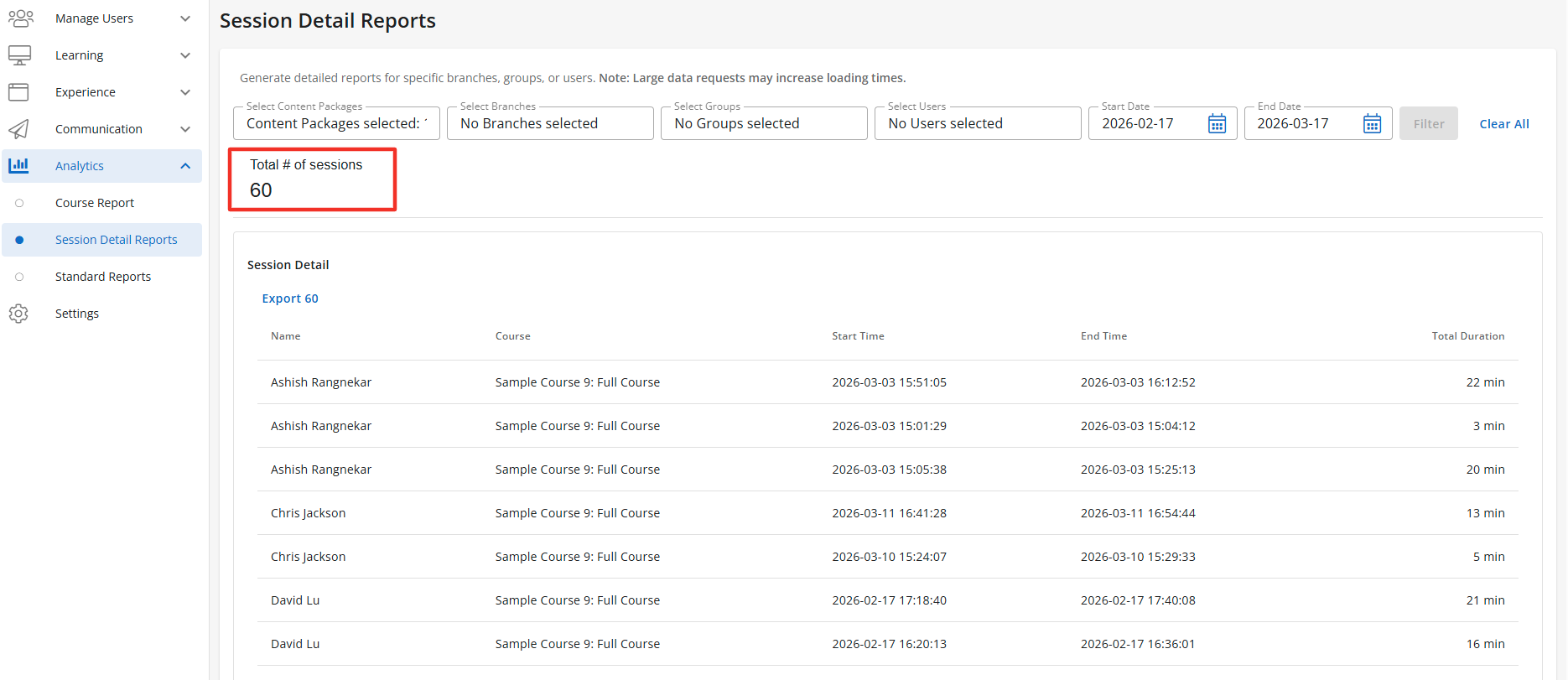
Sessions Report - Total Number of Sessions Data Point
Description: When enabled the Sessions Report-Total Number of Sessions Data Point will display above the Session Report Table and is the combined number of sessions for all learners. Default State: OFF
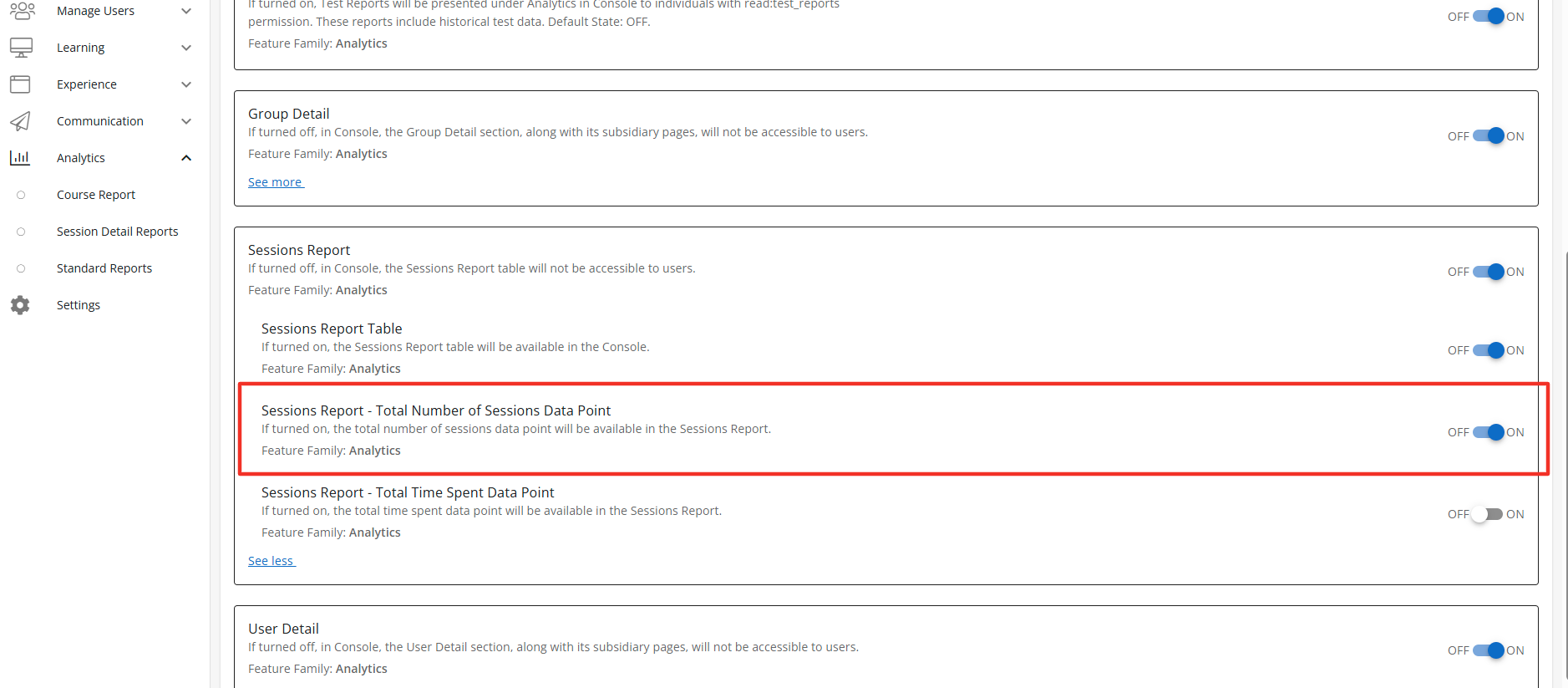
Configuration Level(s): Enabled at the Tenant and Branch level. Configurable by Admins or users with "Update Tenant" permission from Console
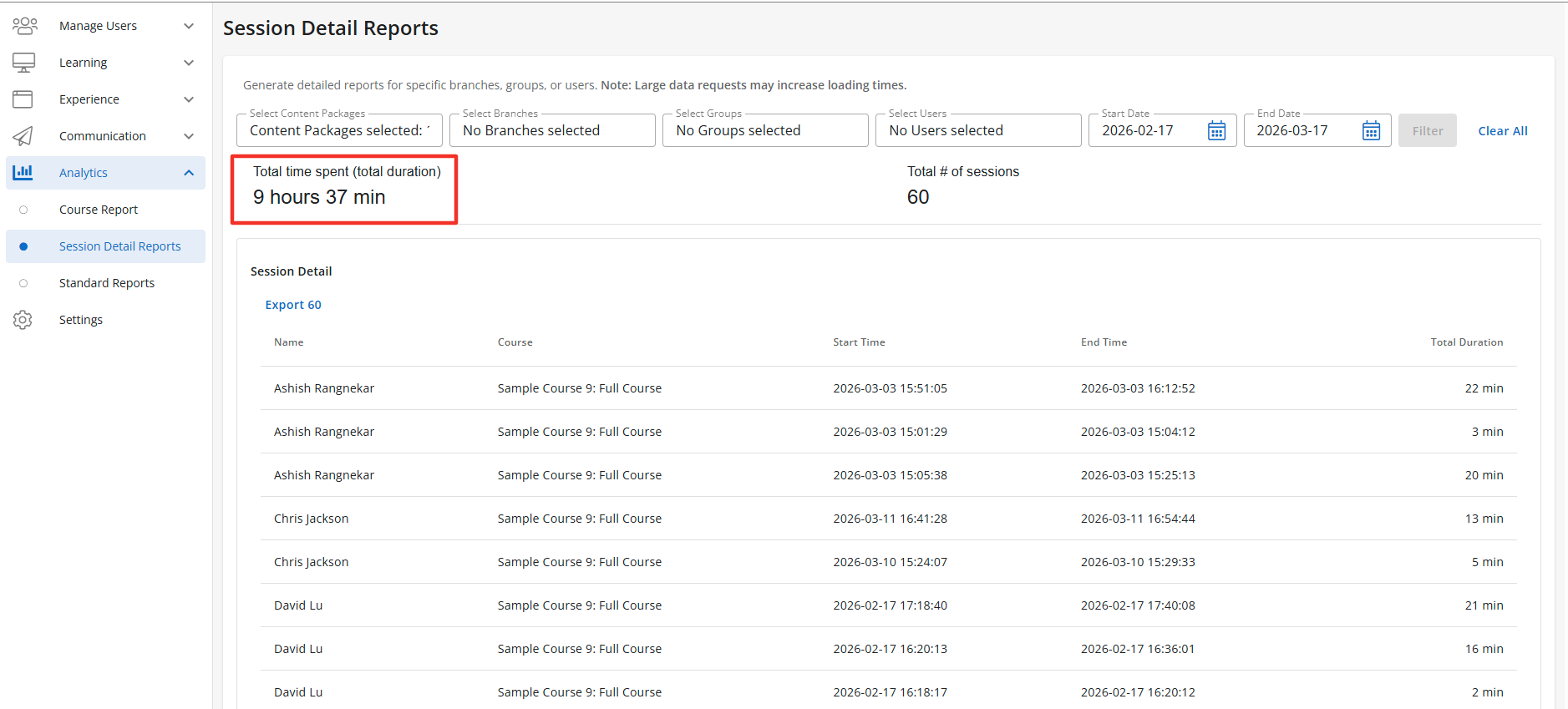
Sessions Report - Total Time Spent Data Point
Description: When enabled the Sessions Report-Total Time Spent Data Point will display above the Session Report Table and is the combined Total Time Spent for all learners. Default State: OFF
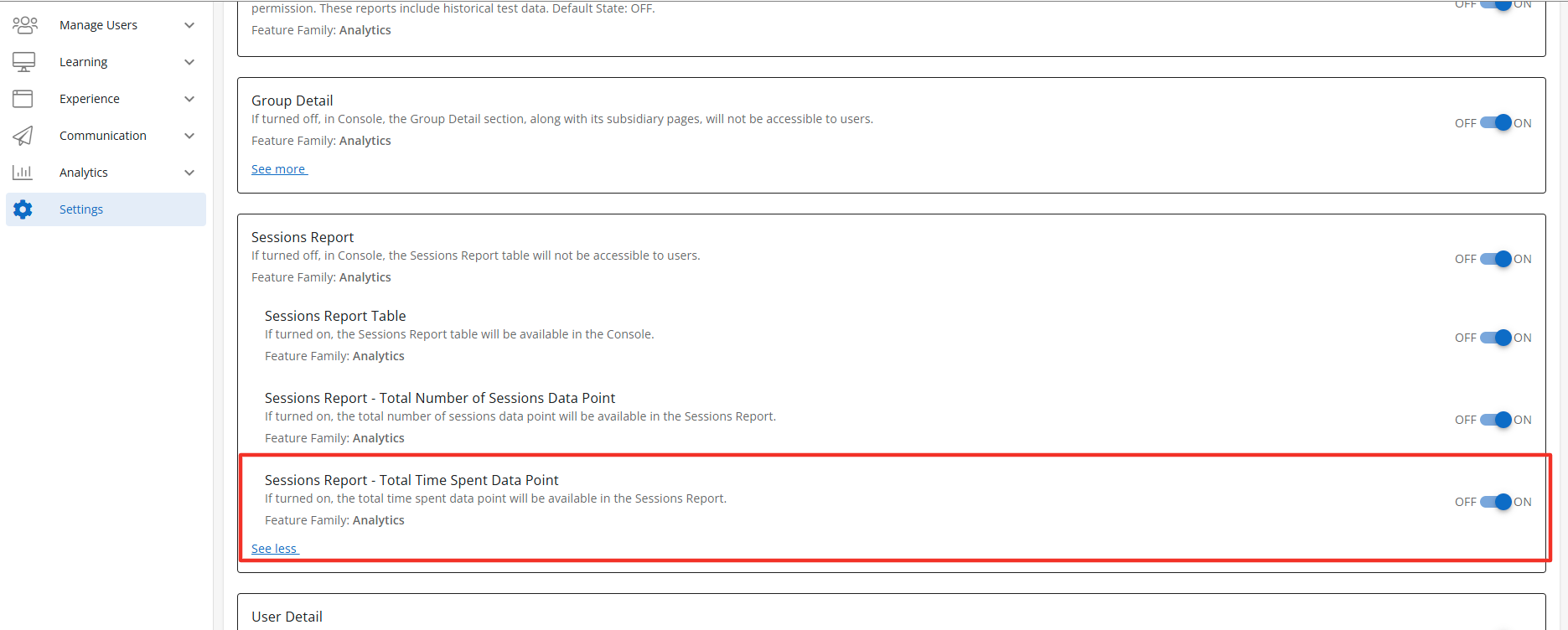
Configuration Level(s): Enabled at the Tenant and Branch level. Configurable by Admins or users with "Update Tenant" permission from Console
AI Usage Report Feature Access
AI Usage Report
Description: When enabled the AI Usage Report section, along with its subsidiary pages, will be accessible to users with the correct access context. The AI Usage Report will display under the Analytics tab within Console as AI Usage Reports. The AI Usage Reports section will display the AI Usage Report section when enabled. Default State: OFF
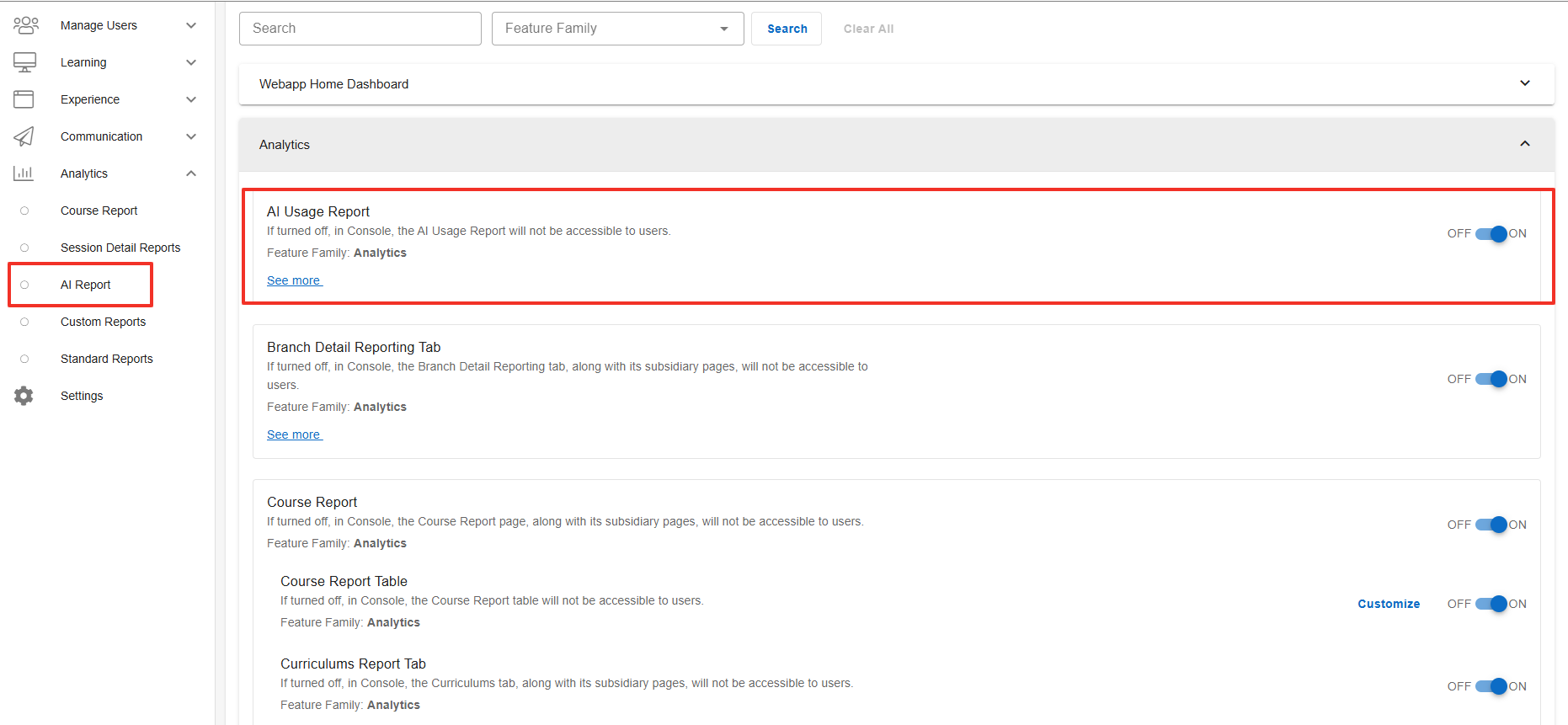
Configuration Level(s): Enabled at the Tenant and Branch level. Configurable by Admins or users with "Update Tenant" permission from Console
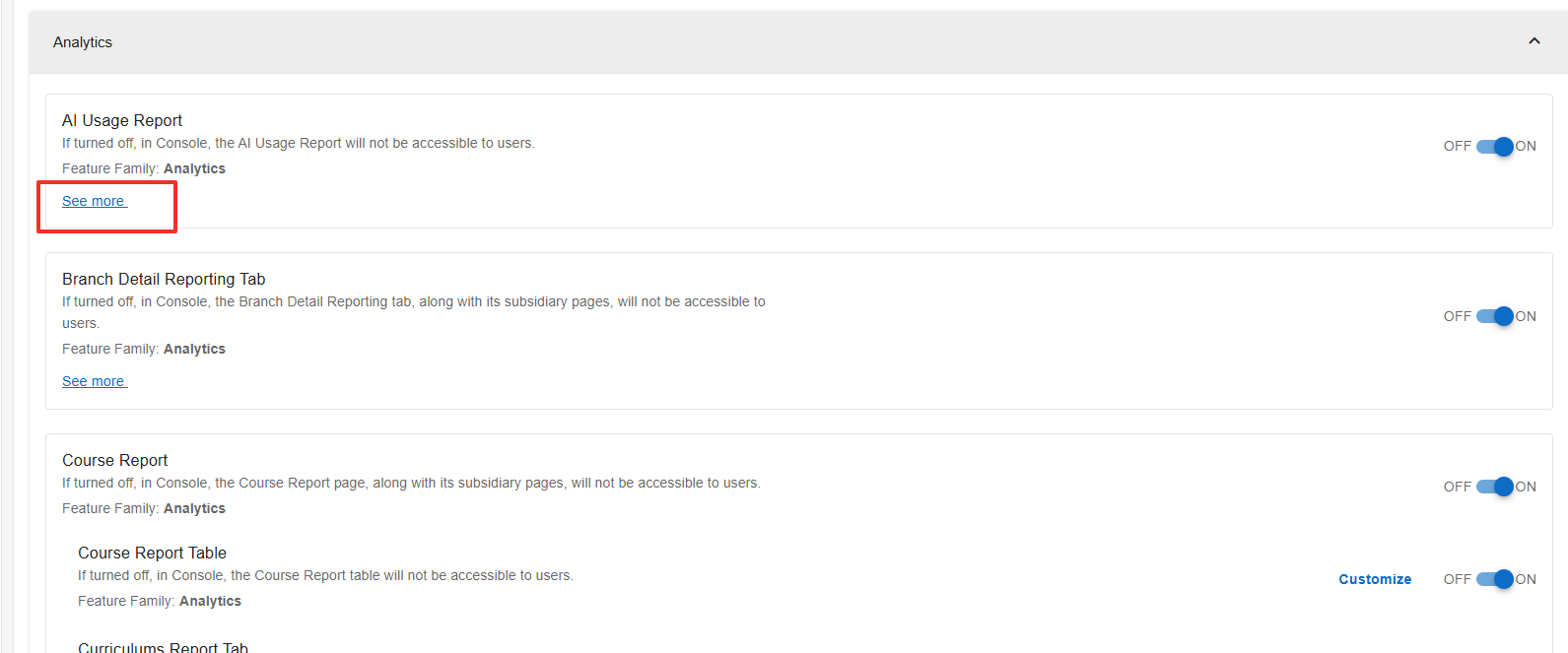
To view more feature access for the AI Usage Report click on See more.
AI Usage Report Table
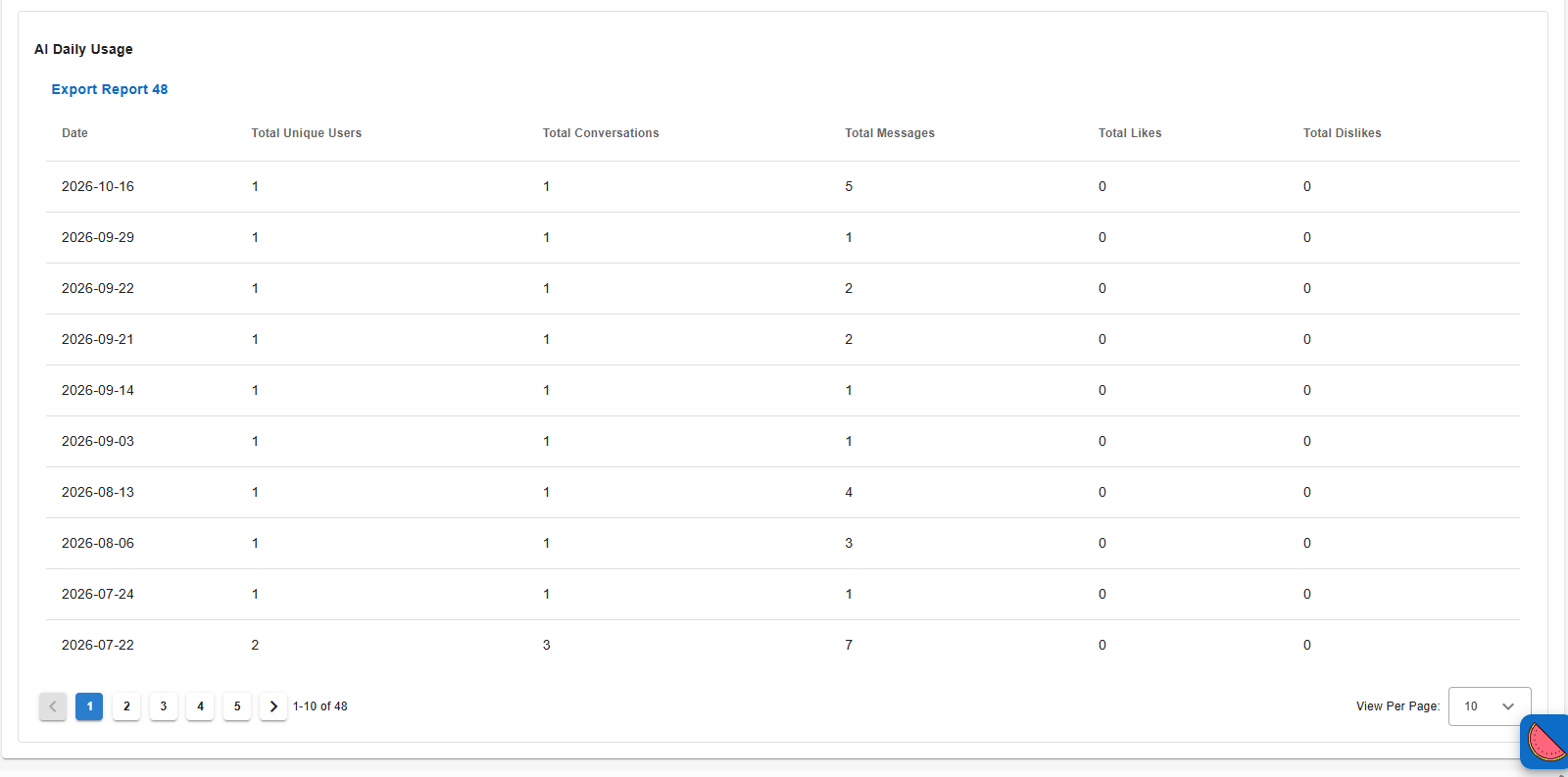
Description: When enabled the AI Usage Report Table will be accessible to users with the correct access context. The AI Usage Report Table will display under the Analytics tab within Console as AI Usage Reports. The AI Usage Reports section will display the AI Usage Report Table when enabled. Default State: OFF
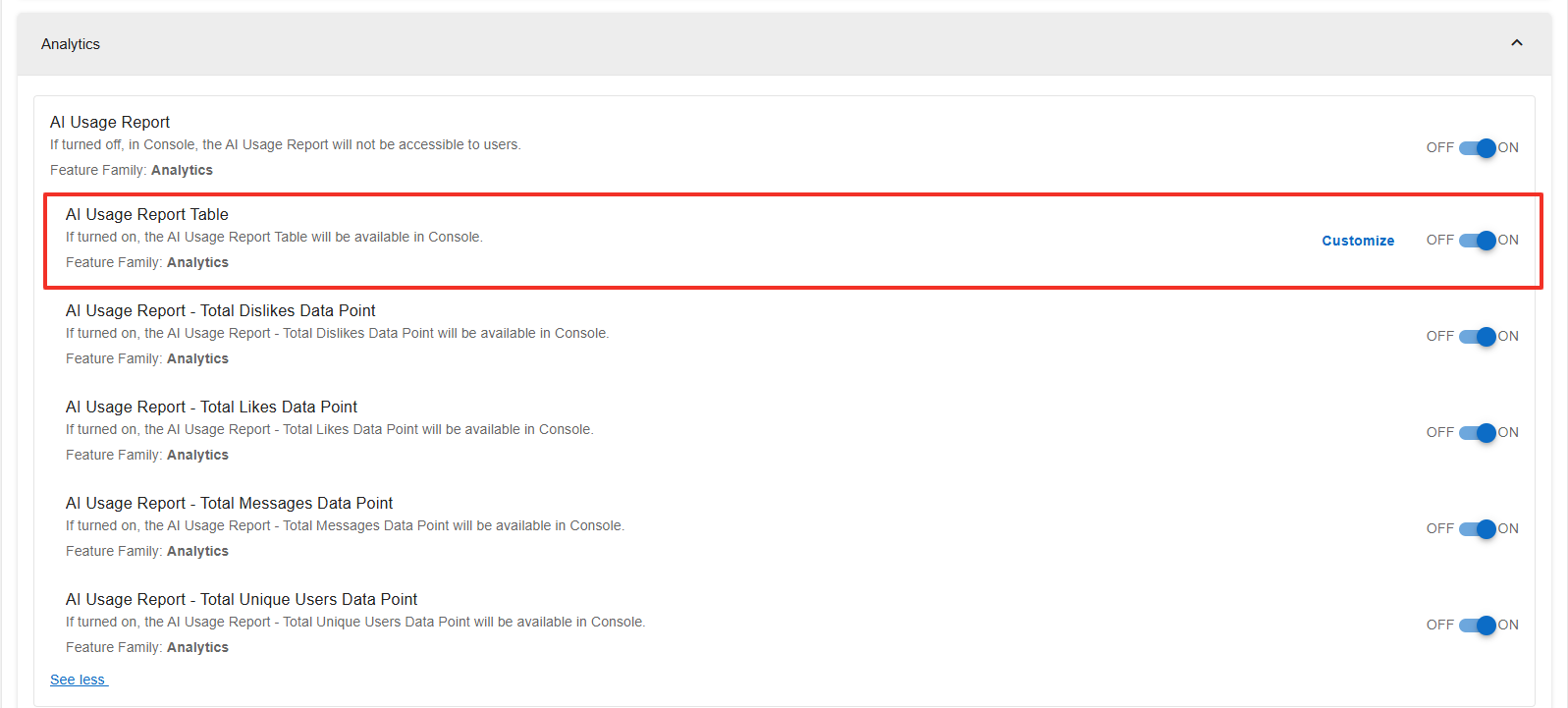
Configuration Level(s): Enabled at the Tenant and Branch level. Configurable by Admins or users with "Update Tenant" permission from Console
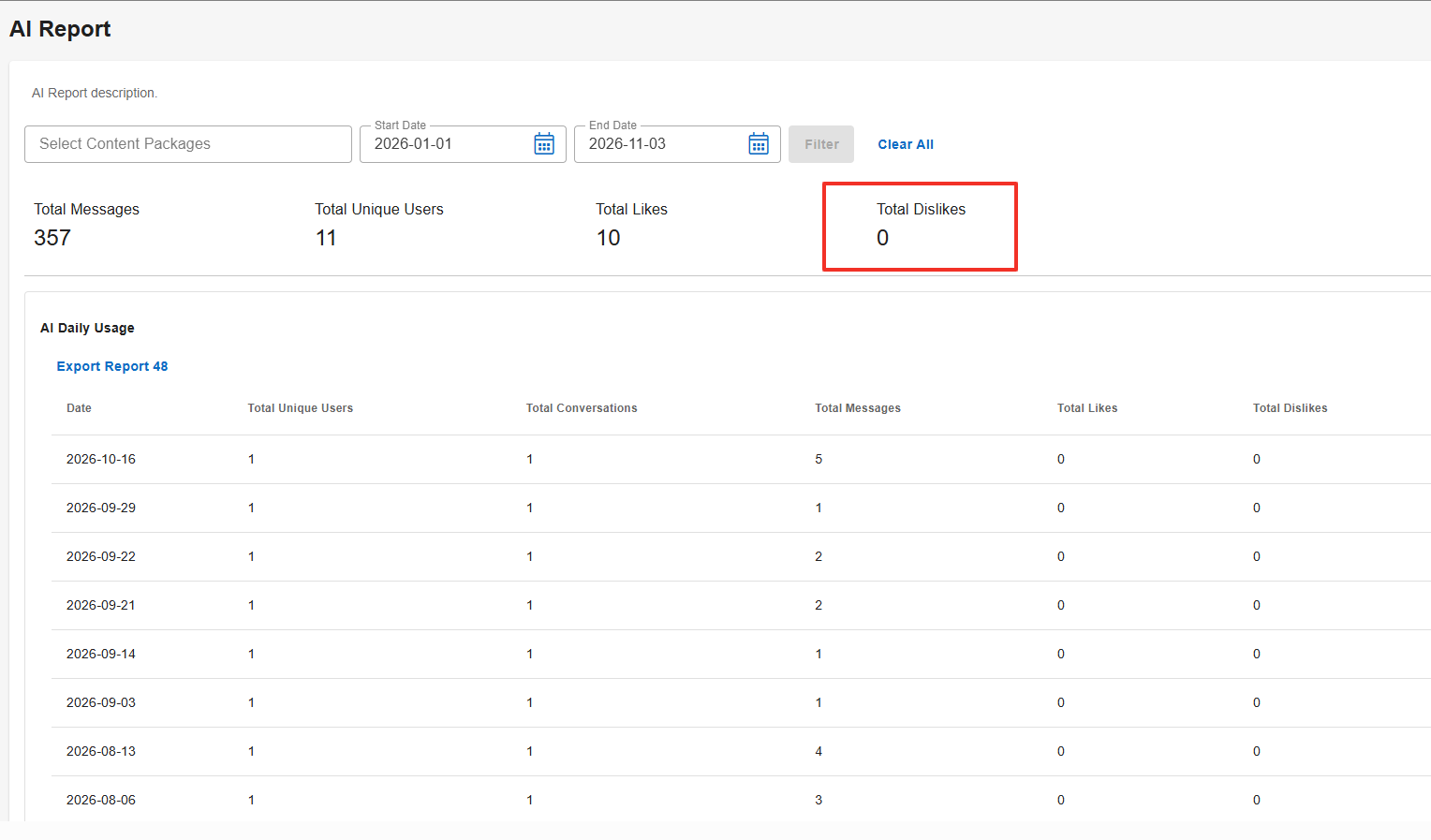
AI Usage Report Table - Total Dislikes Data Point
Description: When enabled the AI Usage Report Table - Total Dislikes Data Point will be accessible to users with the correct access context. The AI Usage Report Table - Total Dislikes Data Point widget will display above the AI Usage Report Table when enabled. Default State: OFF
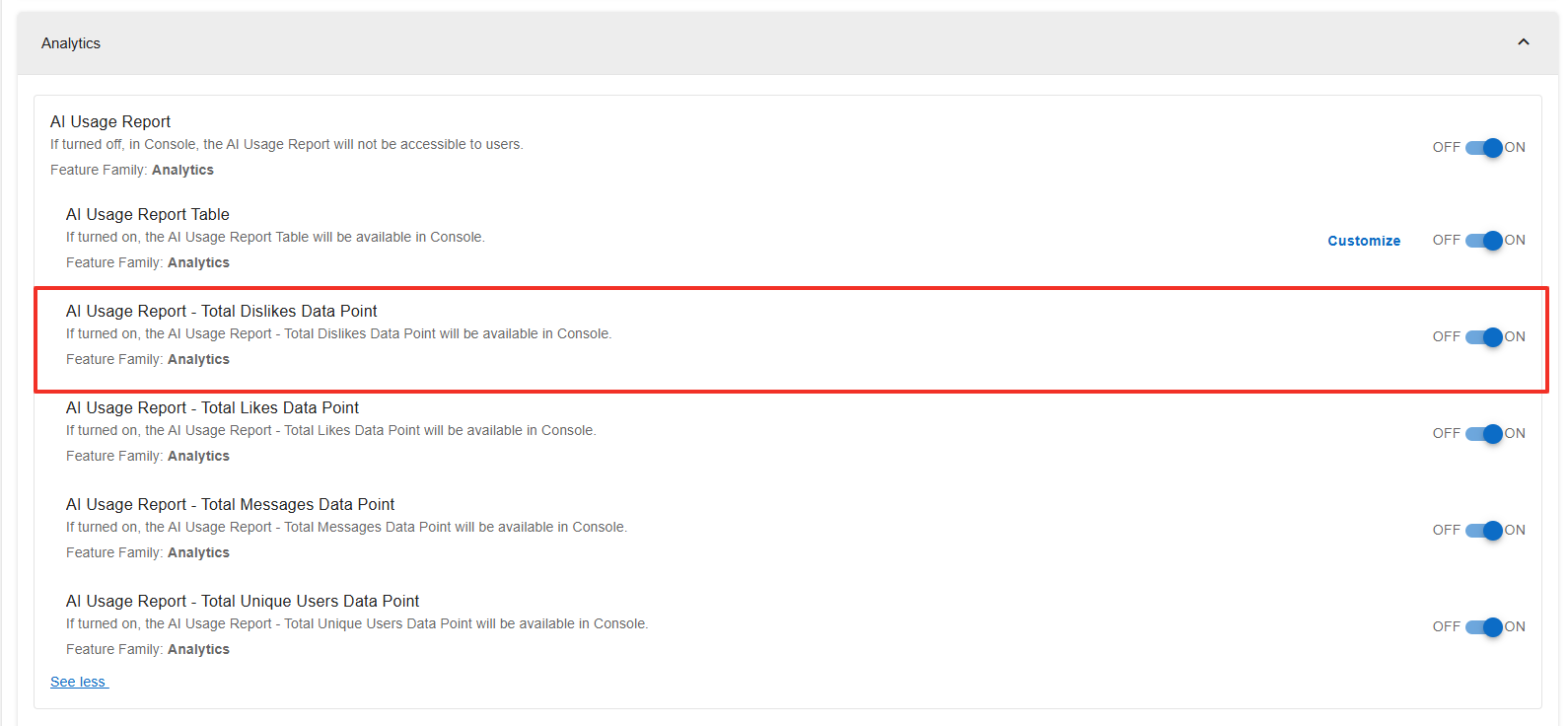
Configuration Level(s): Enabled at the Tenant and Branch level. Configurable by Admins or users with "Update Tenant" permission from Console
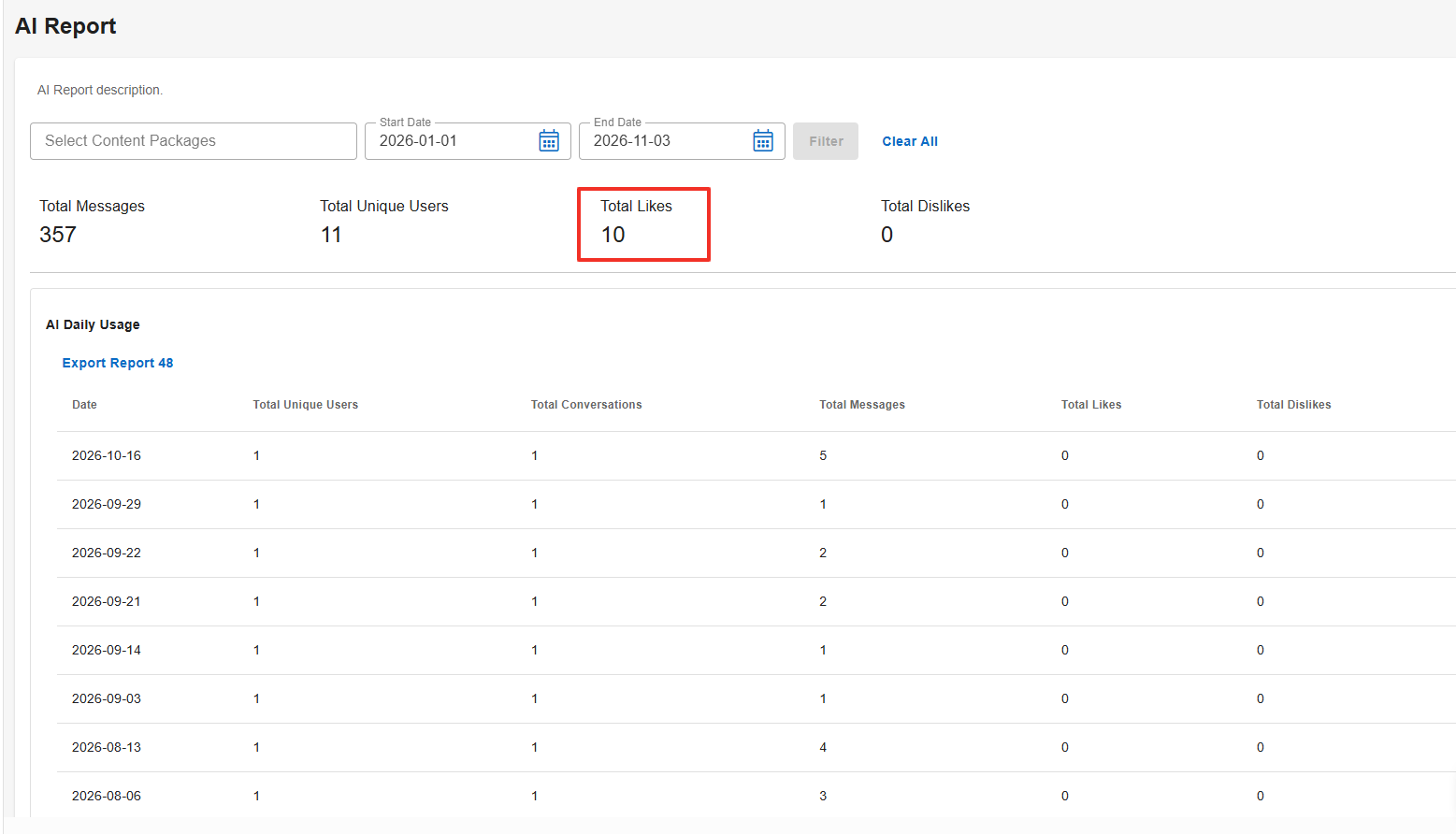
AI Usage Report - Total Likes Data Point
Description: When enabled the AI Usage Report - Total Likes Data Point will be accessible to users with the correct access context. The AI Usage Report - Total Likes Data Point widget will display above the AI Usage Report when enabled. Default State: OFF
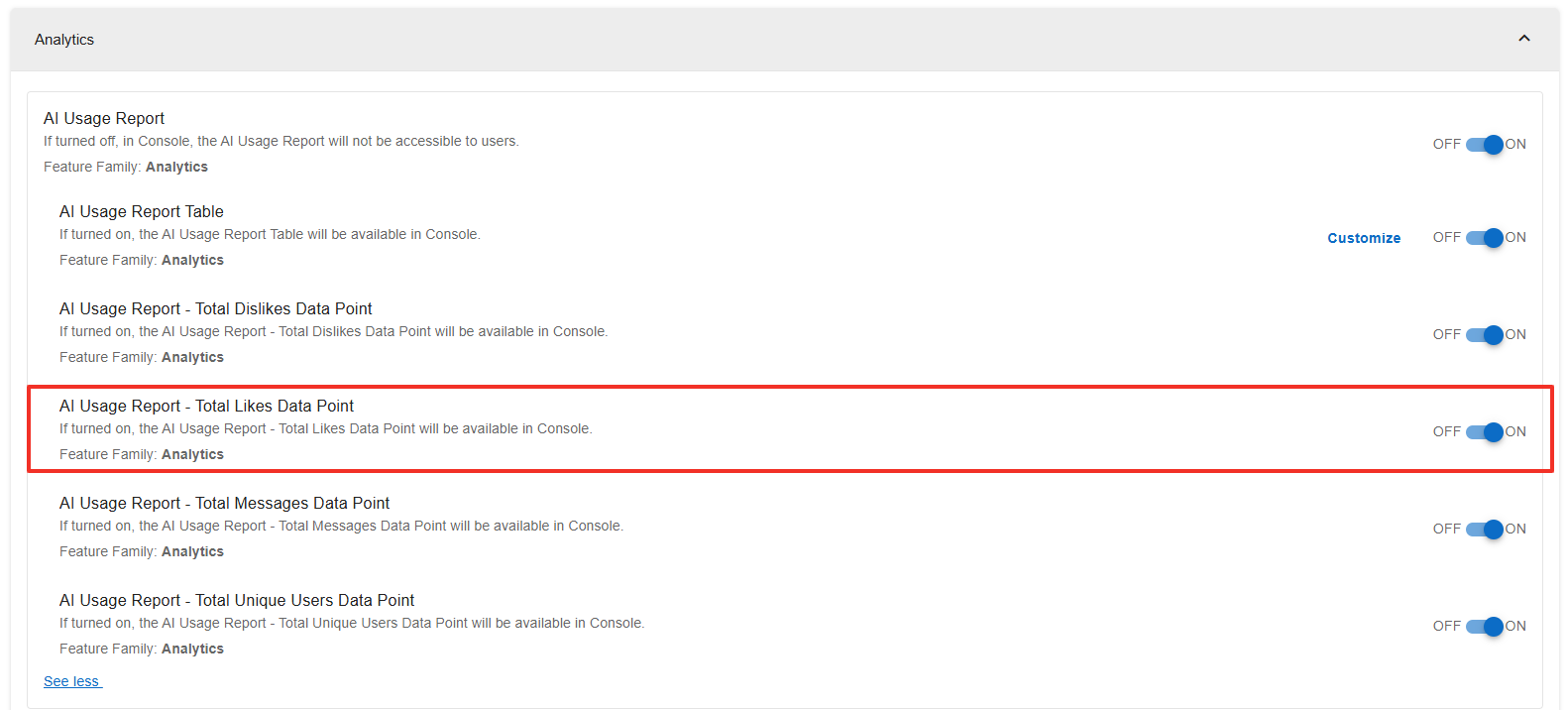
Configuration Level(s): Enabled at the Tenant and Branch level. Configurable by Admins or users with "Update Tenant" permission from Console
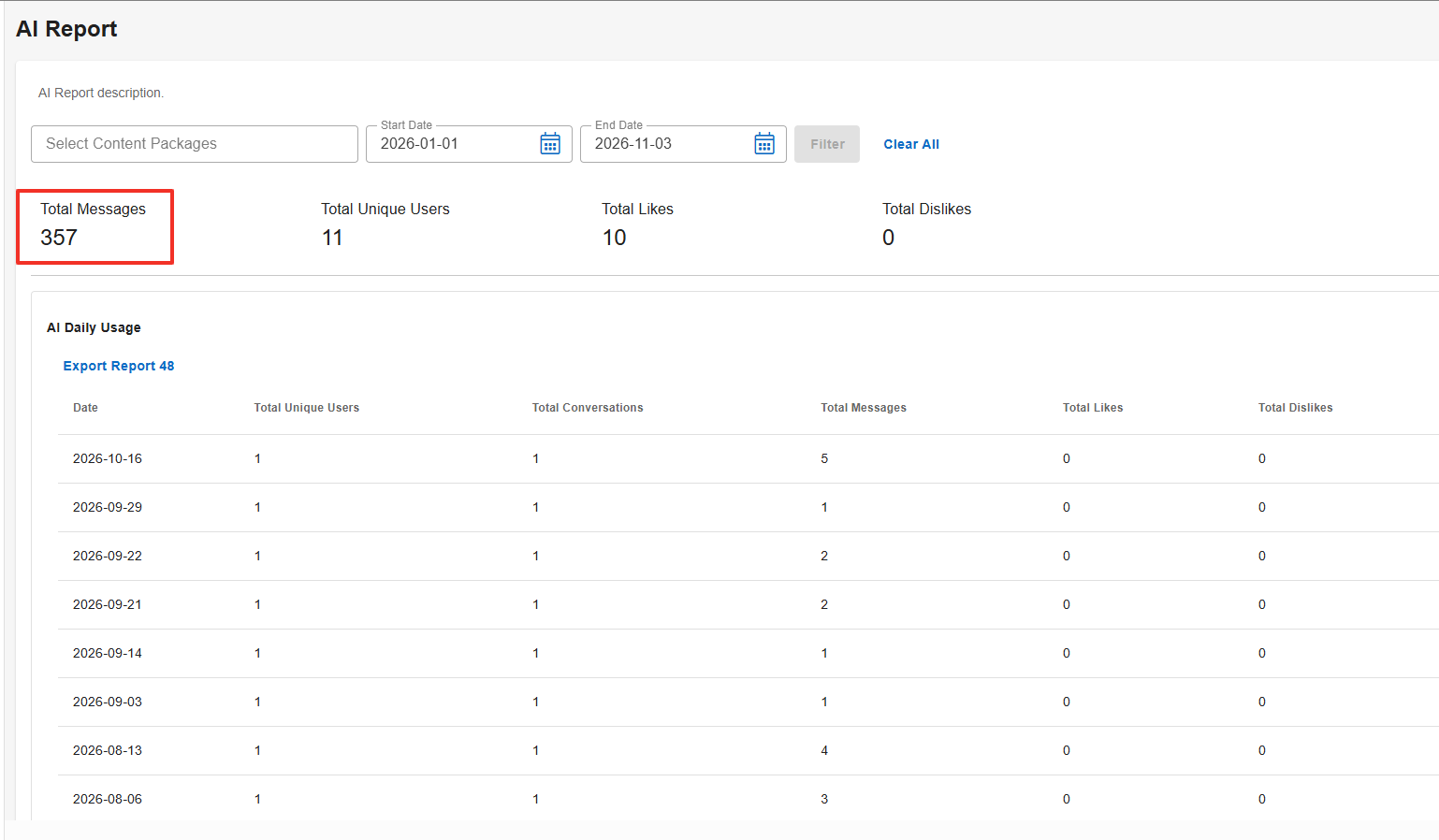
AI Usage Report - Total Messages Data Point
Description: When enabled the AI Usage Report - Total Likes Data Point will be accessible to users with the correct access context. The AI Usage Report - Total Likes Data Point widget will display above the AI Usage Report Table when enabled. Default State: OFF
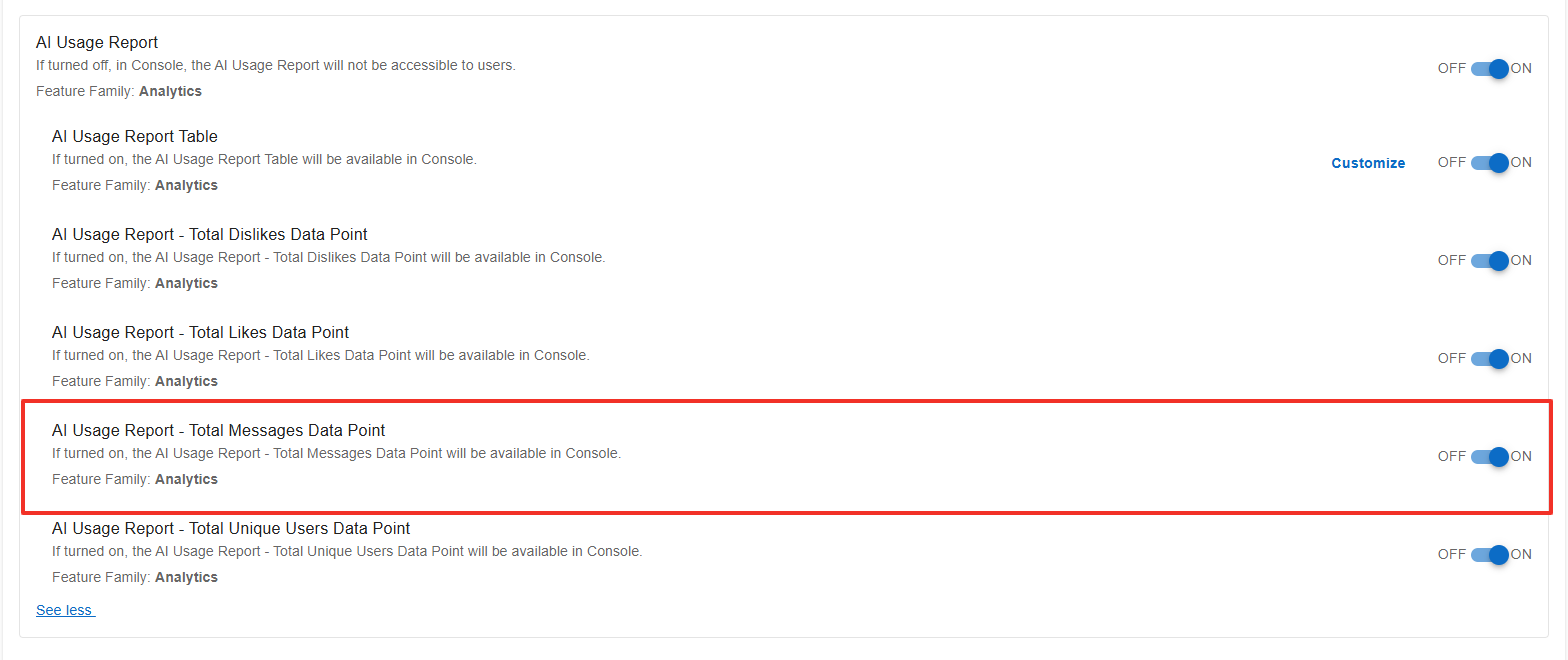
Configuration Level(s): Enabled at the Tenant and Branch level. Configurable by Admins or users with "Update Tenant" permission from Console.
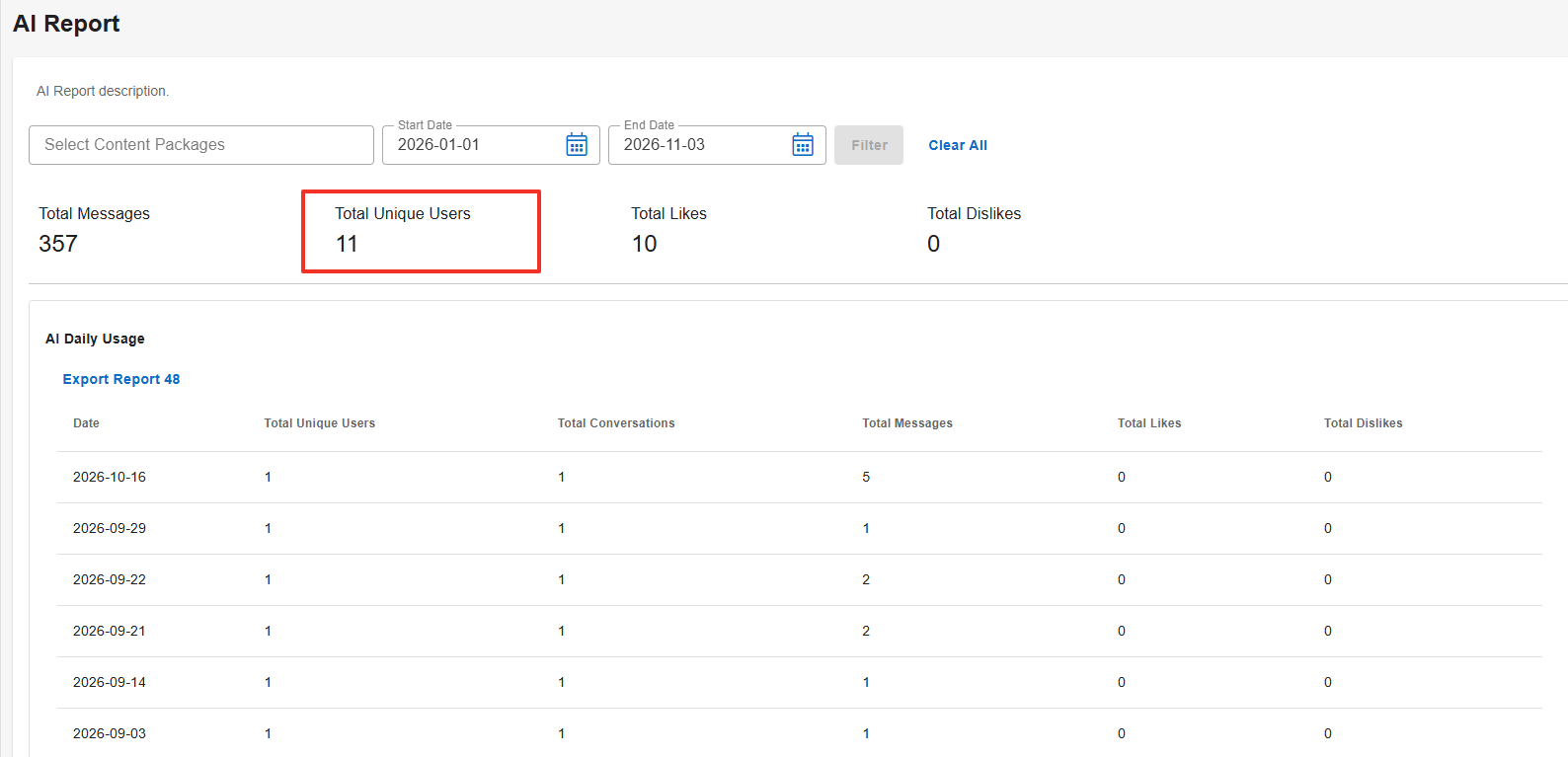
AI Usage Report - Total Unique Users Data Point
Description: When enabled the AI Usage Report - Total Unique Users Data Point will be accessible to users with the correct access context. The AI Usage Report - Total Unique Users Data Point widget will display above the AI Usage Report Table when enabled. Default State: OFF
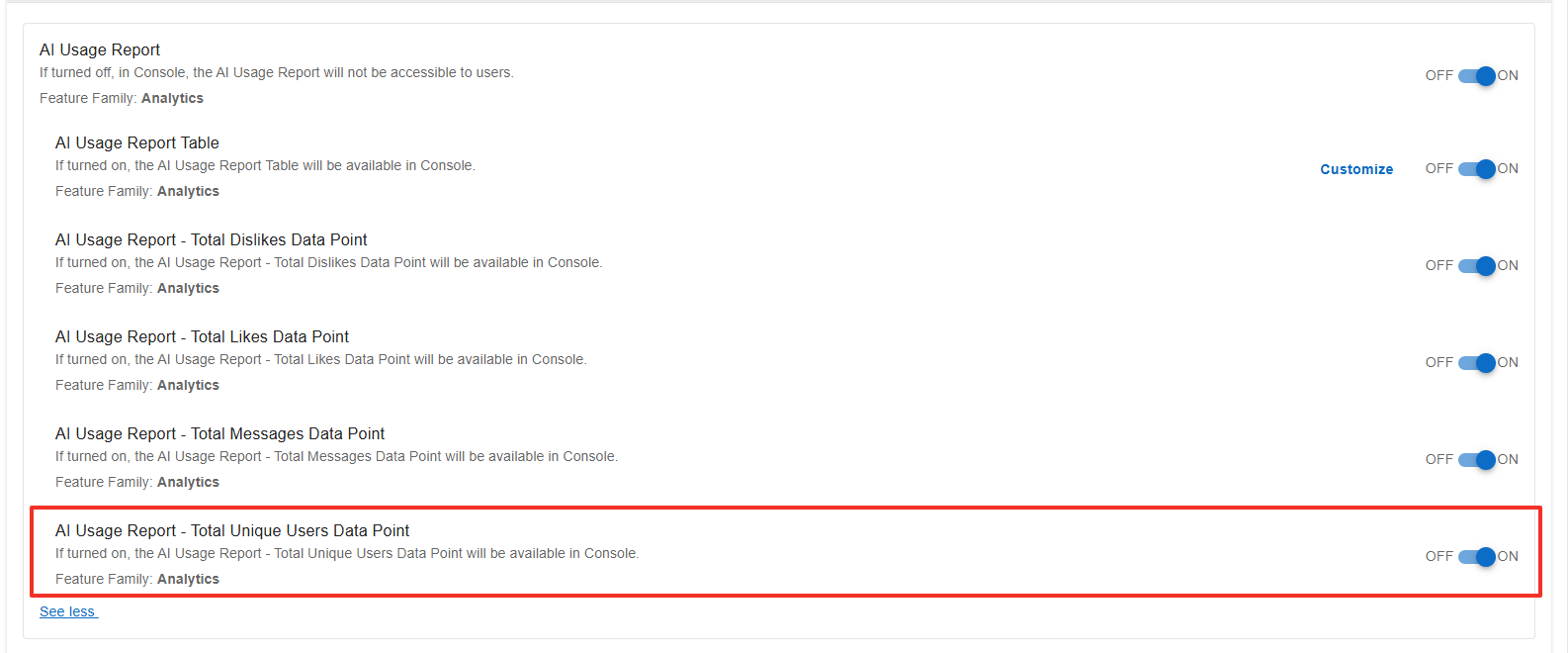
Configuration Level(s): Enabled at the Tenant and Branch level. Configurable by Admins or users with "Update Tenant" permission from Console.
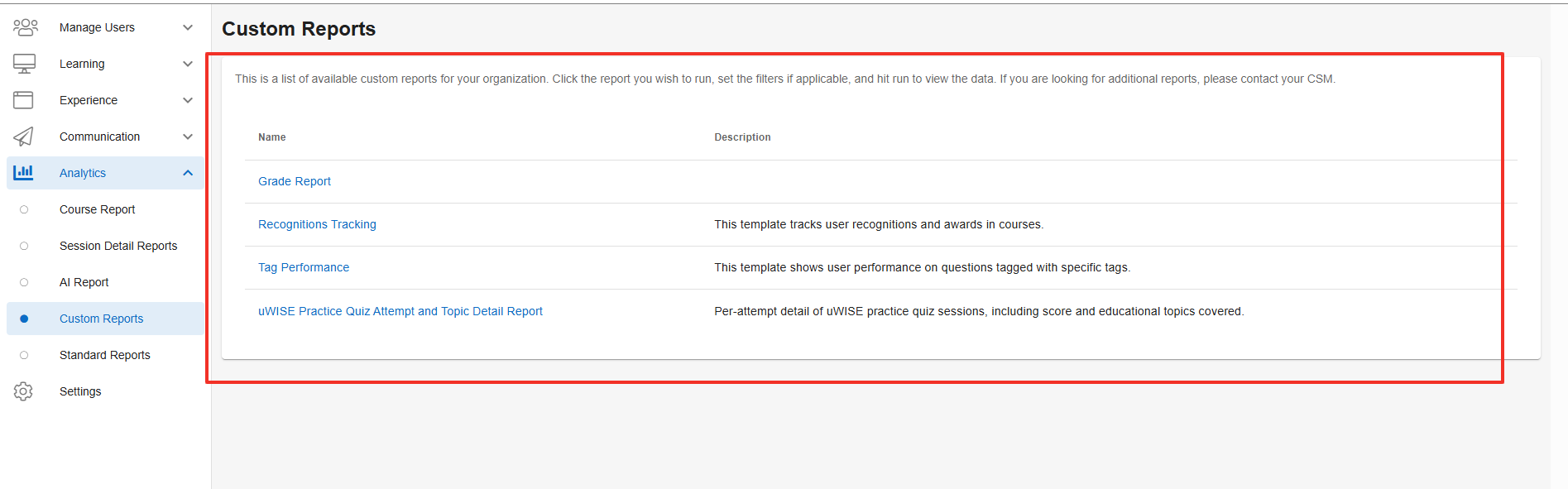
Custom Reports
Description: When enabled the Custom Reports will be accessible to users with the correct access context. Custom Reports can located under Analytics Custom Reports. Default State: OFF
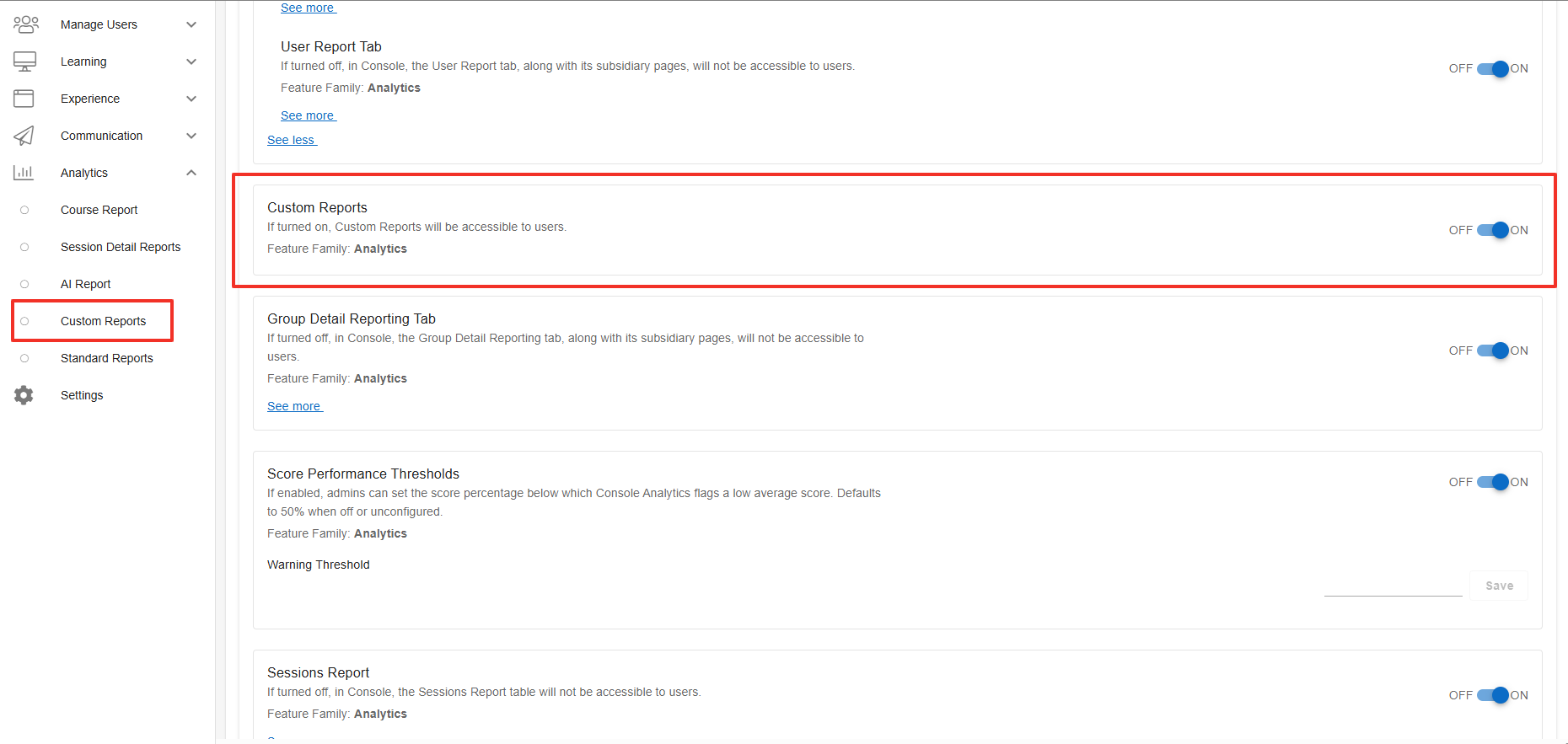
Configuration Level(s): Enabled at the Tenant and Branch level. Configurable by Admins or users with "Update Tenant" permission from Console.