


Feature accesses allow for greater configurability and can be enabled at the tenant, course, or branch level depending on the feature. These features can be turned on/off within Console or BluePrint.
Below please find Feature accesses related to Course Report Analytics in Console.
Features can be controlled via Console, and BluePrint. Note that your selections will save and take effect immediately and will update respective admin tools automatically (if a feature access can be controlled in Tenant Dashboard and Console, turning it on via Tenant Dashboard will update its status in Console)
To toggle setting on/off from Console at the tenant level follow instructions found here.
To toggle setting on/off from Console at the branch level follow instructions found here.
To toggle setting on/off from BluePrint Configuration follow instructions found here.
Course Report Feature Access
Course Report
Description: When enabled the Course Report section, along with its subsidiary pages, will be accessible to users with the correct access context. The Course Report will display the Course Report Table when enabled. Default State: OFF
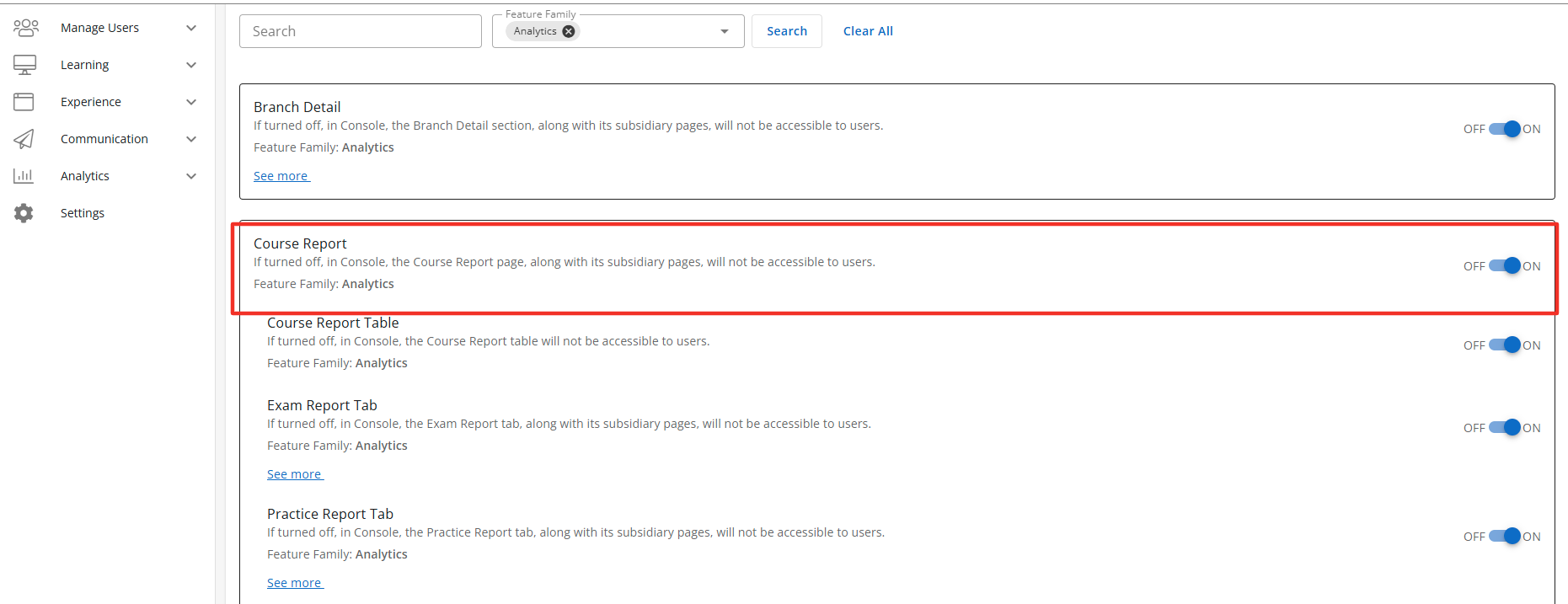
Configuration Level(s): Enabled at the Tenant and Branch level. Configurable by Admins or users with "Update Tenant" permission from Console.
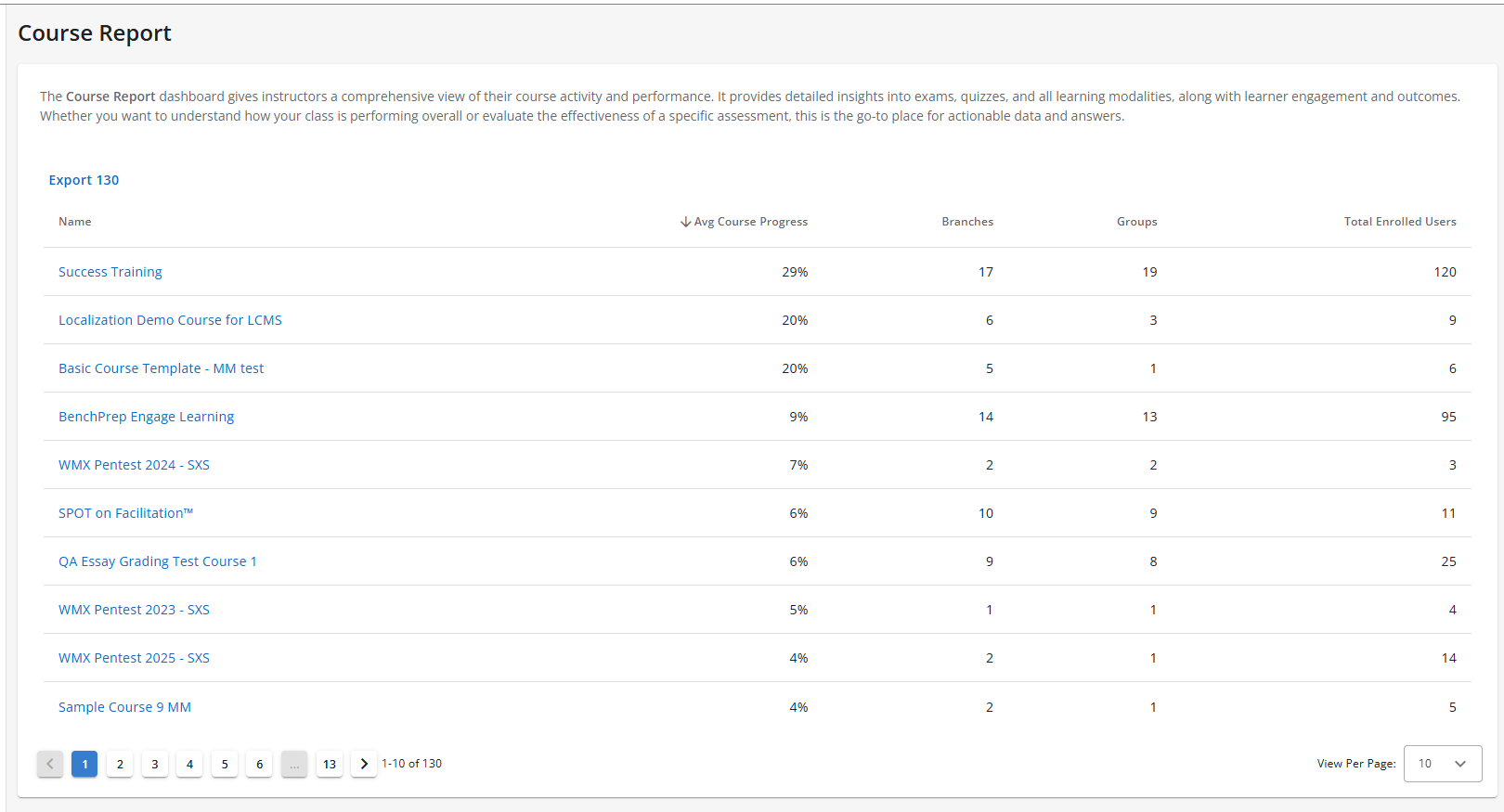
Note: Course Report includes multiple sub-features designed to further personalize BenchPrep Analytics in Console.
Course Report Table
Description: The Course Report Table is a sub-feature of the Course Report feature. When enabled the Course Report section will display the Course Report Table. The Course Report Table displays the Course name, Avg. Course Progress for all learners, total number of branches and groups in the course, and the total number of enrolled users in the course. The Course Report is accessible to users with the correct access context. Default State: ON
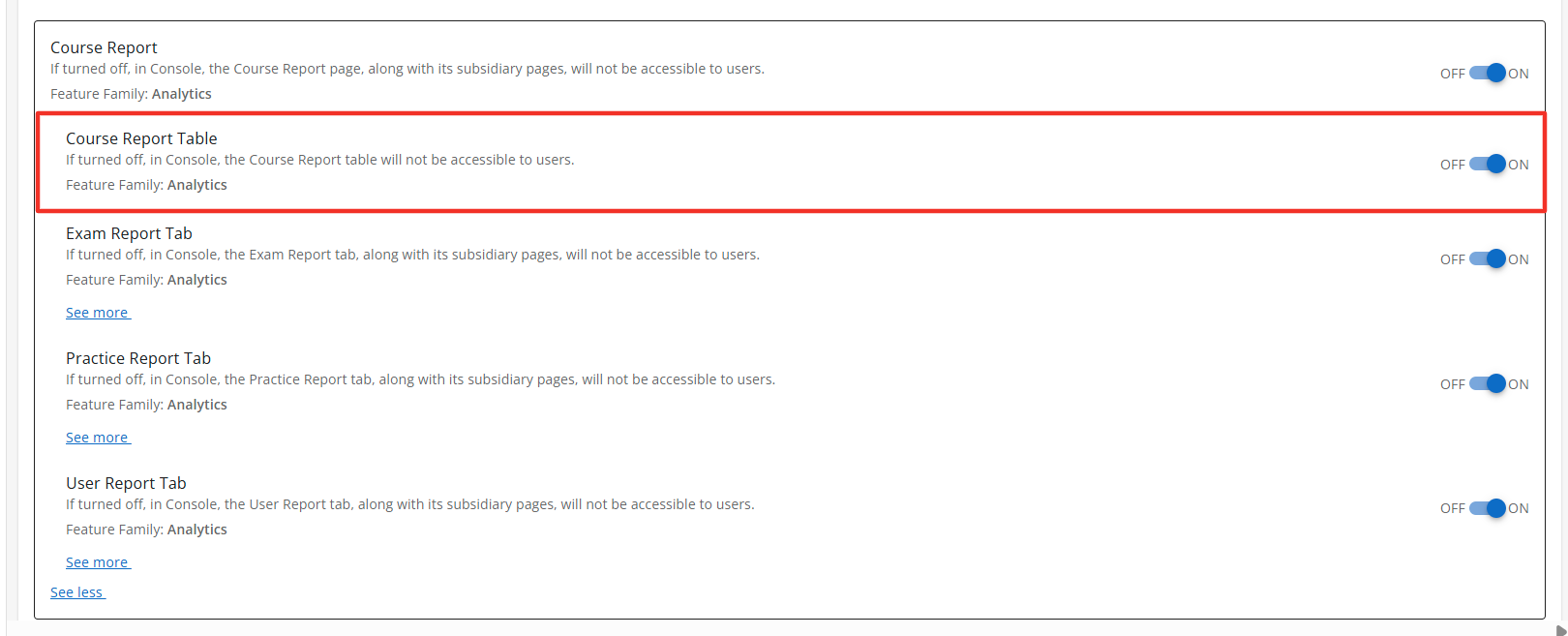
Configuration Level(s): Enabled at the Tenant and Branch level. Configurable by Admins or users with "Update Tenant" permission from Console.
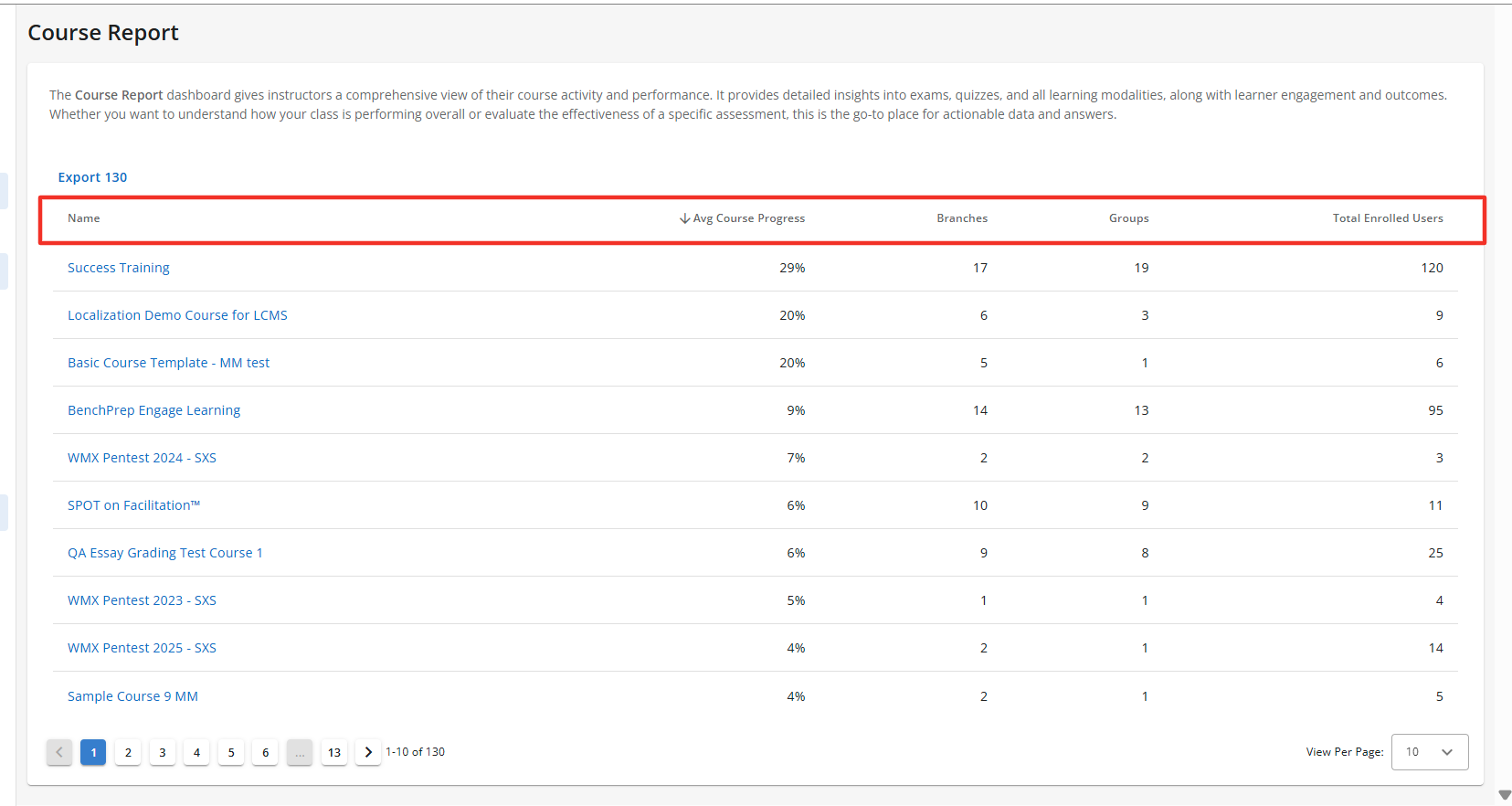
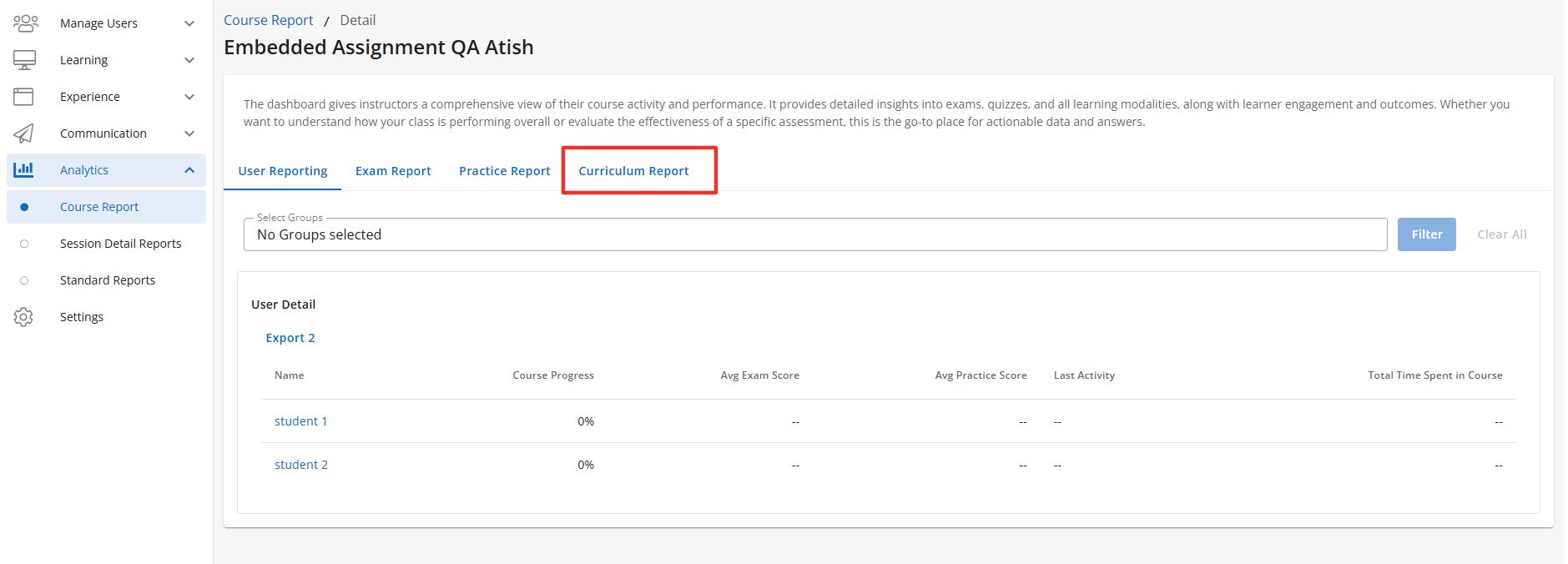
Curriculum Report Tab
Description: The Curriculum Report tab is a sub-feature of the Course Report feature and appears once you have selected a course from the Course Table. When enabled the Course Report section will display the Curriculum Report tab, along with its subsidiary pages when enabled. The Curriculum Report tab is accessible to users with the correct access context. The Curriculum Tab will display multiple data points pertaining to the curriculum assigned to the learners. Each data point is controlled by a set of sub-features of the Curriculum Report tab. Default State: ON
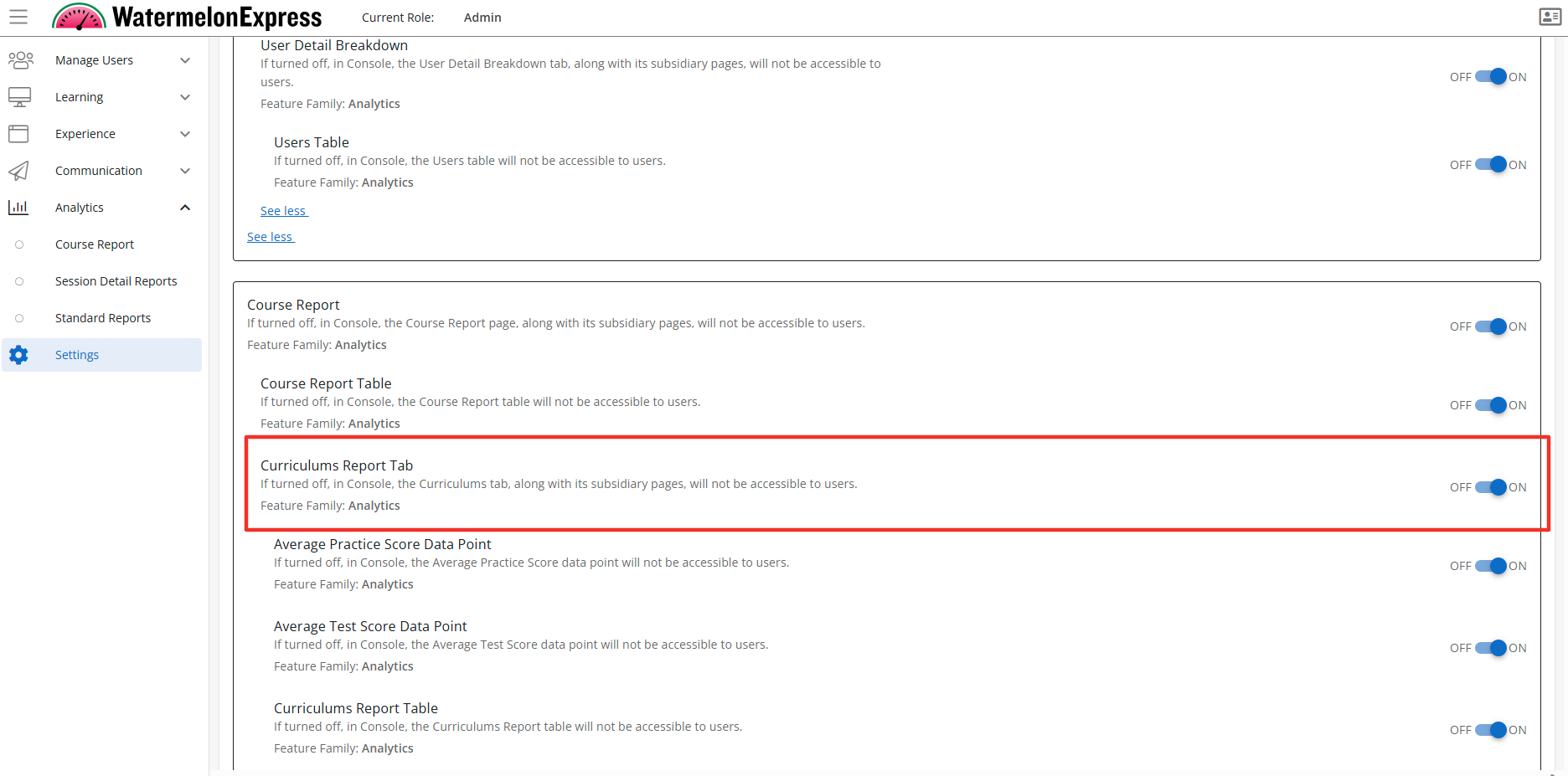
Configuration Level(s): Enabled at the Tenant and Branch level. Configurable by Admins or users with "Update Tenant" permission from Console.
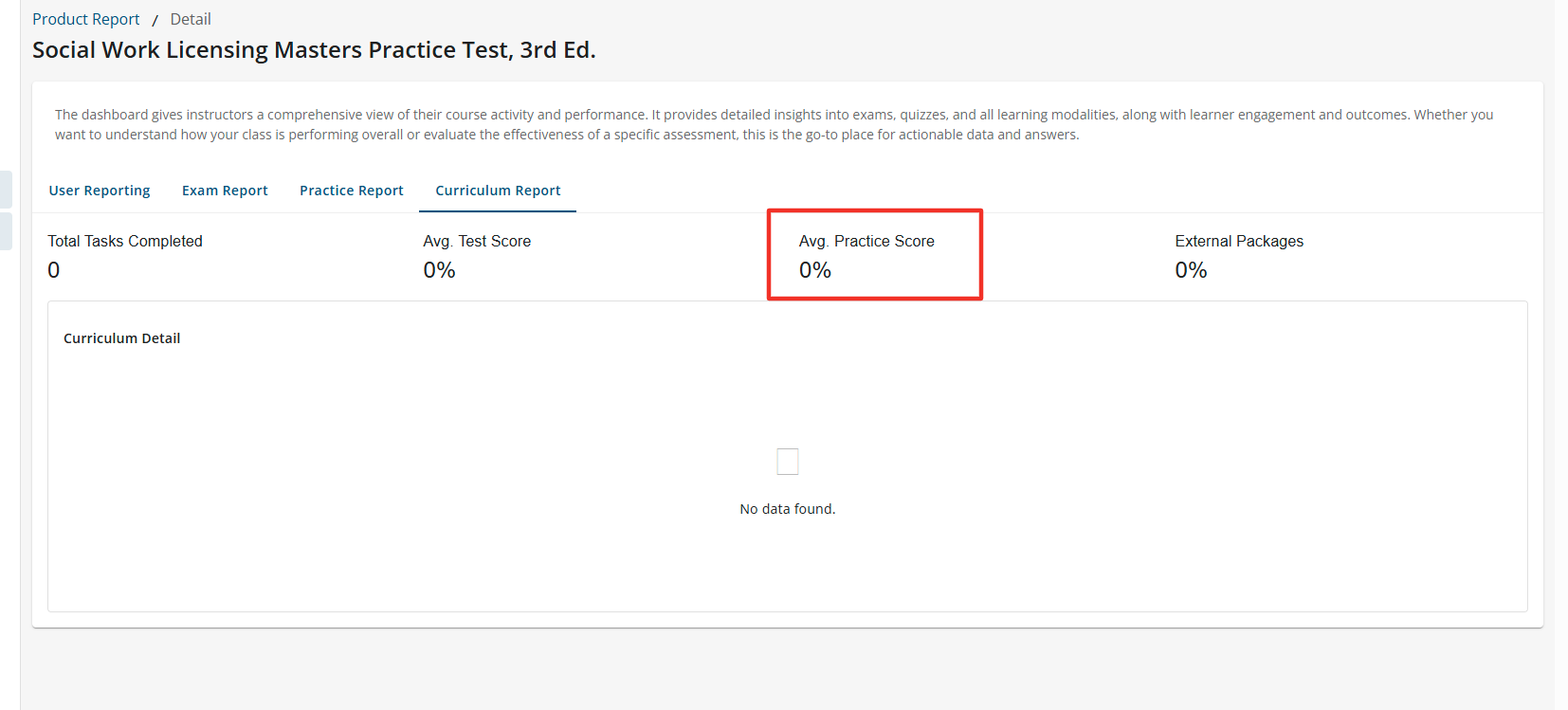
Average Practice Data Point
Description: The Average Practice Data Point is a sub-feature of the Curriculum Tab. When enabled the Average Practice Data Point will display The Avg. Practice Score of all completed practice questions by all learners actively enrolled in the course. The Average Practice Data Point is accessible to users with the correct access context. Default State: ON
Configuration Level(s): Enabled at the Tenant and Branch level. Configurable by Admins or users with "Update Tenant" permission from Console.
Average Test Score Data Point
Description: The Average Test Score Data Point is a sub-feature of the Curriculum feature. When enabled the Average Test Score Data Point will display The Avg. Test Score of all completed exams the learner completed within the Curriculum. The Average Test Score Data Point is accessible to users with the correct access context. Default State: ON
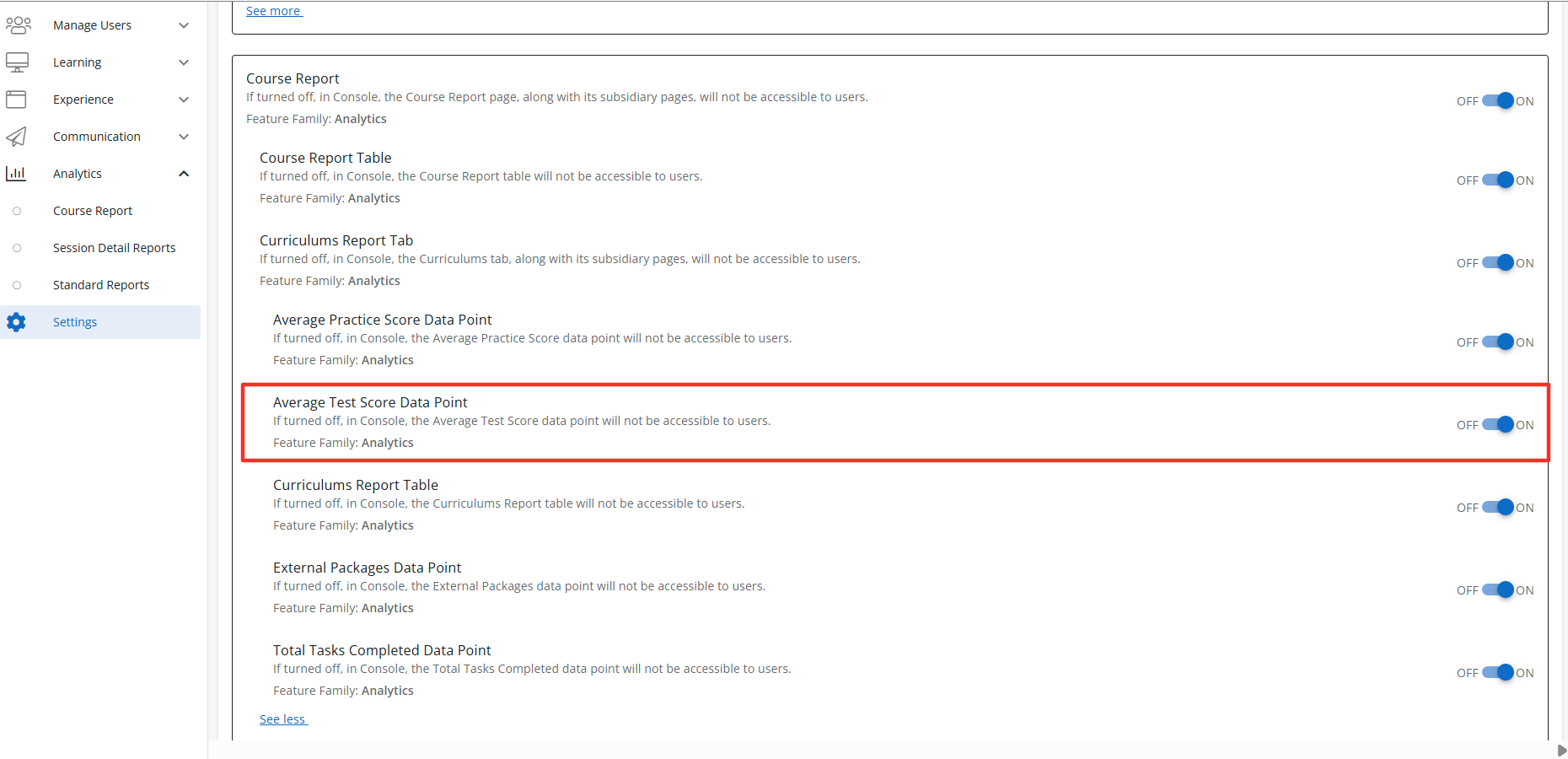
Configuration Level(s): Enabled at the Tenant and Branch level. Configurable by Admins or users with "Update Tenant" permission from Console.
Total Tasks Completed
Description: The Total Tasks Completed is a sub-feature of the Curriculum feature. When enabled the Total Tasks Completed will display the total number of task completed within the Curriculum by all learners actively enrolled in the course. The Total Tasks Completed is accessible to users with the correct access context. Default State: ON
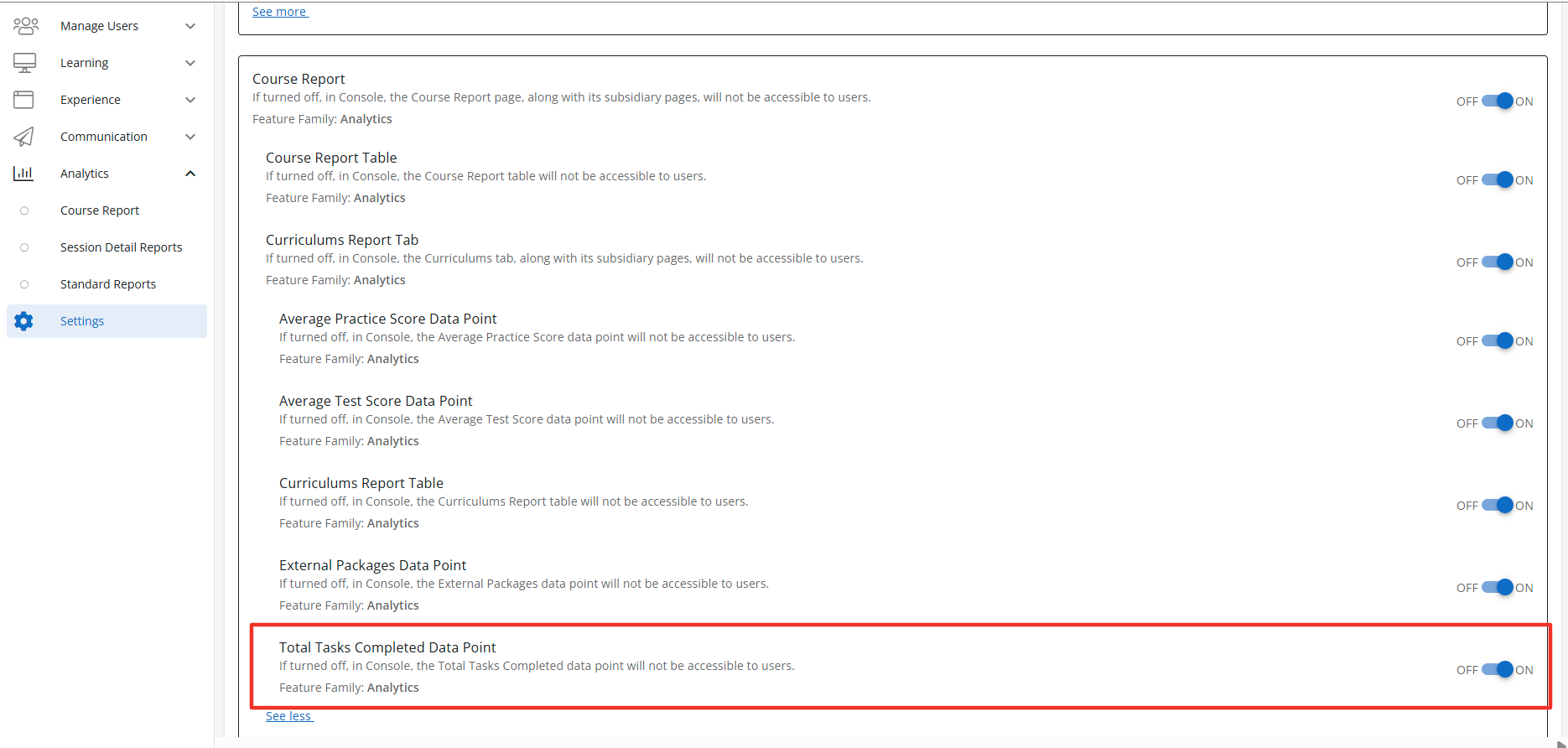
Configuration Level(s): Enabled at the Tenant and Branch level. Configurable by Admins or users with "Update Tenant" permission from Console.
External Packages Data Point
Description: The External Packages Data Point tab is a sub-feature of the Curriculum feature. When enabled the External Packages Data Point section will display the total number of completed external packages by all learners actively enrolled in the course. The External Packages Data Point is accessible to users with the correct access context. Default State: ON
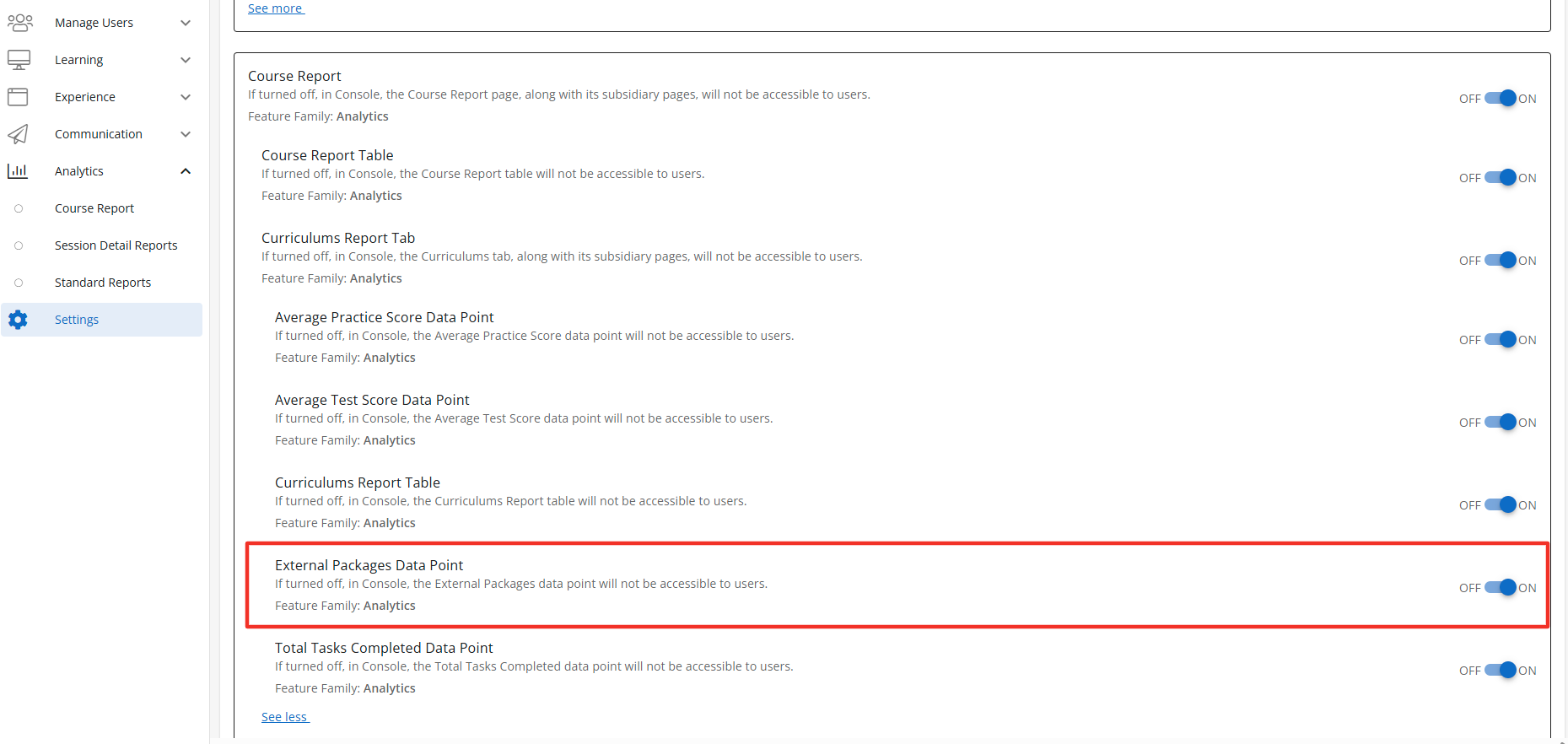
Configuration Level(s): Enabled at the Tenant and Branch level. Configurable by Admins or users with "Update Tenant" permission from Console.
Curriculum Report Table
Description: The Curriculum Report Table is a sub-feature of the Curriculum. When enabled the Curriculum Report Table will display the progress, task type, score, time spent, and date completed. The Curriculum Report Table is accessible to users with the correct access context. Default State: ON
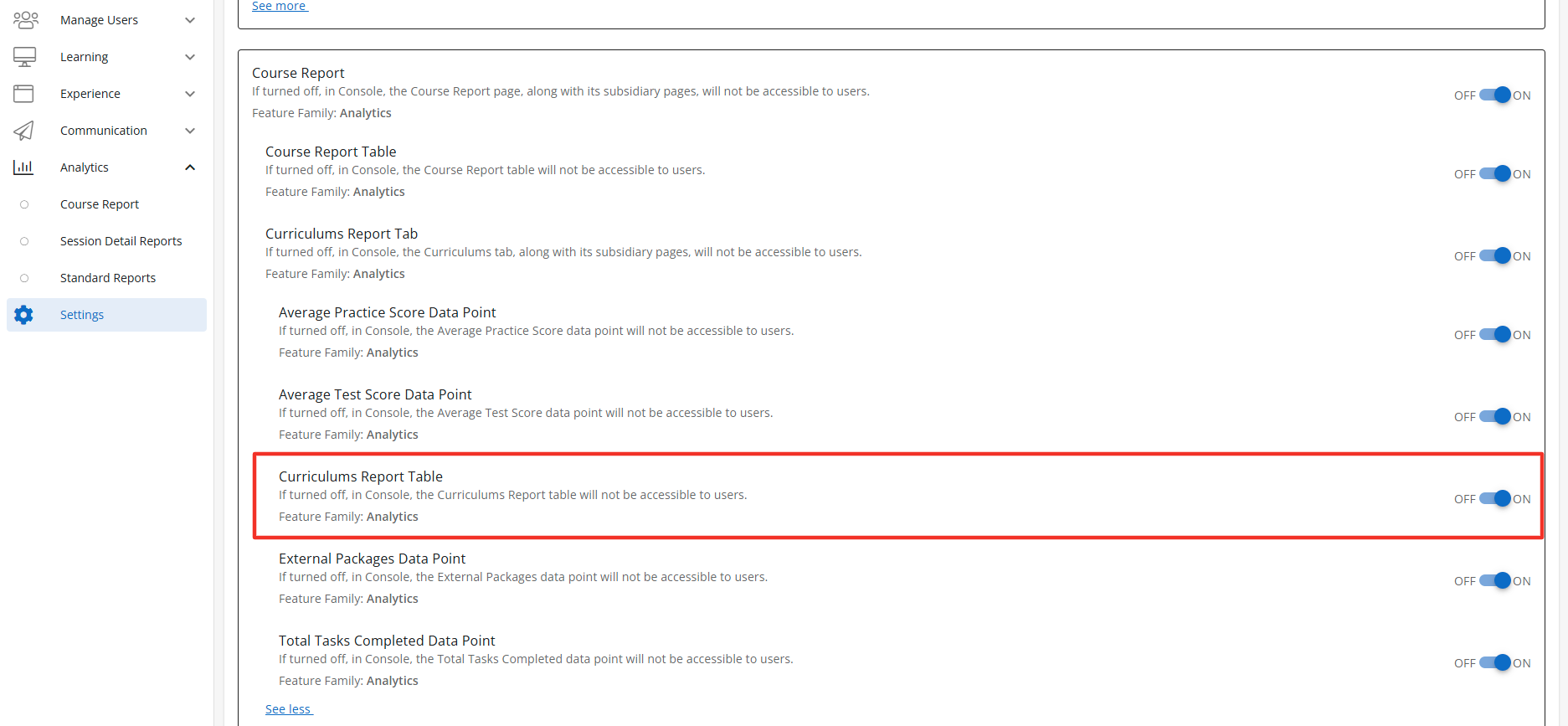
Configuration Level(s): Enabled at the Tenant and Branch level. Configurable by Admins or users with "Update Tenant" permission from Console.
Exam Report Tab
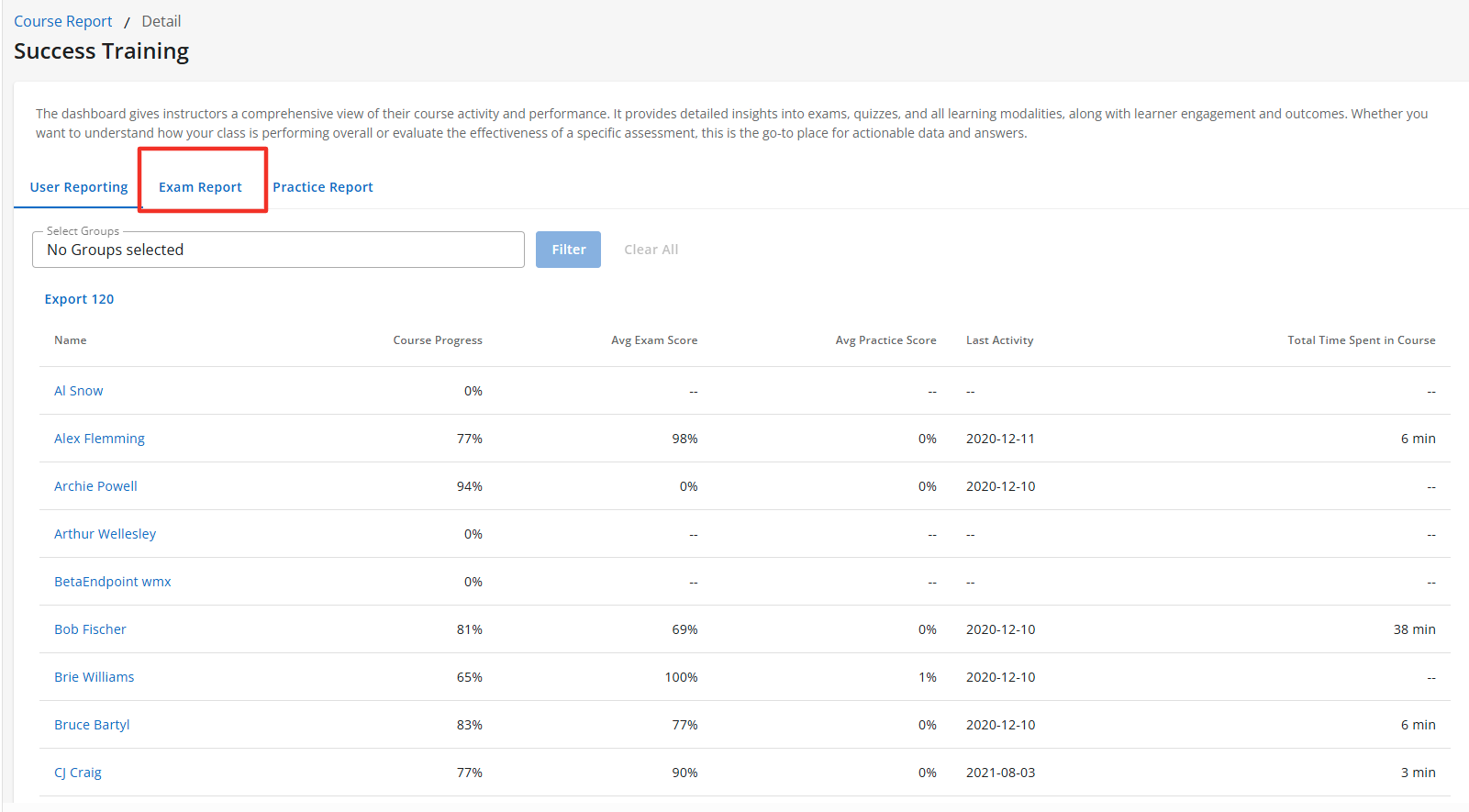
Description: The Exam Report Tab is a sub-feature of the Course Report feature. When enabled the Course Report section will display the Exam Report Tab. The Exam Report Tab is accessible to users with the correct access context. Once you have selected a course to view the Exam tab will display. Default State: ON
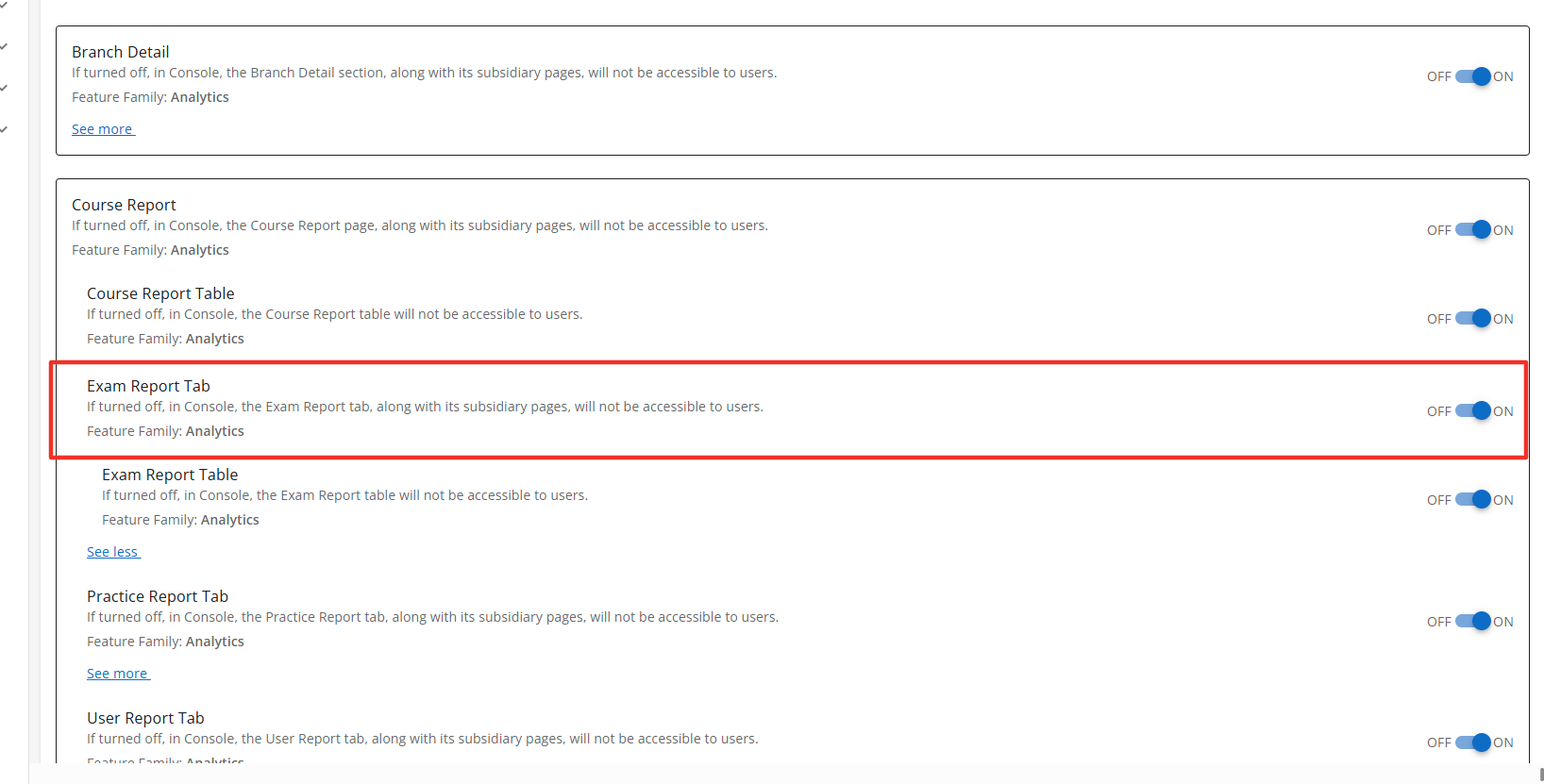
Configuration Level(s): Enabled at the Tenant and Branch level. Configurable by Admins or users with "Update Tenant" permission from Console.
Exam Report Table
Description: The Exam Reports Table is a sub-feature of the Exam Reports Tab. When enabled the Exam Reports Tab section will display the Exam Report Table to users with the correct access context. The Exam Report Table displays a list of all users in the course and multiple data points across the course for each learner. Default State: ON
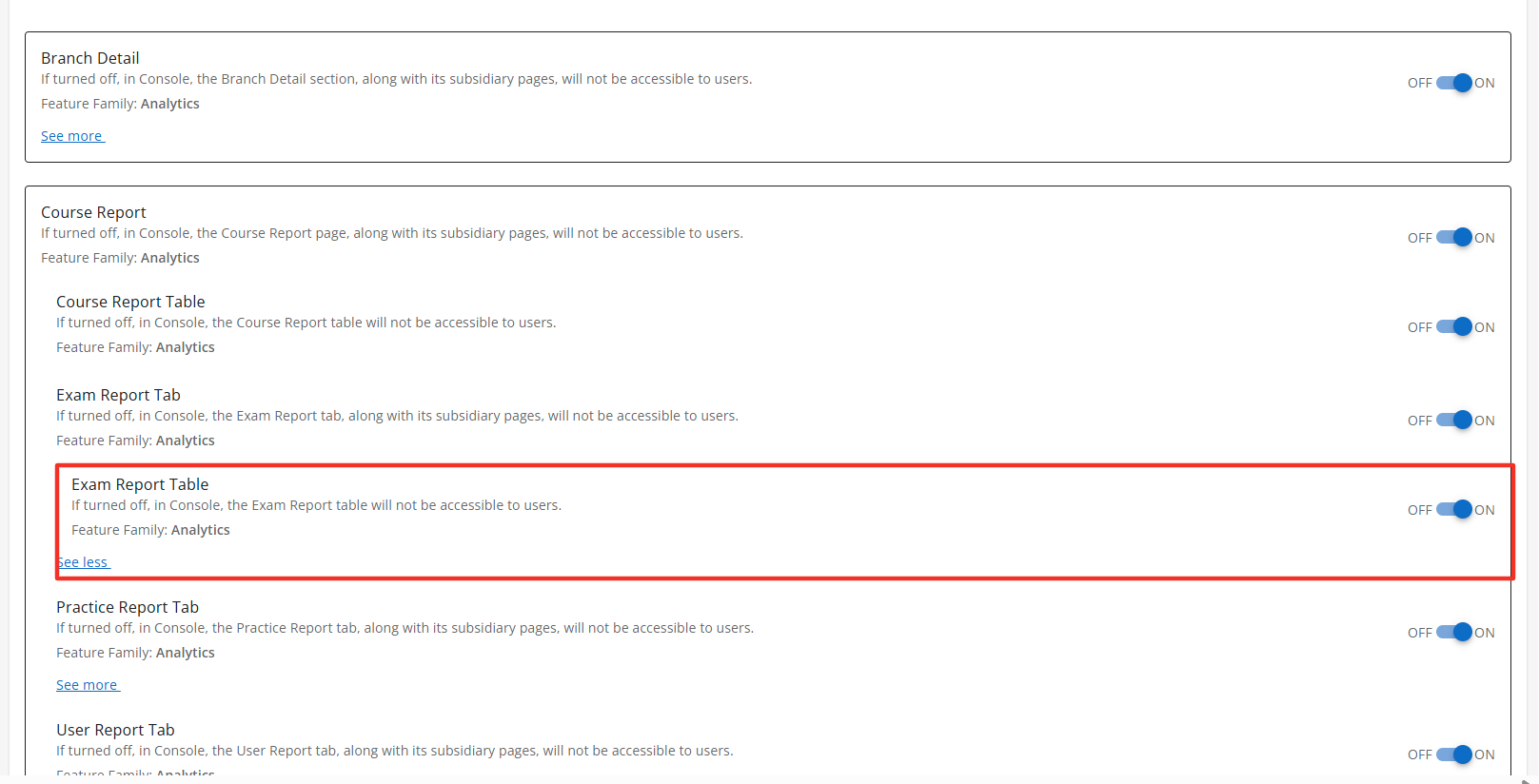
Configuration Level(s): Enabled at the Tenant and Branch level. Configurable by Admins or users with "Update Tenant" permission from Console.

Incorrect by Category Widget
Description: The Incorrect by Category is a sub-feature of the Exam Report tab. When enabled the Exam Report section will display the Incorrect by Category widget. The Incorrect by Category is accessible to users with the correct access context. Default State: OFF
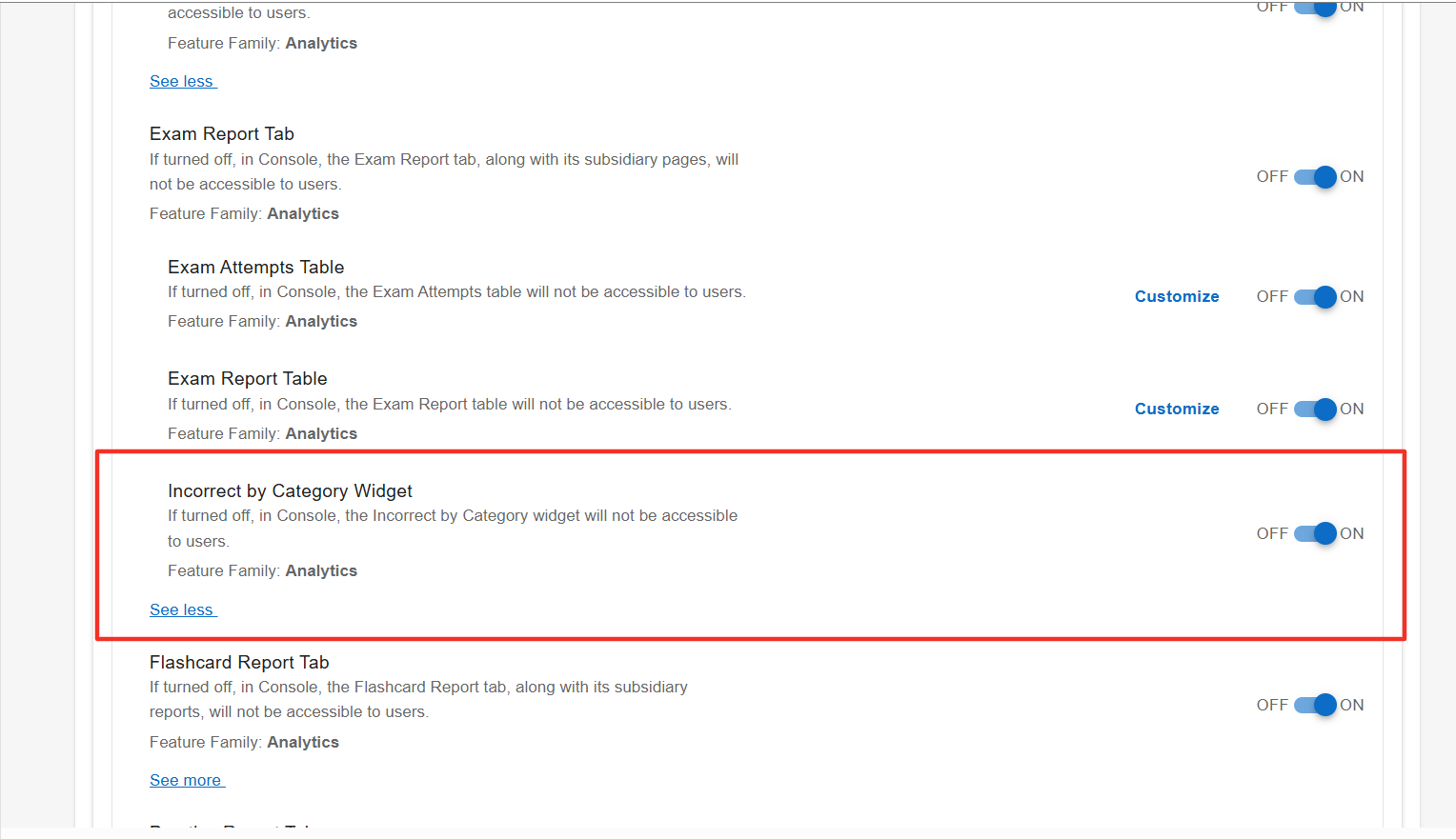
Configuration Level(s): Enabled at the Tenant and Branch level. Configurable by Admins or users with "Update Tenant" permission from Console.
Practice Report Tab
Description: The Practice Report Tab is a sub-feature of the Course Report feature. When enabled the Course Report section will display the Practice Report Tab. The Practice Tab will display the Practice Report Table when enabled. The Practice Report Tab is accessible to users with the correct access context. Default State: OFF
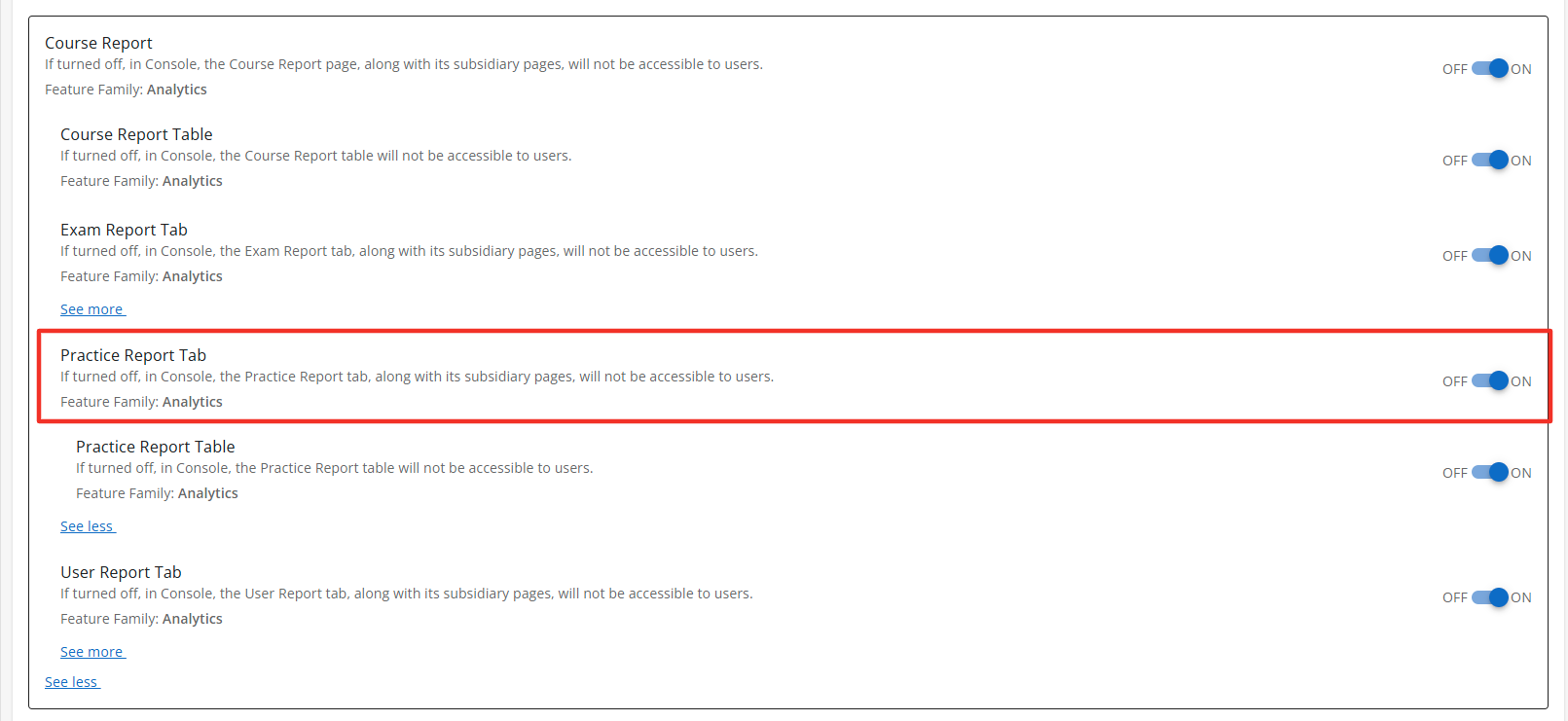
Configuration Level(s): Enabled at the Tenant and Branch level. Configurable by Admins or users with "Update Tenant" permission from Console.
Practice Report Table
Description: The Practice Report Tab is a sub-feature of the Course Report feature. When enabled the Course Report section will display the Practice Report Tab. The Practice Report Tab is accessible to users with the correct access context. Default State: ON
Configuration Level(s): Enabled at the Tenant and Branch level. Configurable by Admins or users with "Update Tenant" permission from Console.
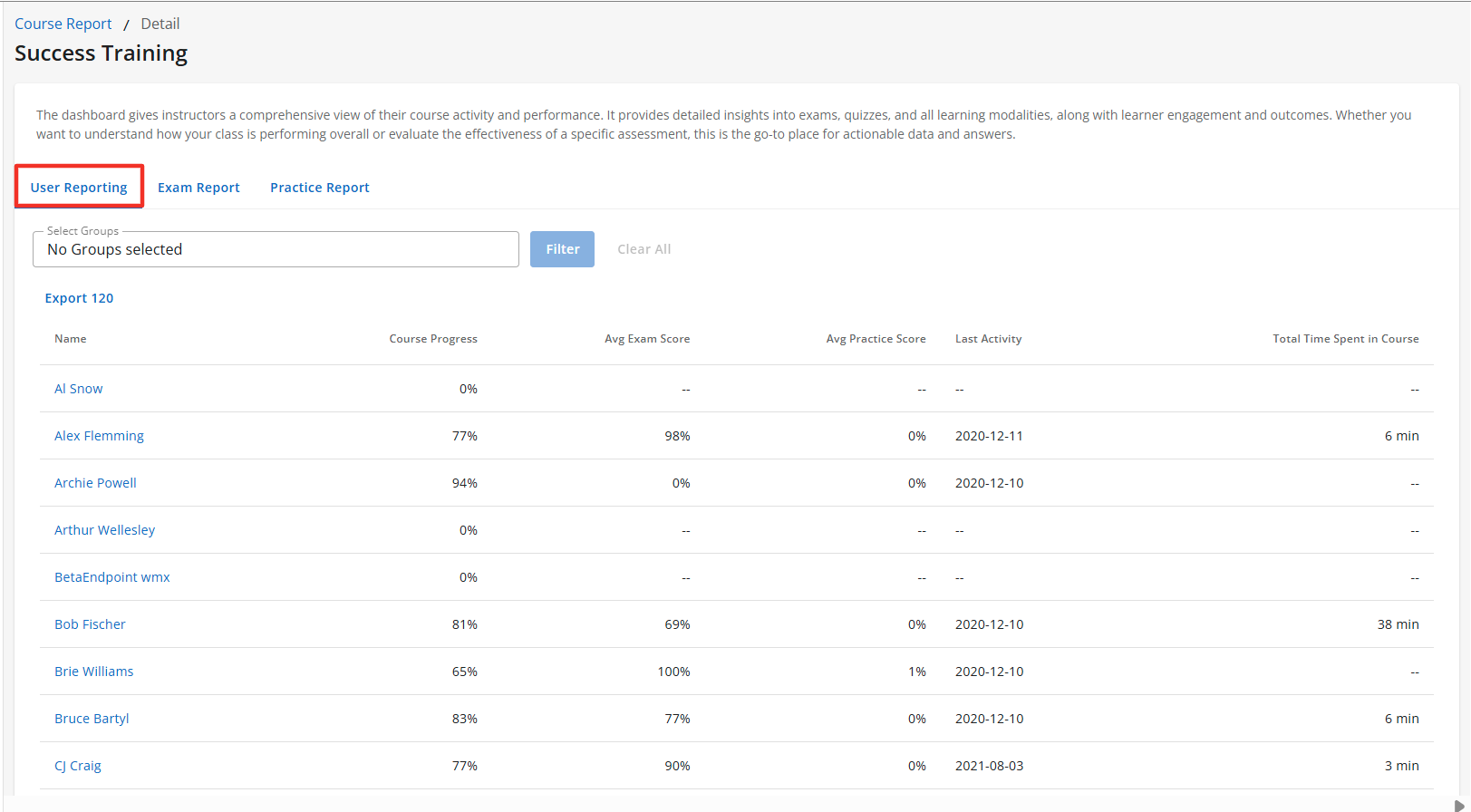
Users Report Tab
Description: The User Reports Tab is a sub-feature of the Course Report feature. When enabled the Course Report section will display the User Report Tab. The User Tab will display the User Table when it is enabled. The User Report Tab is accessible to users with the correct access context. Default State: ON
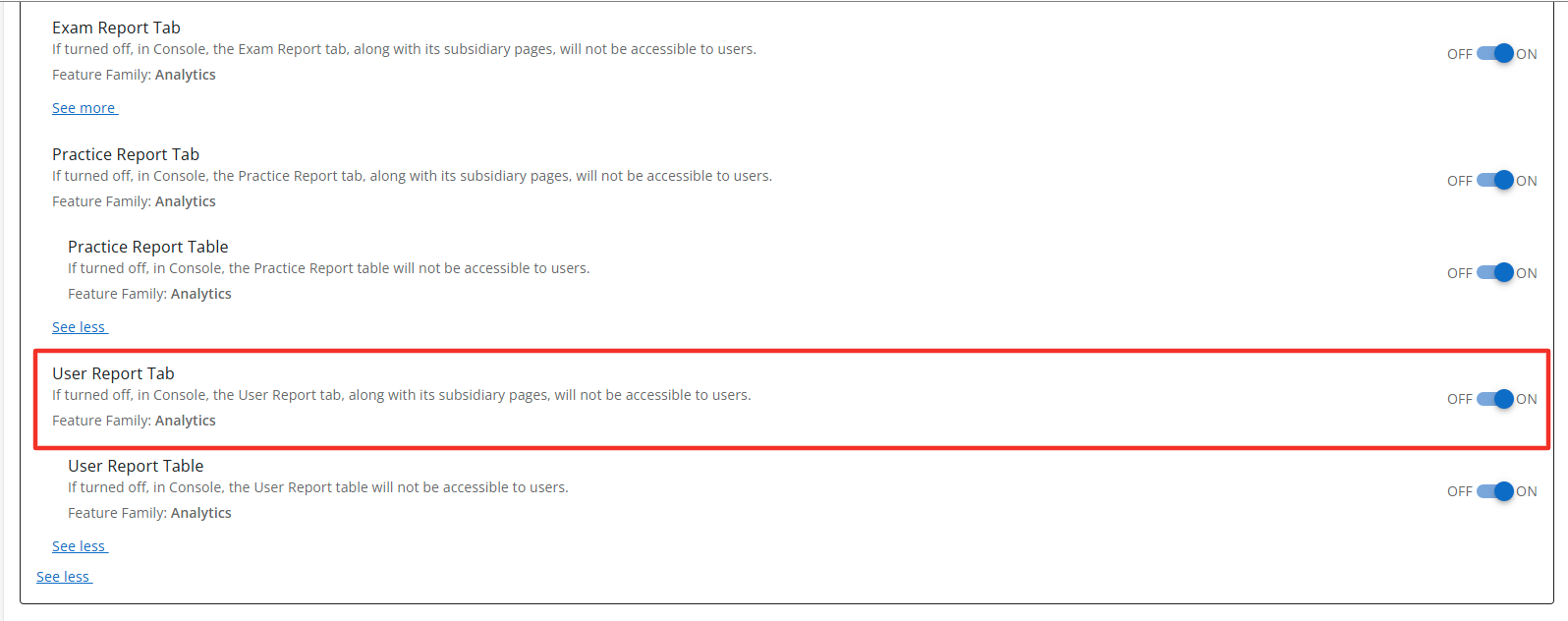
Configuration Level(s): Enabled at the Tenant and Branch level. Configurable by Admins or users with "Update Tenant" permission from Console.
Enrollment Data Points
Description: The Enrollment Data Points is a sub-feature of the User Report Tab. When enabled the Enrollment Data Points section will display an overview of multiple data points for learners. The data points displayed can also be customized to only display specific data points. Default State: ON

Configuration Level(s): Enabled at the Tenant and Branch level. Configurable by Admins or users with "Update Tenant" permission from Console.

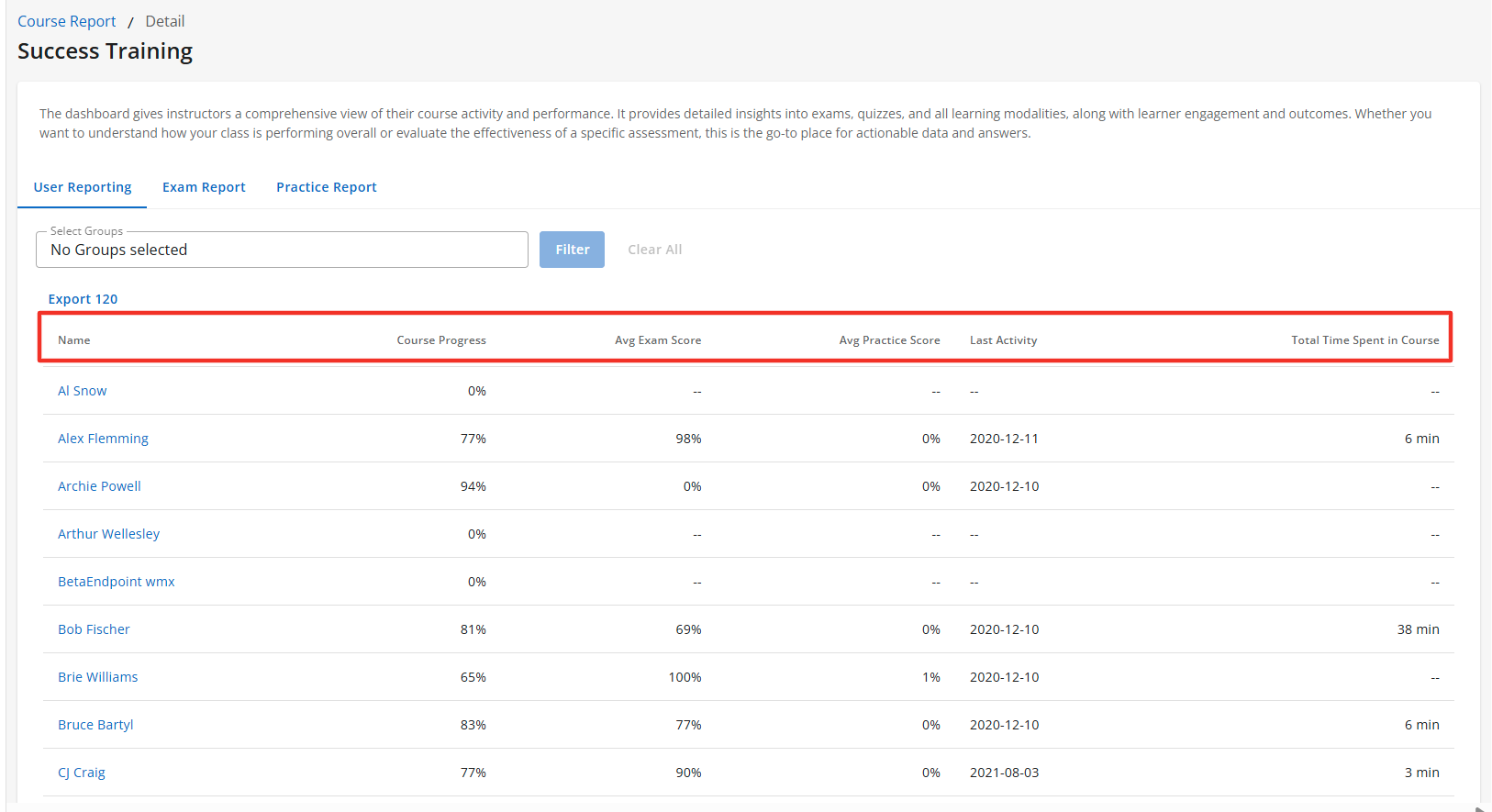
Users Report Table
Description: The User Report Table is a sub-feature of the User Report Tab. When enabled the User Reports Tab section will display the User Report Table to users with the correct access context. The User Report Table displays the name of all active users within the course. The table also displays multiple data points across the course for each learner. Default State: ON
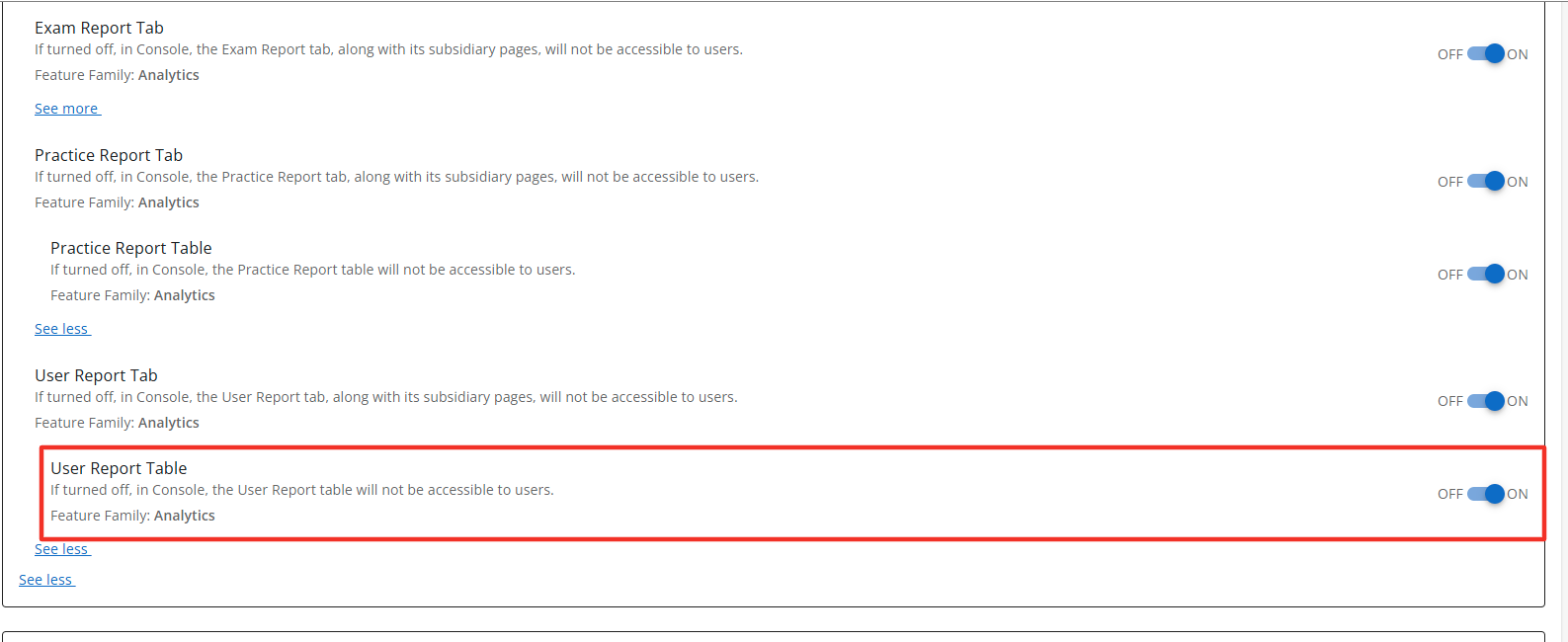
Configuration Level(s): Enabled at the Tenant and Branch level. Configurable by Admins or users with "Update Tenant" permission from Console.
Course Practice Sessions
Description: The Course Report Sessions will display the practice sessions for each learner in the selected course across the filtered time. Default State: OFF

Configuration Level(s): Enabled at the Tenant and Branch level. Configurable by Admins or users with "Read AI Analytics" and "Read Content Package" permission from Console.

AI Usage Report
Description: The AI Usage Report provides a comprehensive overview of how the AI assistant is being utilized and received. This report tracks key engagement and feedback metrics—including day-by-day activity, number of unique users, total conversations, message volume, and user sentiment through likes and dislikes—enabling monitoring of performance, identification of trends, and data-driven improvements to the AI experience. Default State: OFF

Configuration Level(s): Enabled at the Tenant and Branch level. Configurable by Admins or users with "Read AI Analytics" and "Read Content Package" permission from Console.

AI Usage Report Table
Description: The AI Usage Report Table tracks key engagement and feedback metrics—including day-by-day activity, number of unique users, total conversations, message volume, and user sentiment through likes and dislikes—enabling monitoring of performance, identification of trends, and data-driven improvements to the AI experience. Default State: OFF

Configuration Level(s): Enabled at the Tenant and Branch level. Configurable by Admins or users with "Read AI Analytics" and "Read Content Package" permission from Console.

AI Usage Report - Total Dislikes Data Point
Description: The AI Usage Report - Total Dislikes Data Point tracks the total dislikes the responses receive. Default State: OFF

Configuration Level(s): Enabled at the Tenant and Branch level. Configurable by Admins or users with "Read AI Analytics" and "Read Content Package" permission from Console.

AI Usage Report - Total Likes Data Point
Description: The AI Usage Report - Total Likes Data Point tracks the total likes the responses receive. Default State: OFF

Configuration Level(s): Enabled at the Tenant and Branch level. Configurable by Admins or users with "Read AI Analytics" and "Read Content Package" permission from Console.

AI Usage Report - Total Messages Data Point
Description: The AI Usage Report - Total Messages Data Point tracks the total messages the learner sent. Default State: OFF

Configuration Level(s): Enabled at the Tenant and Branch level. Configurable by Admins or users with "Read AI Analytics" and "Read Content Package" permission from Console.

AI Usage Report - Total Unique Users Data Point
Description: The AI Usage Report - Total Unique Data Point tracks the total of unique learners that engaged with the AI. Default State: OFF

Configuration Level(s): Enabled at the Tenant and Branch level. Configurable by Admins or users with "Read AI Analytics" and "Read Content Package" permission from Console.

Flashcard Report Tab
Description: When enabled the Flashcard Reporting tab, along with its subsidiary features, will be accessible to users with the correct access context. The Flashcard Reporting tab will display the Flashcard data of the learners when enabled. Default State: ON

Configuration Level(s): Enabled at the Tenant and Branch level. Configurable by Admins or users with "Update Tenant" permission from Console.

Flashcard Confidence Chart
Description: When enabled the Flashcard Confidence Chart, along with its subsidiary features, will be accessible to users with the correct access context. The Flashcard Confidence Chart will display the Flashcard Confidence levels of the learners when enabled. Default State: ON

Configuration Level(s): Enabled at the Tenant and Branch level. Configurable by Admins or users with "Update Tenant" permission from Console.

Flashcard Data Points
Description: When enabled the Flashcard Data Points, will be accessible to users with the correct access context. The Flashcard Data Points will display the total number of flashcards in the course and the total number of flashcards reviewed by the leaners. The datapoints displayed can be customized by clicking on the Customize link. Default State: ON


Configuration Level(s): Enabled at the Tenant and Branch level. Configurable by Admins or users with "Update Tenant" permission from Console.


