

Granting Additional Exam Resets to Learners
Last updated: Oct 19, 2026
2973
views

You may want to give an individual learner the opportunity to reset their exam and try again. It's easy to do this in Console, and in this article, we'll show you how.
NOTE: An Admin role or a custom role with Update Enrollments and View Enrollments permissions have access to this functionality.
- Open Console and navigate to the Users page.
- Select your desired User.
- Select Edit beside the "Resets Per Exam" column
- Select the number of resets and click Save.

- If this exam already has unlimited resets with the Allow Exam Resets feature access enabled, the Edit button will not be clickable.
- When a per-exam reset limit is set for the course or branch through the Allow Exam Resets feature access, the Reset All Tests button is hidden from learners. They can use any additional resets you grant by resetting each exam individually.
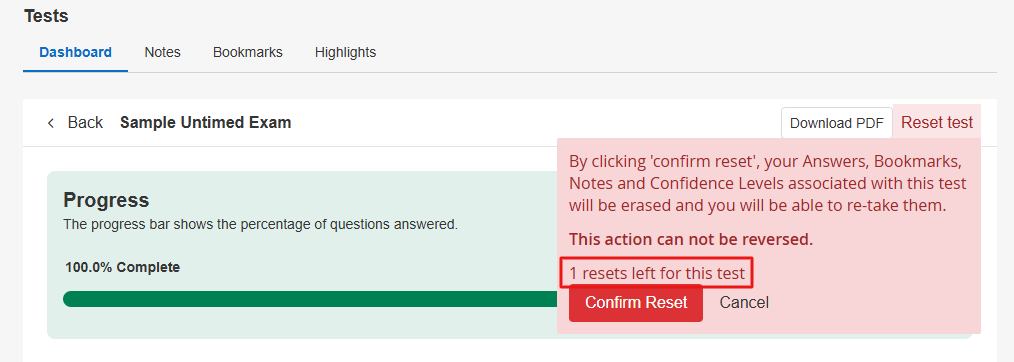
- If limited, the number of resets a user has left appears on each exam. The Reset Test button will not longer display when the user reaches 0 resets.
Find out more about the Allow Exam Resets feature access here.

