


The My Learning page provides an organized and comprehensive view of all of the courses and events your learners are enrolled in or have saved for later.
Learners can easily navigate through different options.
Learning Hub comes with the following default tabs:
- In Progress: courses they have engaged with
- Not Yet Started: courses they are enrolled in, but have not yet begun
- Saved for Later: courses they have saved from the My Learning or Browse pages
- Completed: courses they have completed
- Expired: courses they no longer have access to
- Dashboard: displays courses/content items within default tabs in the following order: In Progress, Completed, Not Yet Started, Expired) as sections on one page providing a more organized view. Note: Saved for later tab is not included within the Dashboard tab.
These tabs, along with any custom pages can be enabled/disabled and reordered based on your organization's needs. Check out Managing My Learning Tabs for more information.
The Search bar within My Learning section allows learners to easily search for content across the following tabs:
- In Progress
- Completed
- Not Yet Started
- Saved for Later
- Expired

Additionally, you can use the Sort By Dropdown on the right-hand side to filter results based on available options.
Using Filters on Browse page
If a Product Catalog has been configured, learners can utilize category Filters to discover content based on a predefined taxonomy. Learn more about BenchPrep's Product Catalog functionality here.
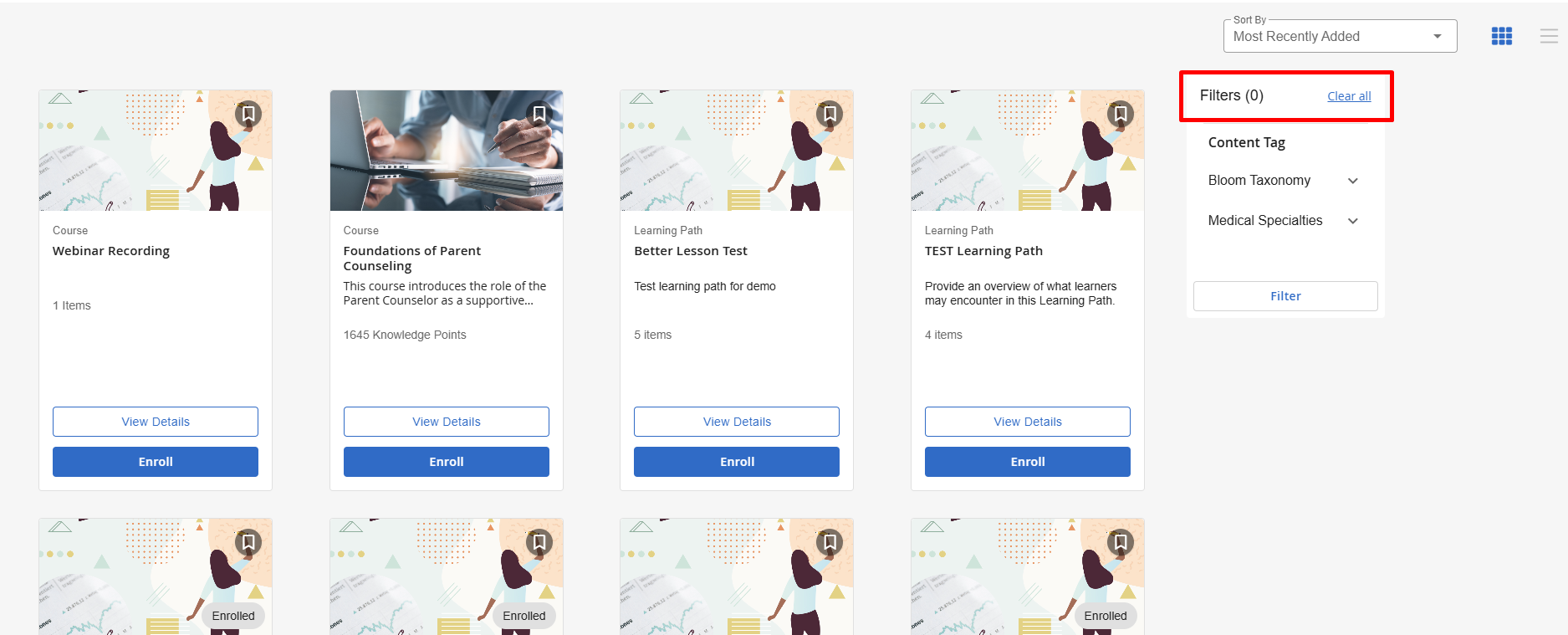
The
Learners can simply select the Launch button to access In Progress, Not Yet Started, Saved for Later or Completed Courses:
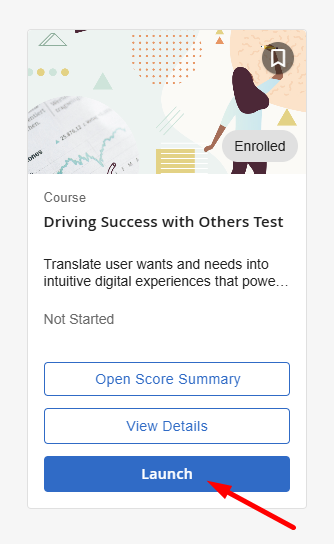
Learners can select View Details to review additional details about the course.
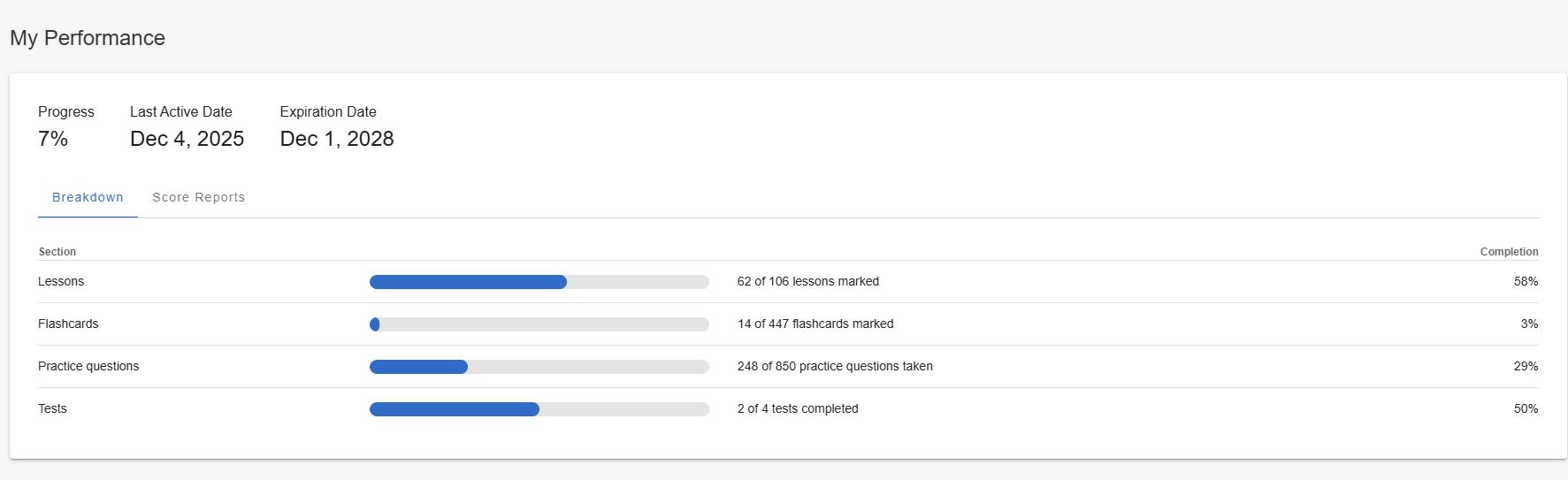
My Performance section displays Course Progress % and Last Active date.
- Course Progress % displayed within Learning Hub is based on the Study Plan progress within the course. If no Study Plan exists within a course, the progress is based on the number of completed pieces of content (ie lessons, questions, non-embedded assets, flashcards) over the total number of pieces of content within the course.
- For courses with premium content, progress calculations only include the premium content if it is unlocked, and the rules vary depending on the course structure. Check out our Premium Content FAQs article for more information.
- NOTE: If you'd prefer to hide the expiration date, the feature access Display Enrollment Expiration Date in Learning Hub can be disabled. More information can be found here.
The Breakdown tab displays details about the learner's progress and activity in the course. Note, embedded assets will not display in the Interactions section of the details page.
The Score Reports tab displays Exam Report and Practice Report sections with additional data:
- Exam Report - appears when "Previous Exam Score Reports" feature access is on. It provides a detailed view of reset exam activity, showing information such as exam name, questions taken, percent correct, time spent, attempt date, and exam state. For exams that support scaled scoring, the report also includes your scaled score and percentile rank.
- Practice Report - appears when "Display Previous Practice Sessions Reports" feature access is on. It shows reset practice activity by category, including completion, percent correct, and average answer times. It displays data for both category and subcategory resets to support tracking progress over time.
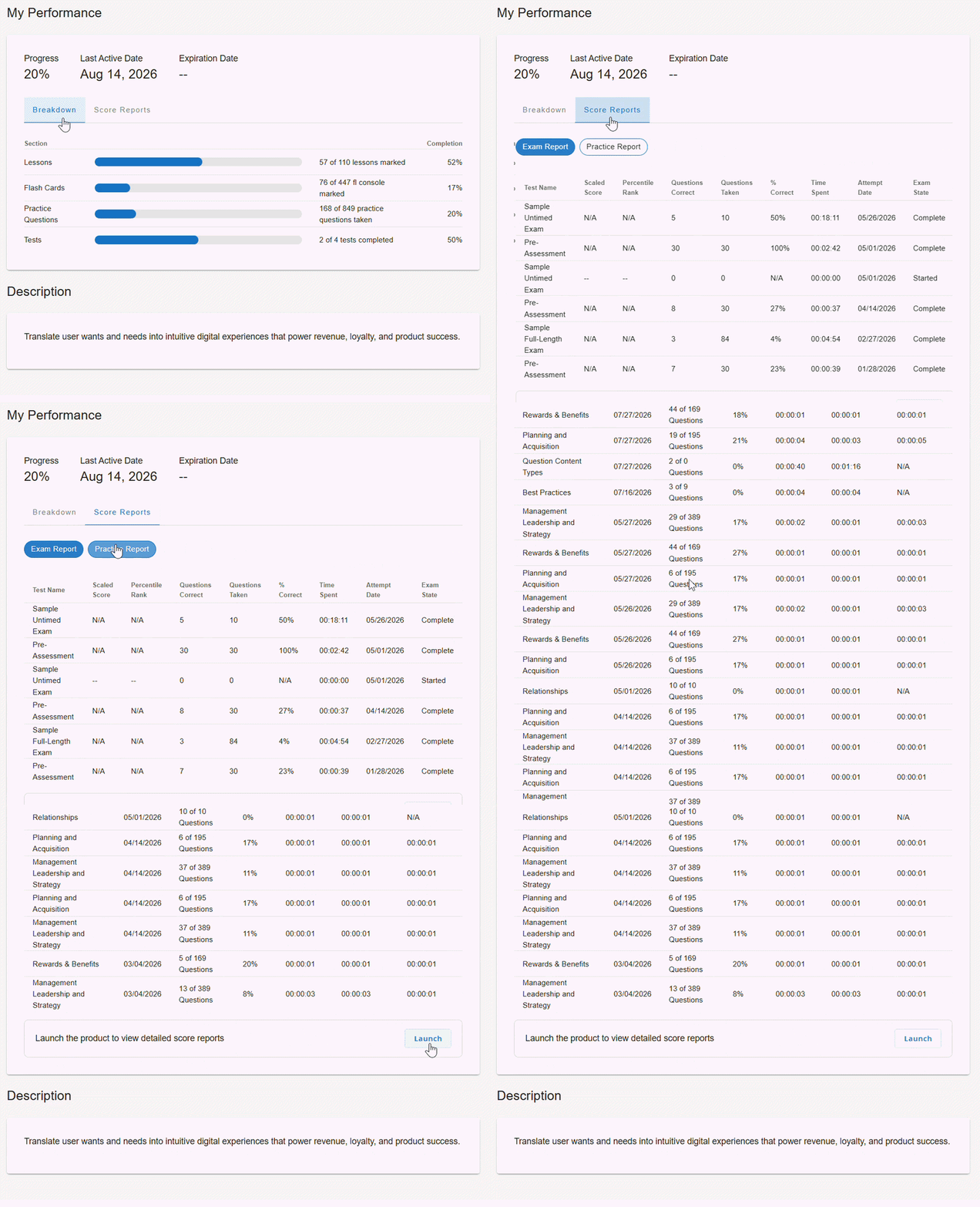
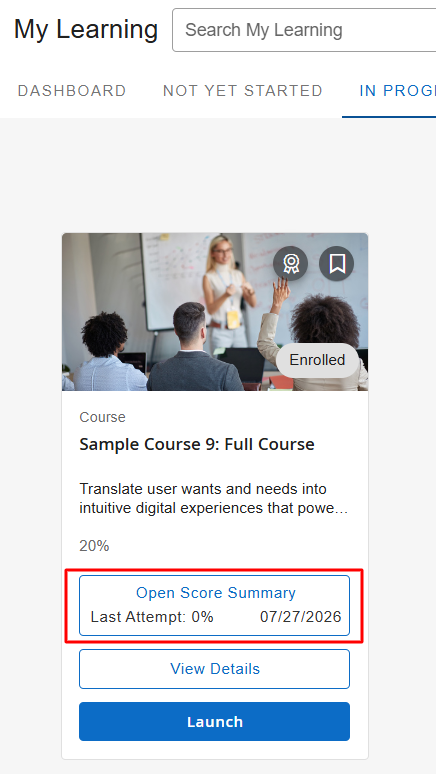
Learners can select Open Score Summary to review additional details. Upon clicking the button a Score Summary pop up displays Exam Report and Practice Report tabs showing additional information. Refer to the Exam Report and Practice Report above to review detailed descriptions of each tab.
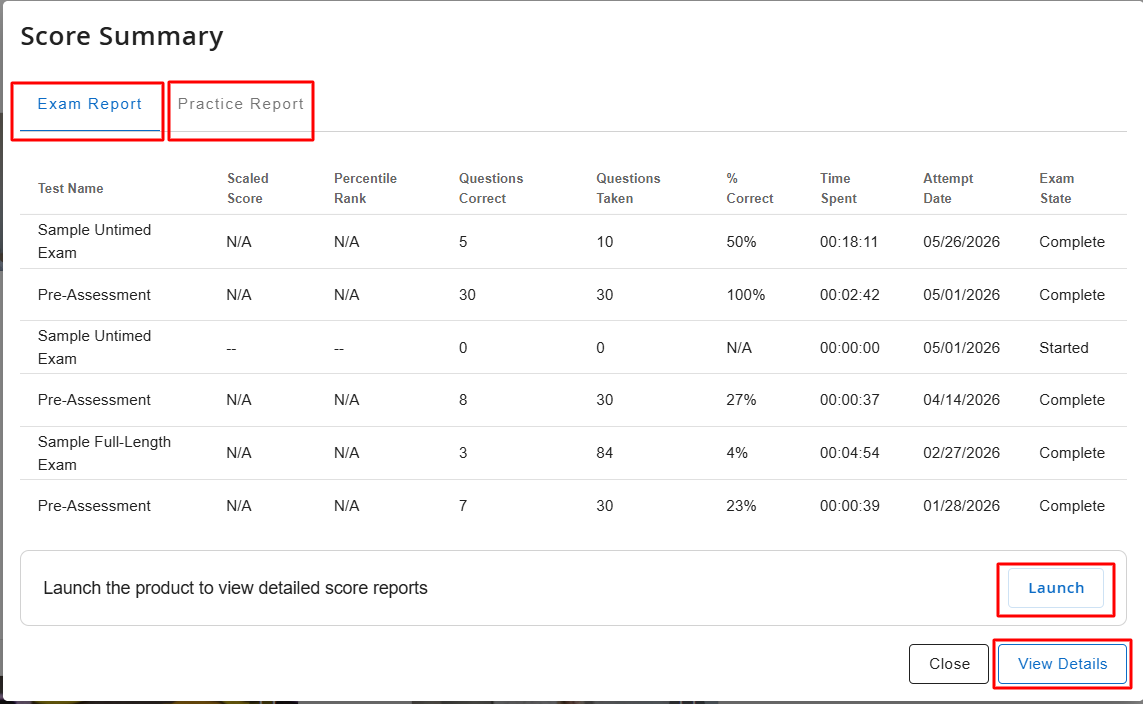
Learners can open a course or view course details when viewing a Score Summary by clicking the Launch or View Details button at the bottom of the modal.
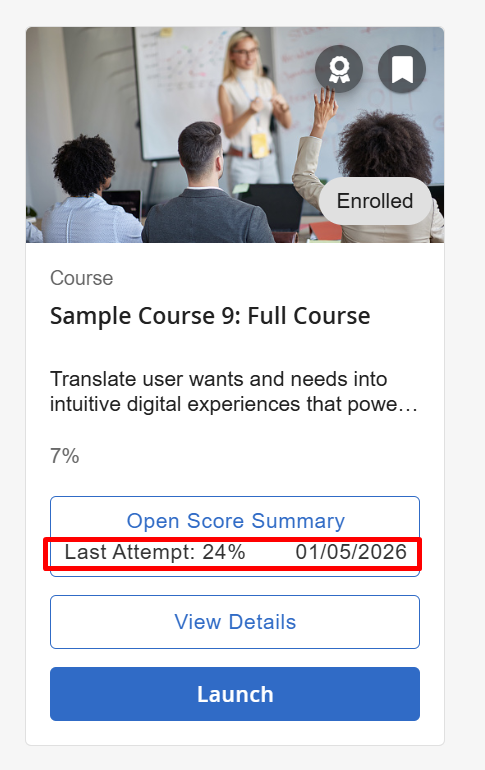
An additional “Last Attempt” data point can be enabled via a BenchPrep-controlled, tenant- and course-level setting (off by default) to surface the learner’s most recent reset Practice or Exam activity, including the last attempt date and score/percent, directly on the Open Score Summary course tile. Contact BenchPrep if you'd like to have it be enabled.
Launching an Asset-Based Course
Asset-Based courses have a View Details button only, to launch learners can select View Details. Next, select Study to launch the asset they would like to access. 
Courses with a Certificate Icon indicate courses that result in a generated certificate upon completion.

Learners can easily bookmark a course from the My Learning or Browse pages by clicking on the Bookmark Icon on the top right-hand corner of the course.


