


The ability to update branch level feature access is limited to Admins or users with "Update Tenant" permission or "Update Branch" permission. The Feature Configuration page is governed separately: it is available to Admins and to users with the "Manage Feature Configurations" permission, and does not require "Update Tenant" or "Update Branch". If you don't hold the permission that covers a page, that page won't be visible to you at all in Console.
Managing Branch Feature Access
To manage Branch level feature access follow these steps:
- Open Console and go to the Branches section.

- Select the branch you’d like to work with.
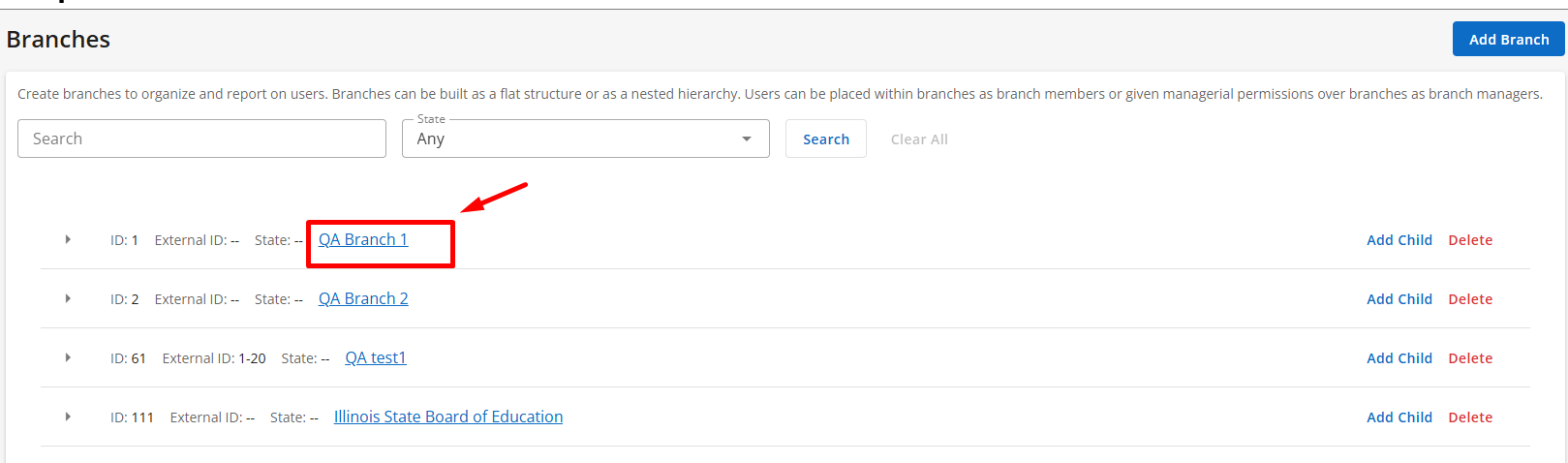
- On the next page, select the Settings button.

- Select Feature Access.
-
Features are organized by feature families, groups of related features. You can expand or collapse individual categories to find related feature access.
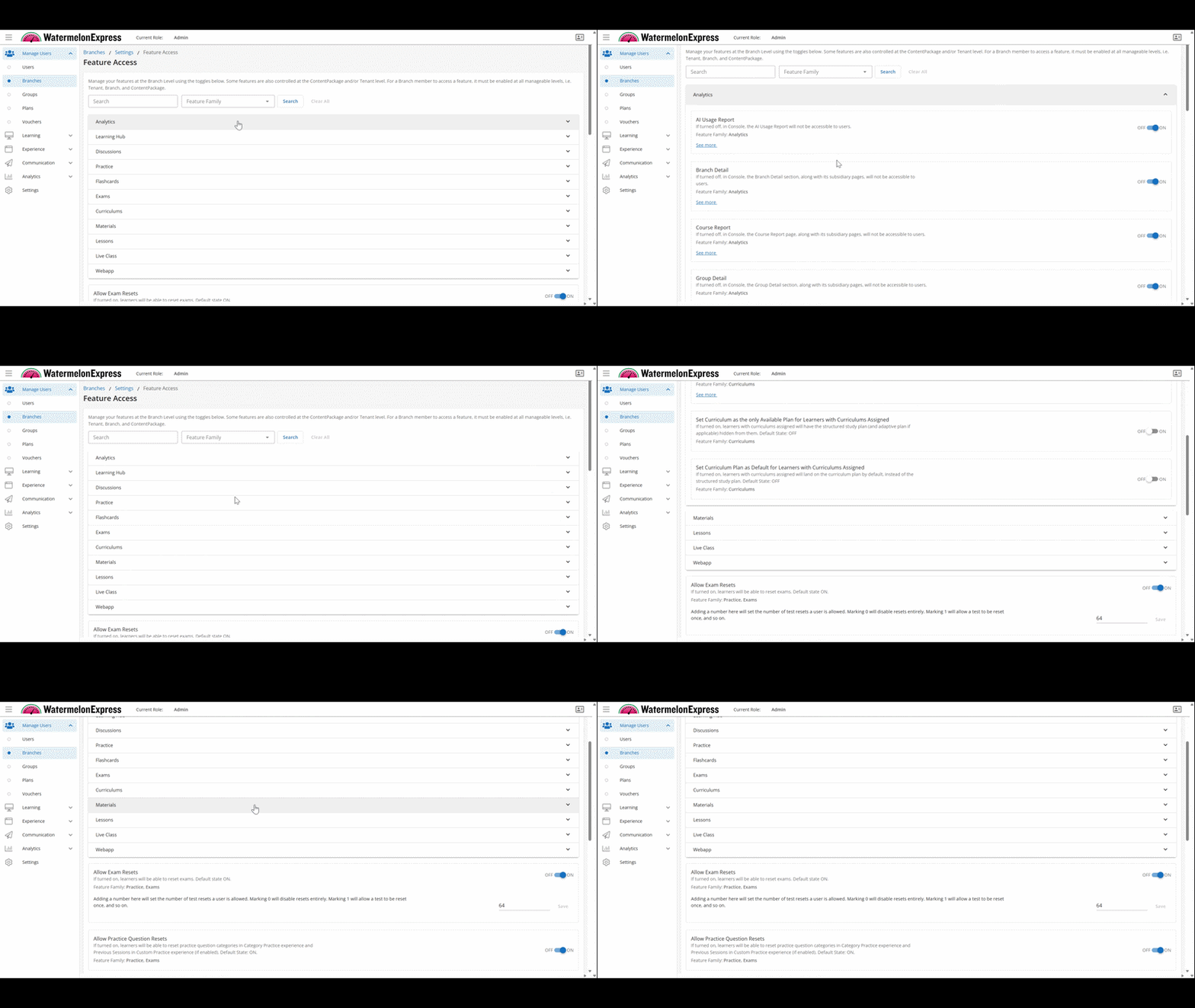
Use the search bar to find specific features quickly. Enter a keyword, then select Search to run the search and locate the feature in question.
Use the Feature Family filter to find all features related to a specific area of the course or platform (lessons, flashcards, etc). Select the name of every feature family you'd like to include in the filter, then select Search.
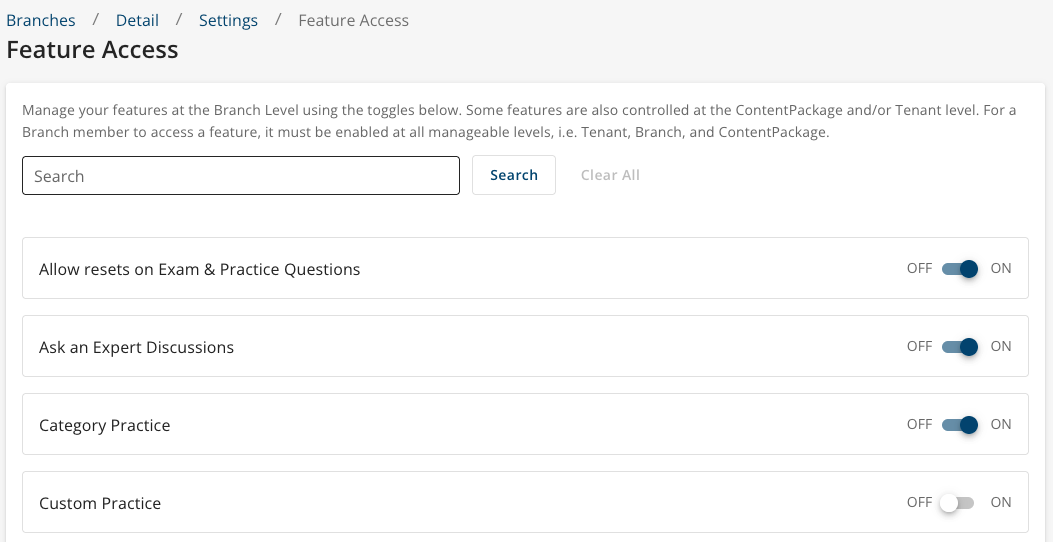
- Toggle each feature ON or OFF according to your preferences for this branch.
Within the branching hierarchy, branch level features depend on branch level defaults. If default for a branch level feature is OFF, the feature would have to be turned ON at the desired branch level, all levels above as well as tenant and content package levels (if applicable) in order for it to be ON at your branch. If default of a branch level feature is ON, turning it OFF at a branch level will cascade the feature access state down, the feature access will be considered as OFF at all levels below. NOTE: The ON/OFF toggle might not always reflect the state of the feature access. As a good rule of thumb, remember to check a feature access state at a branch level above your branch, all the way to root branch, to determine a state of the feature access.
Managing Branch Feature Configurations
The Feature Configuration page is currently used specifically to manage Allow Exam Resets at the branch level. This is currently the only feature available on the Feature Configuration page. From this page, you can turn Allow Exam Resets ON or OFF and set the number of exam resets a user is allowed.
To manage the Exam Reset configuration at the Branch level, follow these steps:
- Open Console and go to the Branches section.
- Select the branch you’d like to work with.
- On the next page, select the Settings button.
- Select Feature Configuration.
-
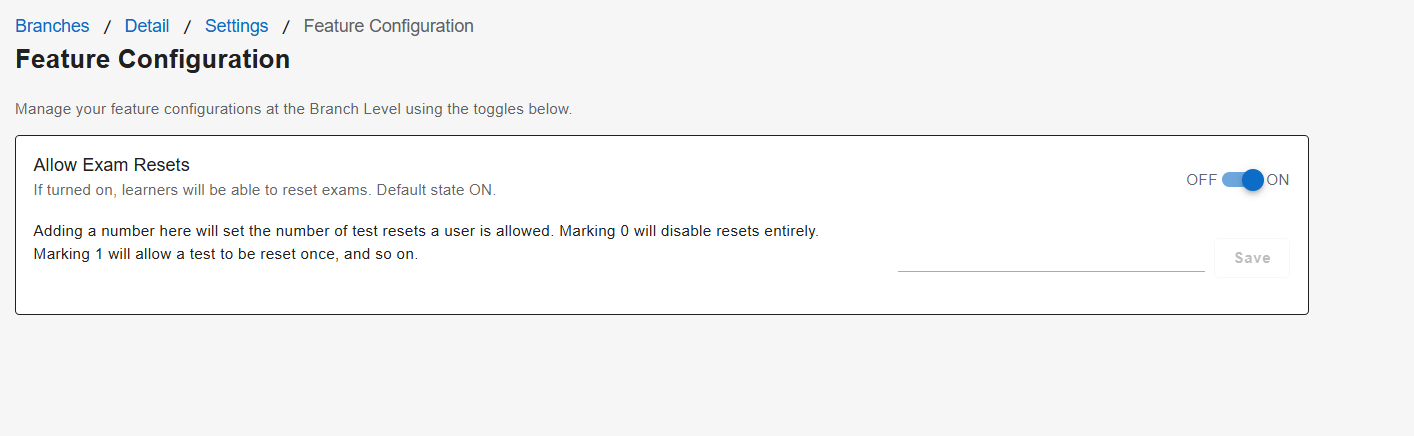
The Allow Exam Resets configuration will be displayed.
-
Toggle Allow Exam Resets ON or OFF based on whether learners should be able to reset exams.
When enabled, enter the number of exam resets a user should be allowed. Entering 0 will disable resets entirely. Entering 1 will allow an exam to be reset once, and so on.
Select Save to save the configured number of exam resets.
NOTE: Allow Exam Resets is also available under Feature Access. The ON/OFF setting represents the same feature access state, so updating it in one location will be reflected in the other.

