


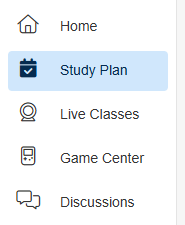
To navigate through the Structured Study Plan, click on the Study Plan tab on the left-hand navigation menu within your course.
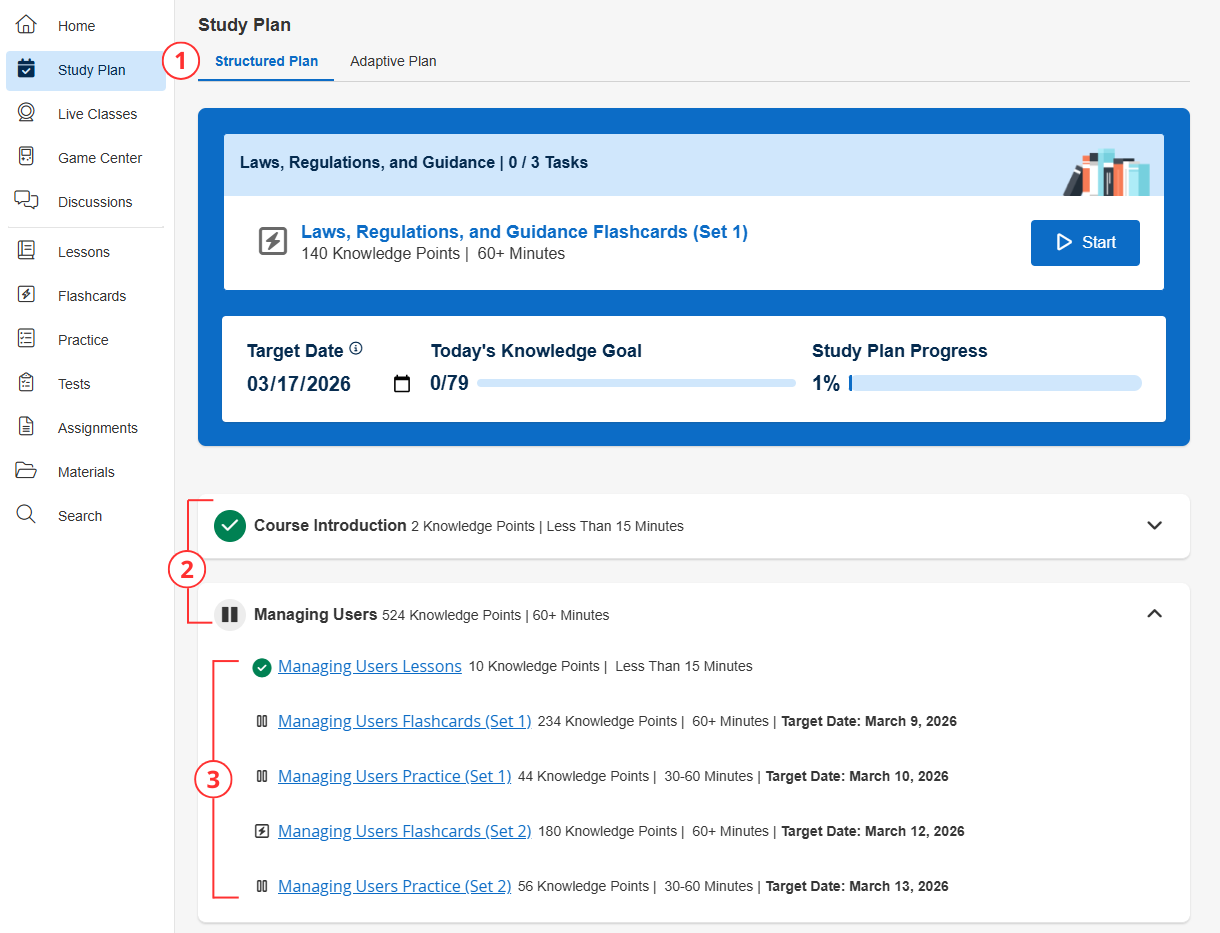
You will be directed to a new section where you'll be able to note a few things:
- Study Plan Tab - This tab will indicate the type of study plan set up for this course, which can either be a Structured or Adaptive Study Plan. To learn more about Adaptive Study Plans, read this article.
- Study Task Group - In this example, the study task groups are called "Course Introduction" and "Managing Users". The study task groups allow for different types of content to be grouped together so that they can easily be studied together.
- Study Tasks / Content - In the content area of each study task group, you'll be able to see what study tasks will be covered. In this example, in the "Managing Users" Study Task Group, learners will need to read through a lesson, do two sets of practice questions, and view a flashcard set to complete the Study Task Group.
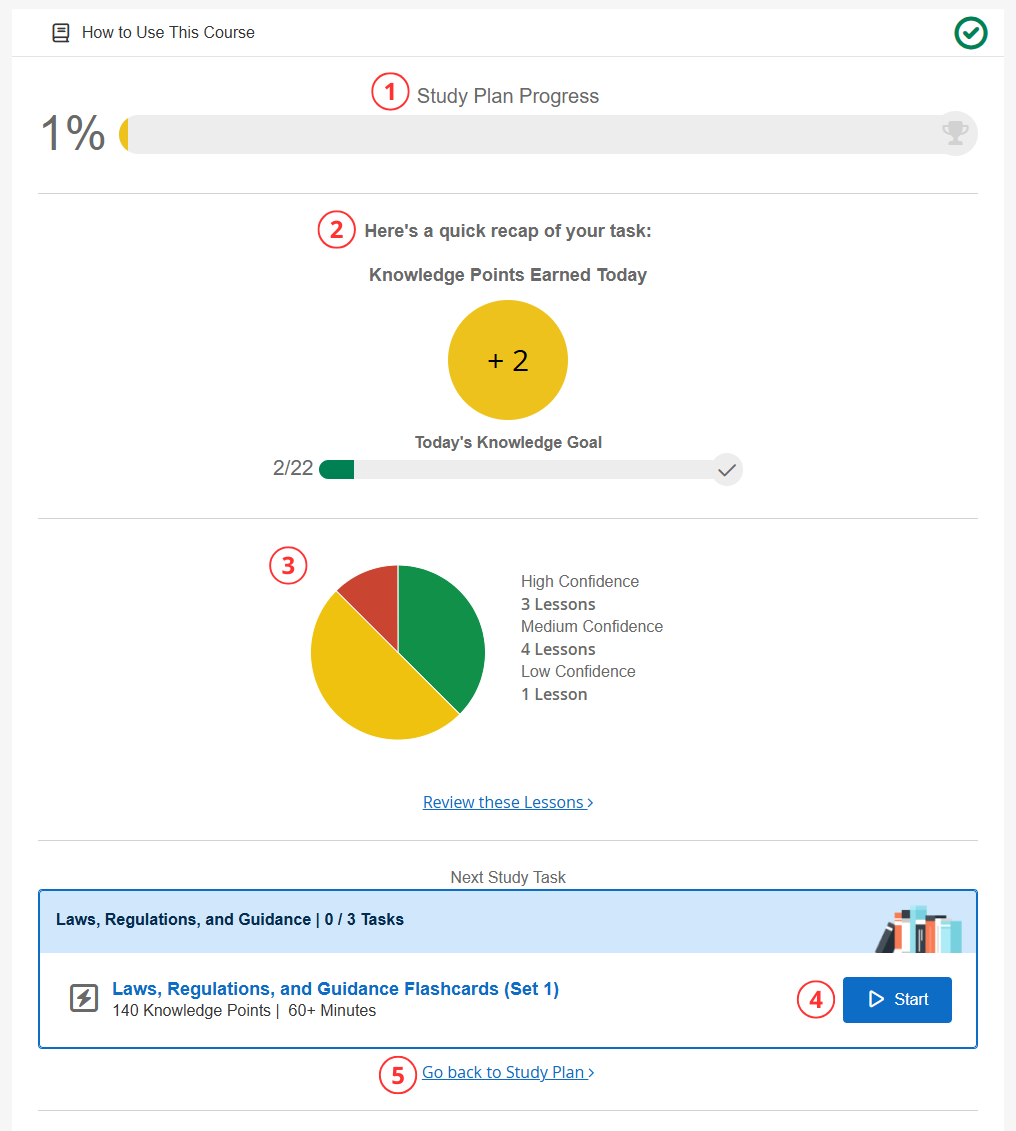
To begin the Study Plan, simply click on the first item in the Study Task Group. Once a study task is completed, a screen with the following information will appear:
- Study Plan progress percentage
- Recap of your task and Knowledge Points earned
- Confidence Level breakdown and
Review these Lessons - Ability to go back and review what you just learned- NOTE: The "Complete" Confidence Level will only appear if the study task has one or more lessons that are set to hide confidence levels. If the feature access "Hide Confidence Levels on All Lessons" is ON for the course, the whole section will not appear.
- Start the next Study Task
- Go back to the Study Plan
Completing Study Tasks
There are two ways to access and complete content within a Study Task:
- Through the Study Plan tab – Click on items directly within the Study Plan to work through them in the recommended order or in the order or your choosing.
- Through the left-hand navigation menu – Navigate directly to specific content types (Lessons, Practice Questions, Tests, Flashcards, etc.) and complete them from there.
Both methods will mark the Study Task as complete. You do not need to access content exclusively through the Study Plan tab for it to count toward your progress. As long as you finish the content item that is part of a Study Task, it will be marked as complete regardless of how you accessed the content.

