


Creating an Adaptive Study Plan
Review 1. Intro to the Adaptive Study Plan for overview of Adaptive Study Plans, Knowledge Sets and overall recommendations.
Adaptive Study Plans (ASPs) are configured in BluePrint by importing CSV files for each content type included in the study plan.
Configuring an Adaptive Study Plan consists of four main steps:
- Establishing your Knowledge Sets
- Creating and Formatting your CSV files
- Uploading content using BluePrint
- Enabling feature access
Establishing your Knowledge Sets
Before formatting your CSVs, determine the structure and organization of your Knowledge Sets.
You should determine:
- The names of the Knowledge Sets you want to create
Knowledge Sets typically reflect question or lesson category names within a course, but they can also use custom naming conventions. - Which content should belong in each Knowledge Set
Knowledge Sets can contain content from:- Question categories (required)
- Flashcard categories
- Lesson categories
- The importance value for each Knowledge Set
Each importance value should be on a scale of 0.0 (not important) through 1.0 (essential). For example, you might have importance values of 0.5, 0.12, and 0.88. Importance values can also come from the percentages of a topic covered on the high-stakes assessment a learner is preparing to take (exam weight) - Whether each Knowledge Set should be required or optional
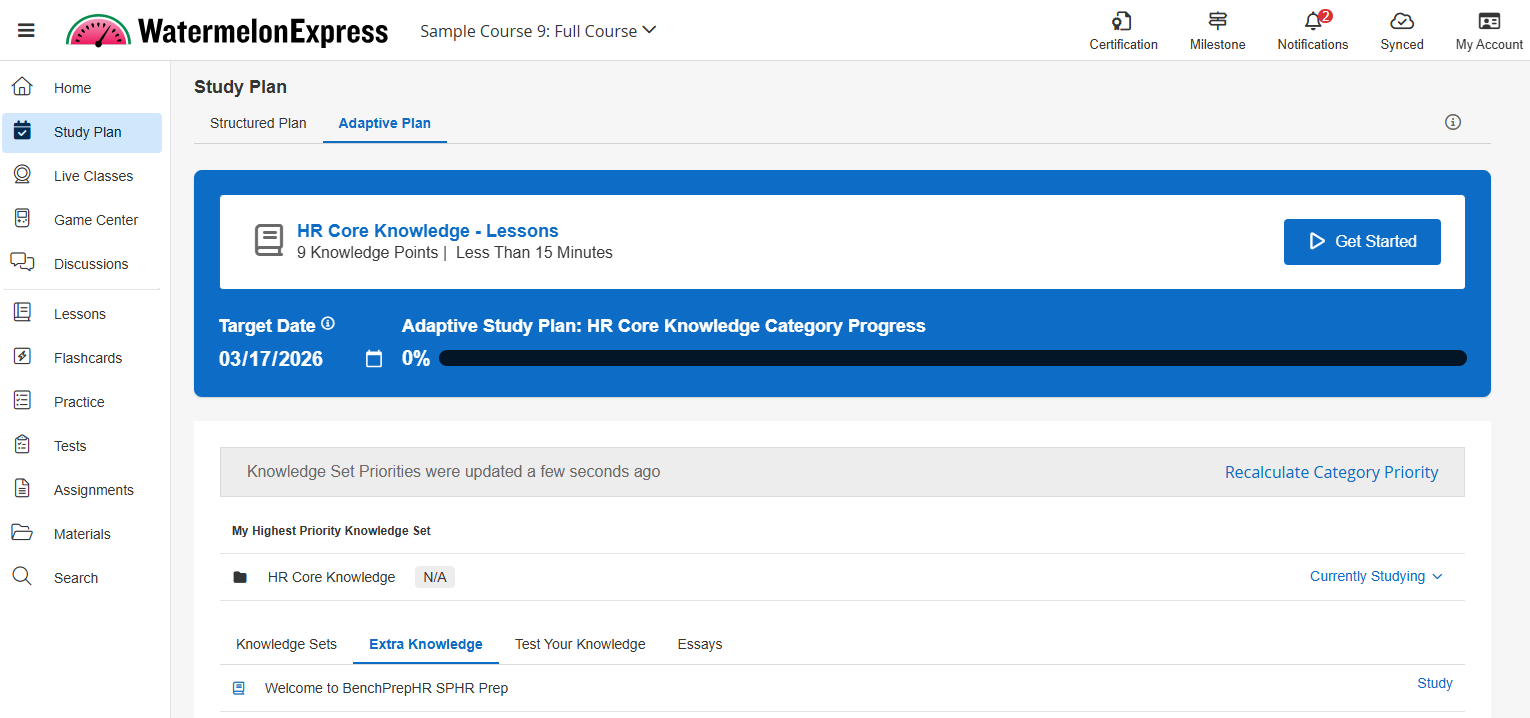
Required Knowledge Sets are included in the adaptive assessment and learner study plan.
Optional Knowledge Sets appear in the Extra Knowledge tab of the ASP and are not included in the adaptive assessment. Categories that aren’t necessary for your ultimate goal / learning outcome (e.g. 'References,' 'Further Reading,' 'Historical Background,' etc.), can be marked as optional.
Creating and Formatting your CSV files
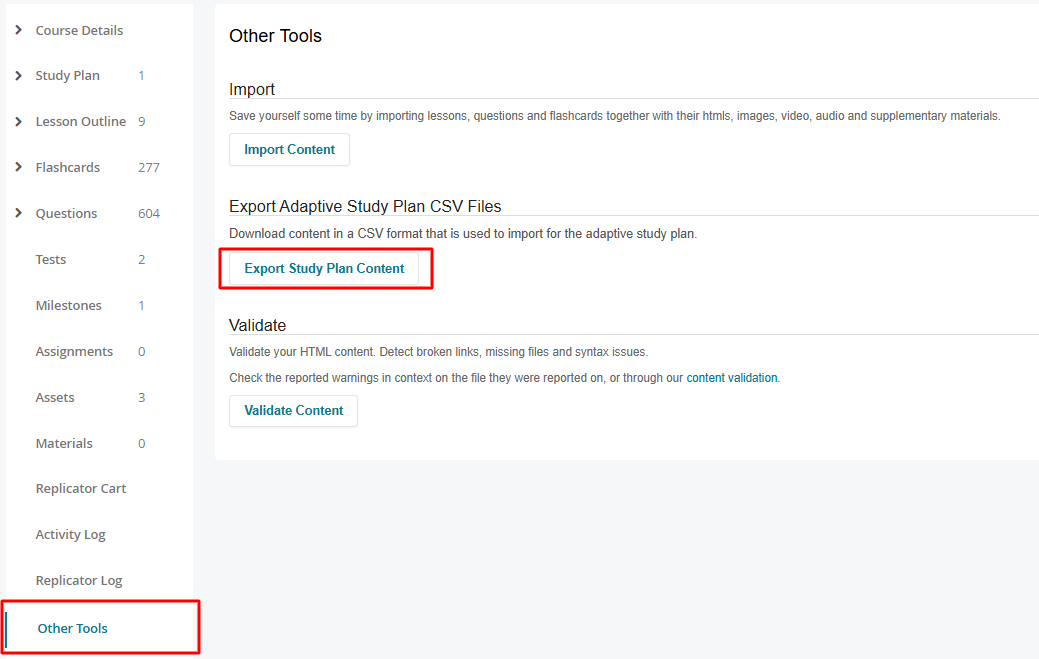
To configure an Adaptive Study Plan, you will need to prepare CSV files containing the content that will be included in the plan. Before creating your ASP CSVs, export your existing course data from BluePrint.
- Navigate to your course in BluePrint.
- Select the Other Tools page.
- Click Export Study Plan Content.
- This downloads a zip file containing four files. Open the zip file to see the individual CSVs.
- Flashcards - fc_categories_for_[course number]
- Lesson Categories - lesson_categories_for_[course number]
- Lessons - lessons_for_[course number] (this file will not be needed to create your ASP)
- Question Categories - Question_categories_for_[course number]
The flashcard categories, lesson categories, and question categories files can be modified to create the necessary CSVs to upload your Adaptive Study Plan (ASP).
Question Categories (required)
The Question Categories CSV is required for all Adaptive Study Plans.
If your ASP includes flashcards or lessons, those CSVs will reference the Question Categories file in later steps.
-
Open the question_categories_for_[course number] file from the zip file.
Columns included:
Column Column Label Description A
id Question category ID
B sort_order Creation order in BluePrint C category name Name of question category D # of practice questions Question count per category E importance Decimal (0.0-1.0) representing category weight relative to others F study category name Knowledge Set name displayed to users in the ASP 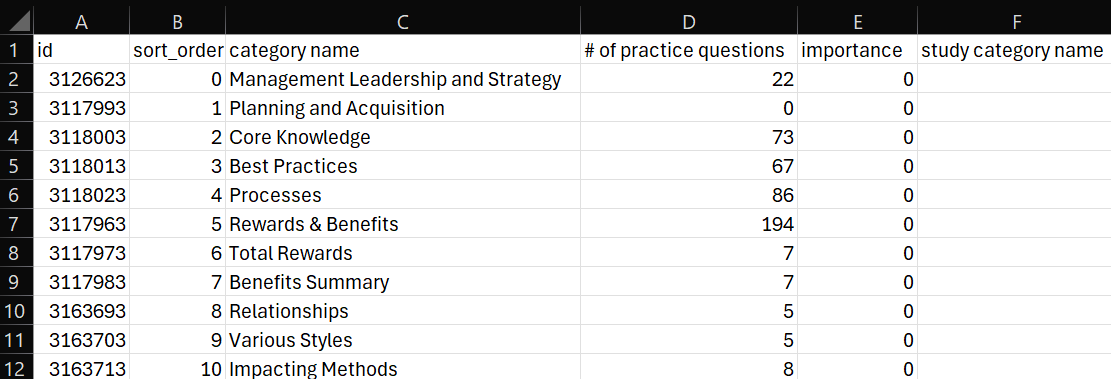
Note: Row order may not match BluePrint. -
Enter the ‘study category name’ for each parent category included in the study plan. This will show in WebApp as the name of the Knowledge Set. Names typically match the question category names but can be customized here or later in BluePrint.
If you have any child question categories on your CSV, leave the study category name blank, as they will reside within their parent category’s Knowledge Set. There are exceptions to this explained below.Tip: If you're unsure which categories are parent or child, view your Question Categories in BluePrint to compare.
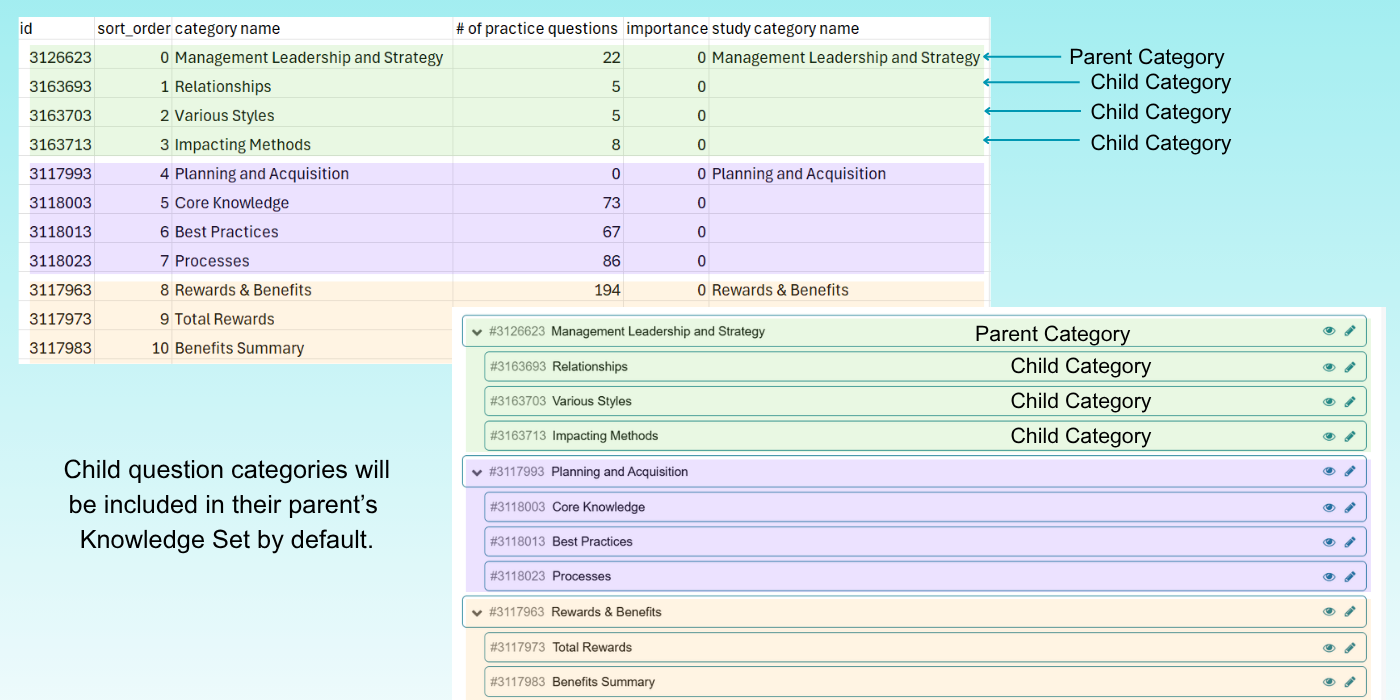
Note: For the Adaptive Study Plan to function optimally, include only one Parent Category in each Knowledge Set. -
Enter the 'importance' value for each category included in the ASP on a scale of 0.0 (not important) to 1.0 (essential). If your CSV contains child question categories, assign the same importance value to the child category as its parent category. Assign the same importance value to the child category as its parent category. These can be adjusted in BluePrint after upload.
-
If a question category will not be included in the ASP, leave both the 'study category name' and 'importance' columns blank for that category. Content in these categories will be included in the Extra Knowledge tab of the ASP.
-
Save your CSV.
Exceptions
If a parent has zero questions and has child question categories with questions, add the importance value to both parent and children, add the parent's study category name, and leave the study category name blank for each child category.
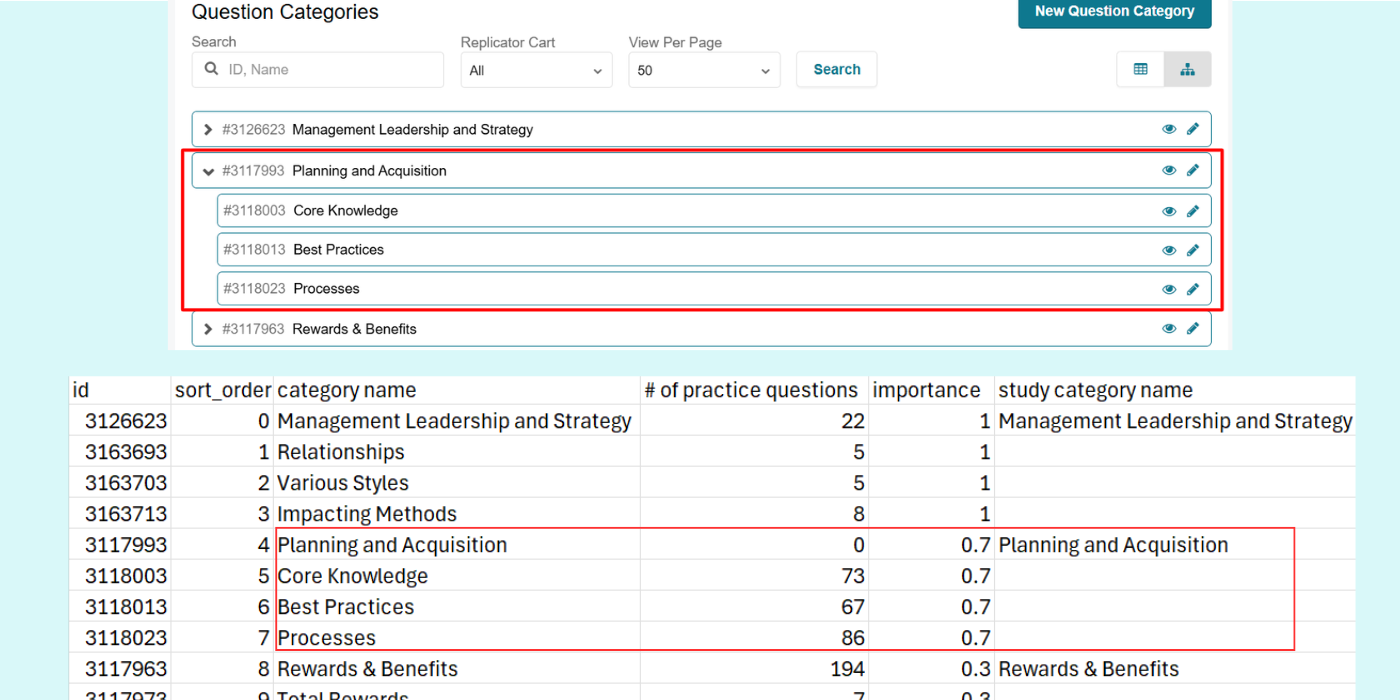
-
Creating Separate Knowledge Sets for Child Categories:
Child categories with 20 or more questions can have their own Knowledge Set with a study category name and importance value that is distinct from the parent category.
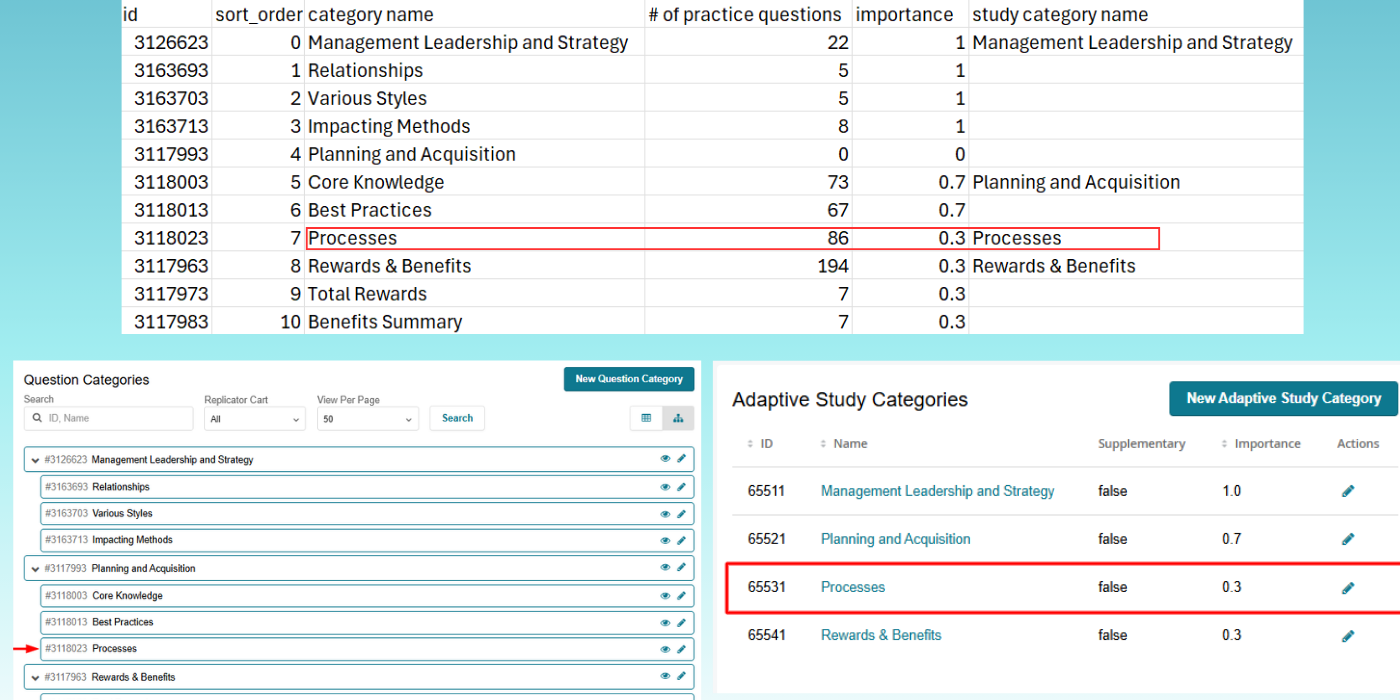 Note: Each Knowledge Set's Question Categories must have either 0 or 5+ questions to appear in the pre-assessment for the ASP. Parent Categories with 0 questions will pull from child categories containing 5 or more questions for the pre-assessment. Any category with 1–4 questions will prevent that Knowledge Set from appearing in the pre-assessment.
-
Open the lesson_categories_for_[course number] file from the zip file.
Columns included:Column Column Label Description A id Lesson category ID B sort_order Create order in BluePrint C category name Name of lesson category D # of lesson Lesson count per category E study category name Knowledge Set name displayed to users in the ASP F practice question category id ID of associated practice question category G is adaptive Whether the lesson category is included in the ASP determined by a true/false value 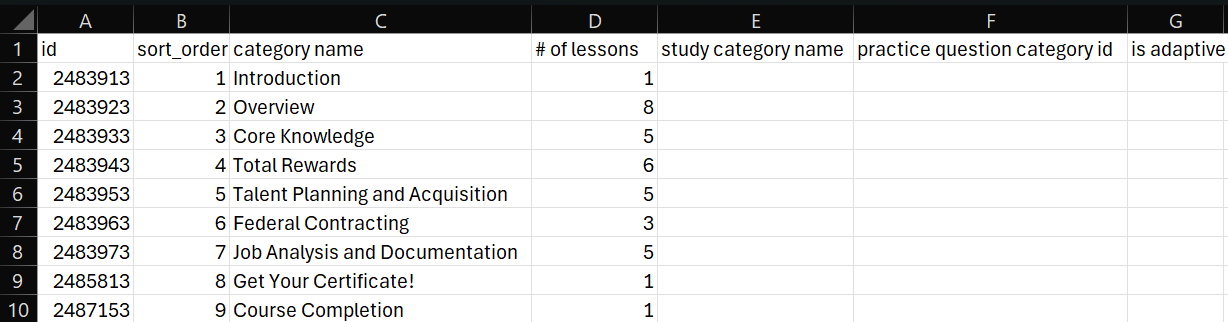
-
Enter the corresponding question category ID number from the question category CSV in the 'practice question category id' column with. Use the question ID related to the Knowledge Set you want this lesson category to belong to in the ASP.
Note: All ID numbers listed in the 'practice question category id' column must have a corresponding study category name for it in the Question Categories CSV. -
Enter the corresponding Knowledge Set name in the study category name column. This field is optional if the practice question category id column is populated.
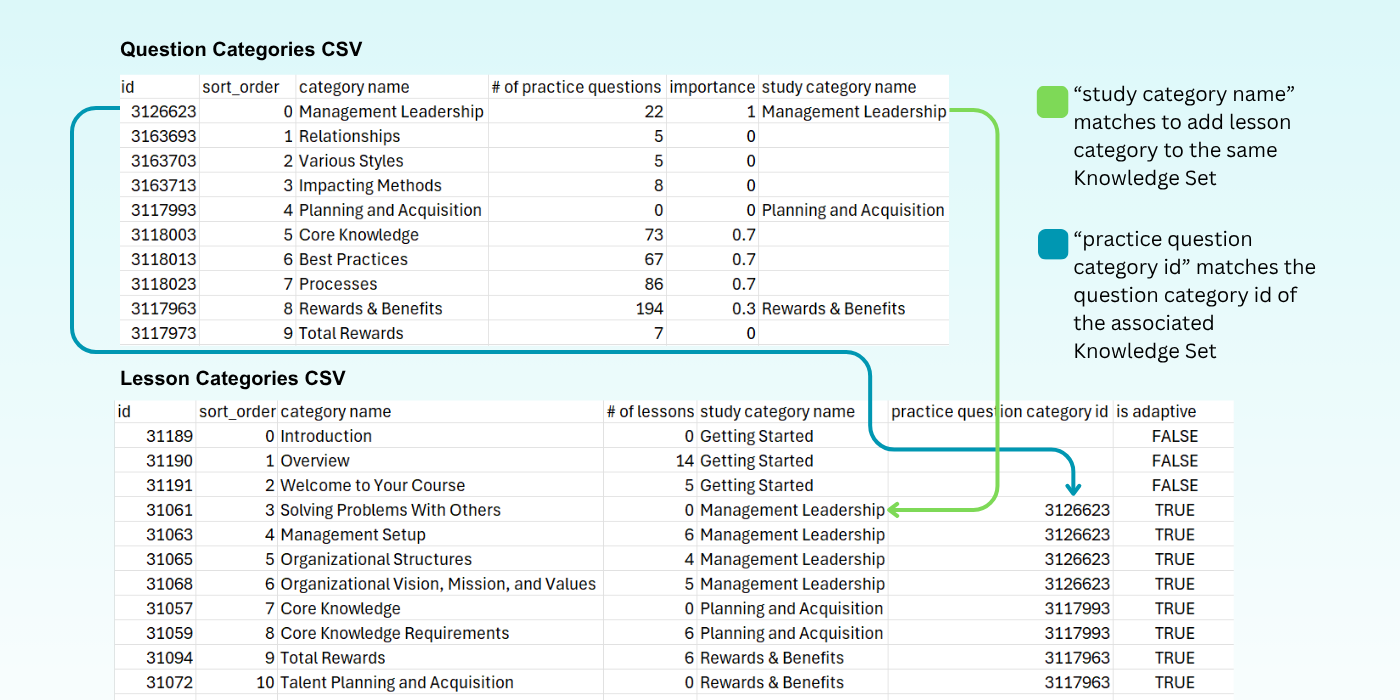
-
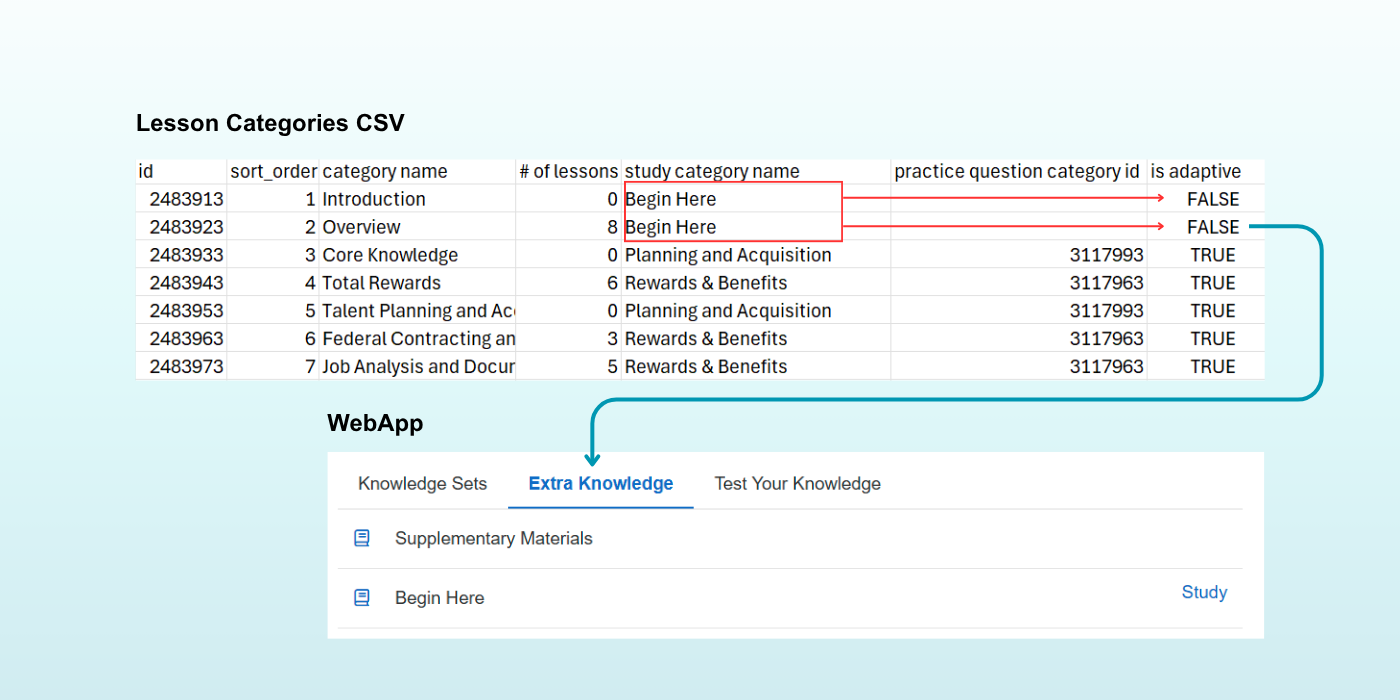
Enter TRUE in the 'is adaptive' column in each row with a study category name. There are some exceptions, explained below.
-
Save you CSV.
Exceptions
- Including Content as Extra Knowledge:
For any Lesson Categories you don’t want to include in your ASP and you want to show in Extra Knowledge:
1. Enter the name of the Knowledge Set in the study category name column. Leave the question category id column blank.
2.Enter FALSE in the 'is adaptive' column. - Creating Standalone Knowledge Sets:
If you want to add a new Knowledge Set for a Lesson Category, enter a unique name (different from study category names in the Question Categories CSV) in the study category name column. If you enter a new Knowledge Set name, there should be no value in the practice question category id column.
Flashcard Categories (optional)
- Open the lesson_categories_for_[course number] file from the zip file. Columns A-D will be filled in with data generated from your course.
Columns included:Column Column Label Description A id Flashcard category ID in BluePrint B sort_order Creation order in BluePrint C category name Name of flashcard category in BluePrint D # of flashcards Flashcard count per category E study category name Knowledge Set name displayed to users in the ASP F practice question category id ID of associated practice question category G is adaptive Whether the lesson category is included in the ASP determined by a true/false value 
- Enter the practice question category id column with the corresponding question category ID number from the question category CSV. Use the question ID related to the Knowledge Set you want this flashcard category to belong to in the ASP. Optionally, you can add the Knowledge Set name in the 'study category name' column.
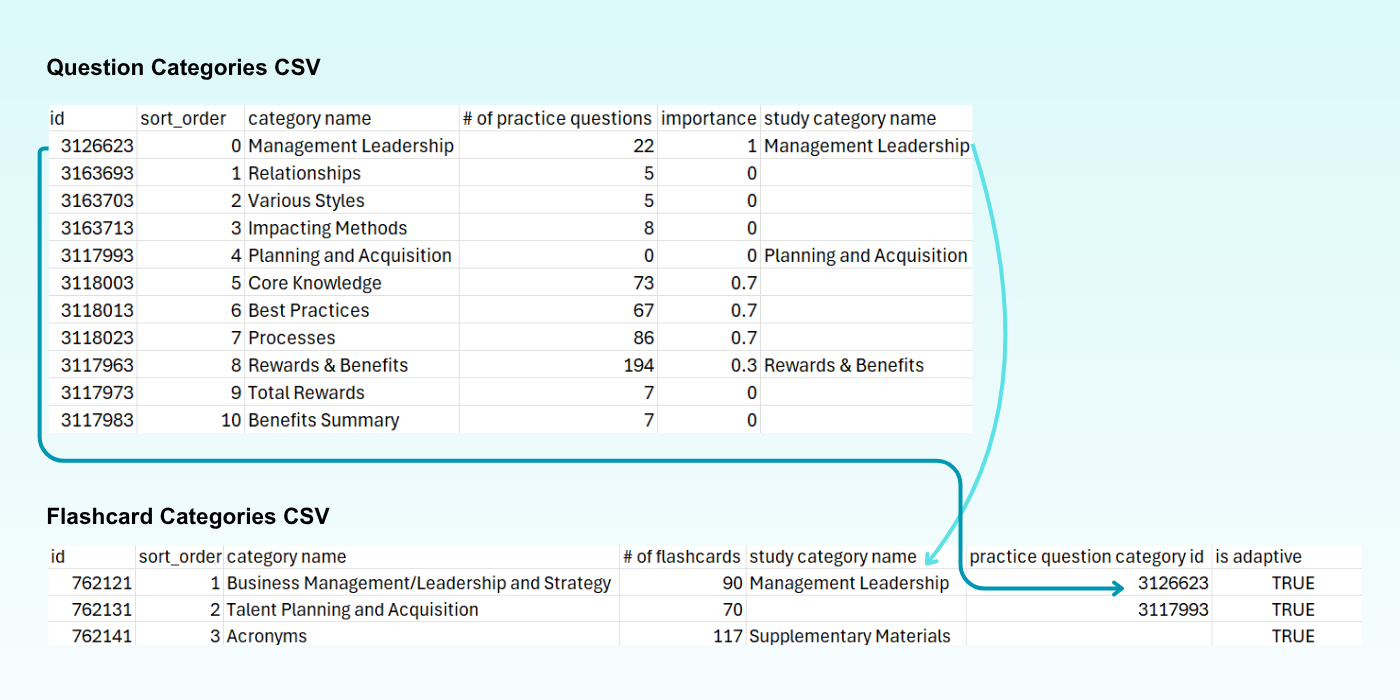
Each Flashcard category should either have a study category name or a question id practice question category id. - Enter TRUE in the 'is adaptive' column in each row with a study category name.
Exceptions
- For Flashcard Sets you don’t want to include in your ASP and you want to show in Extra Knowledge:
- Enter the name of the Knowledge Set in the study category name column. Leave the question category id column blank.
- Enter FALSE in the 'is adaptive' column.
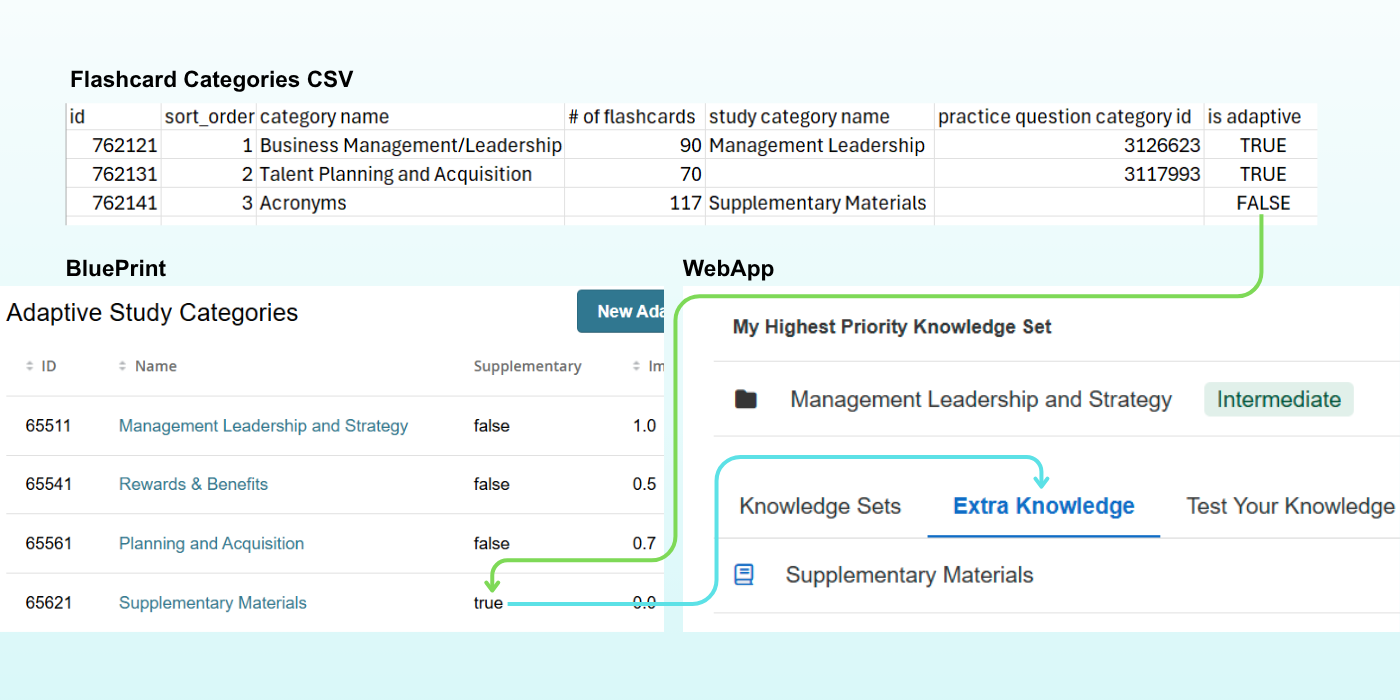
- If you want to add a new Knowledge Set for a Flashcard Category, enter a unique name (different from study category names in the Question Categories CSV) in the study category name column. If you enter a new Knowledge Set name, there should be no value in the practice question category id column.
Importing an Adaptive Study Plan in BluePrint
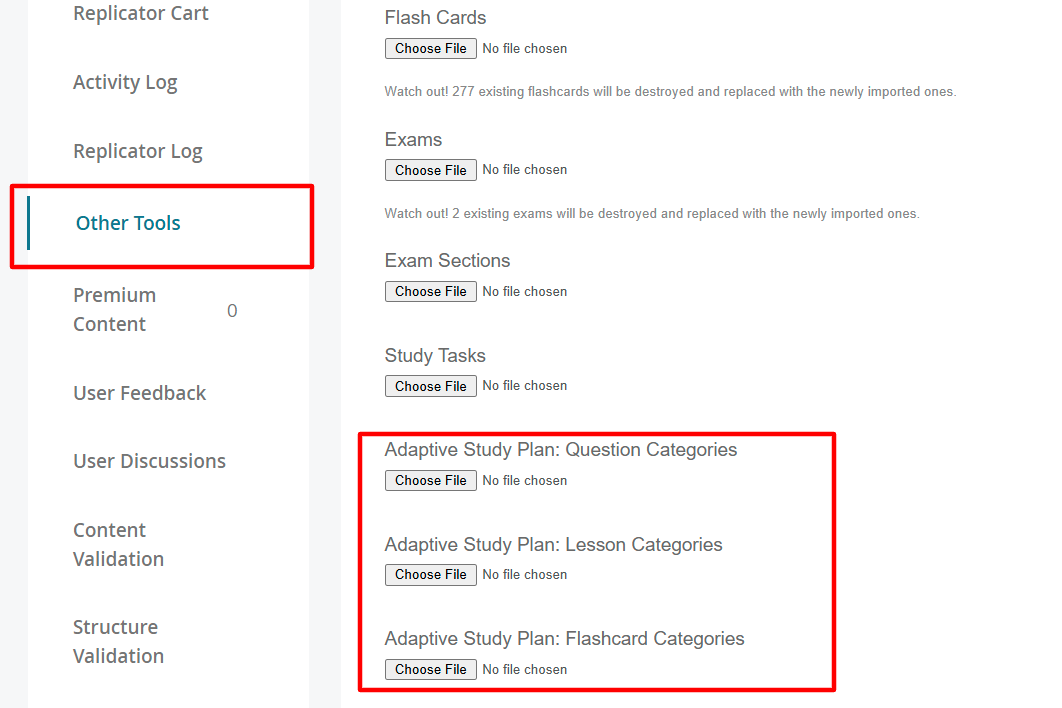
- Navigate to the Other Tools page in BluePrint.
- Click Import Content.
- Click Choose File for the appropriate content type you'd like to import.
- Select your CSV.
- Click the blue Import button at the top of the page.
Enabling Adaptive Study Plan Feature Access
- Navigate to Course Configuration.
- Locate the Enable Adaptive Study Plan feature access setting.
- Toggle the feature to ON.
Finalizing and Testing the Adaptive Study Plan
- Build your course.
- Test the Adaptive Study Plan in the webapp.
- Verify that:
- Knowledge Sets appear as expected
- Adaptive content is properly grouped
- Extra Knowledge content appears correctly
- The pre-assessment functions as intended
- Make any necessary updates in BluePrint or re-import updated CSV files as needed.
Editing an Adaptive Study Plan
If you'd like to add additional content or make changes to content in your ASP after it has been established, see the information below.
Editing Adaptive Study Categories in BluePrint
Once an Adaptive Study Plan has been created for your course, you can edit the following: Name, Supplementary status, and Importance. To edit your plan, click on Adaptive Study Categories in the left-hand navigation, nested under Study Tasks.

These categories are the groupings of your Adaptive Study Plan. Here’s an explanation of the columns:
- ID: This is the adaptive category ID in BluePrint.
- Name: This is the name of the Study Category as it appears to your learners.
- Supplementary: If “true,” that means the Study Category is supplementary, or optional, for your learners. It will appear in the “Extra Knowledge Set” for your learners. If “false,” then the category is not supplementary. This category will be included in the curriculum built by the Adaptive Study Plan engine.
- Importance: This is the “weight” of each category, with 0.00 being the least important, and 1.00 being the most. Combined with student performance, “Importance” helps the Adaptive Study Plan engine determine the study order for the categories.
- Actions: Click on the pencil icon to edit the category.
Editing an Adaptive Study Category will open up the following page:

Click Save after making your changes.
Adding or Removing Content in an Established Adaptive Study Plan
- Add a New Question, Lesson, or Flashcard Category: You can upload a new CSV or add onto your original CSV for each content type. The result of the CSV import depends on the conversion state of the course:
- Course in conversion: Importing a Question Category, Lesson Category, or Flashcard Category CSV will overwrite the existing Adaptive Study Plan category associations.
- Published Course: Importing a Question Category, Lesson Category, or Flashcard Category CSV will not overwrite the current Adaptive Study Plan. Any new categories included in the CSV will be added to the appropriate Knowledge Sets.
- Adding new questions: If a Question Category is already associated with a Knowledge Set, newly added questions in that category are automatically included in the Adaptive Study Plan. You can create or import questions as usual.
- Adding new lessons: Create a new lesson and assign it to a Lesson Category included in the ASP.
- Adding new flashcards: Create a new flashcard and assign it to a Flashcard Category included in the ASP.
- Removing ASP Categories: You can delete a category within the Adaptive Study Plan, but you cannot add a new category in BluePrint. If you plan to remove a Knowledge Set entirely, you must manually delete it from the Edit screen in BluePrint.
ASP Learner Experience
- Can learners switch from a standard Study Plan to an ASP after making progress in the course?
Yes. If a course contains both a standard Study Plan and an Adaptive Study Plan, learners can switch between study plan types at any time by selecting a different Study Type at the top of the Study Plan page.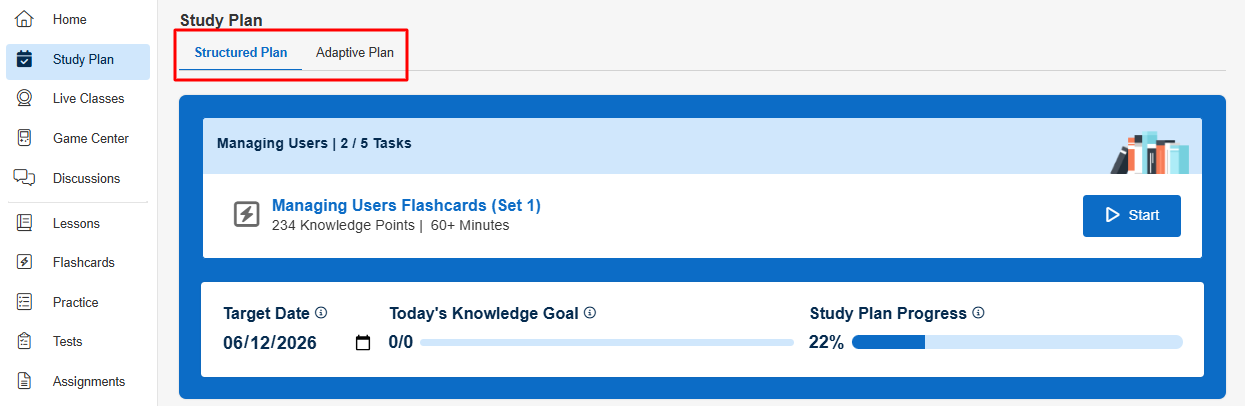
- Does the diagnostic assessment use existing learner performance data?
Yes. Adaptive Study Plans use existing performance data whenever it is available. If there is insufficient data to determine a learner's proficiency in a Knowledge Set, the diagnostic assessment presents questions from the associated Question Categories to establish a performance level. - Can learners pause and resume the diagnostic assessment?
Yes. Learners do not need to complete the diagnostic assessment in a single session. They can leave and return later to continue.
If you have any questions or encounter any issues when setting up your Adaptive Study Plan, please reach out to BenchPrep Support by submitting a ticket.

