


 7665
7665
NOTE: The Assignment feature has been renamed to Graded Submissions. Please be aware that some terminology, labels, and screenshots throughout the documentation may still reference the previous name, graded submission. We are in the process of updating all related content to reflect the new terminology.
graded submissions are configured in BluePrint. In BluePrint toggle the graded submissions Feature ON at the desired course to enable graded submissions in the Learning Application. Click here to learn how to enable the feature access.
To set up graded submissions in a Course, follow these steps:
- In BluePrint, find the appropriate course and click on the Course Name.
- Select Graded submissions on the left hand side.
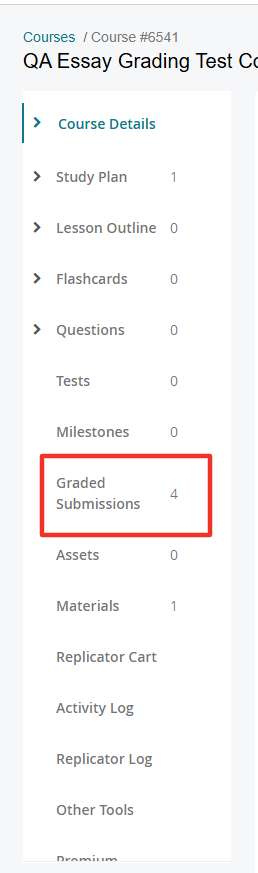
- Select the New graded submission button.
- On the New graded submission screen, fill out the following:
1. Select the graded submission type: Written graded submission or File Submission. In a Written graded submission, the learner will prepare a written response to the prompt. A File Submission allows a learner to upload a file in response to the prompt. Supported file types are .jpg, .jpeg, .png, .gif, .pdf., .ppt, .pptx, .heic, .mp3 and a maximum file size of 25mb.

2. Name - Title of the graded submission.
3. Introduction - Instructions on how to use the platform to write and submit their graded submission.
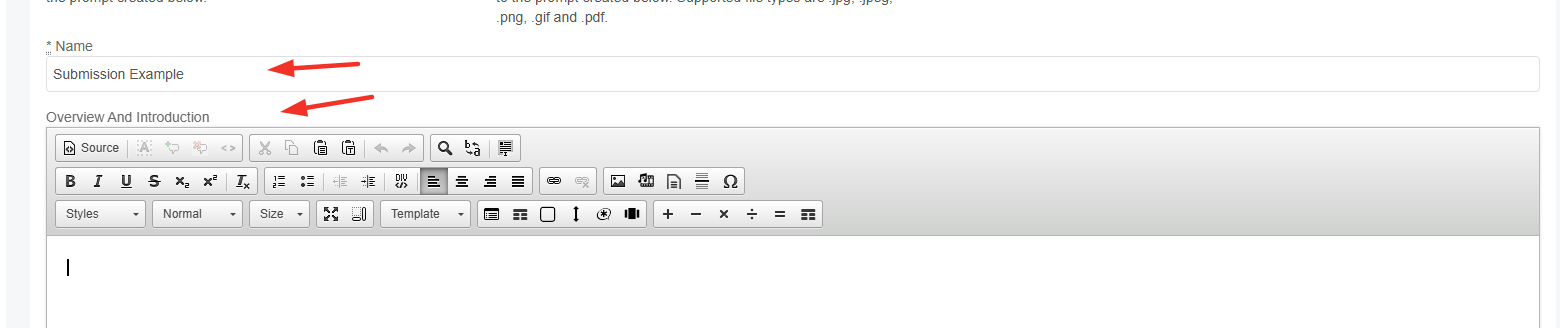
4. graded submission Prompt - The question or topic the learner’s response should address.
5. graded submission Instructions - A shorter version of the graded submission prompt for the learner to reference while writing or uploading a file. When a learner minimizes the graded submission prompt, they will see only the graded submission instructions.
6. Solution - The graded submission rubric/grading criteria.
5. Select one of the options below to designate graded submission Time.
- Unlimited - no time limit to complete the essay. Learners will see a Time Elapsed indicator to show time spent within the graded submission module.
- Timed - specify a max graded submission time to allow learners to complete the graded submission (in minutes). If set, learners will see Time Elapsed as well as Total Time remaining.
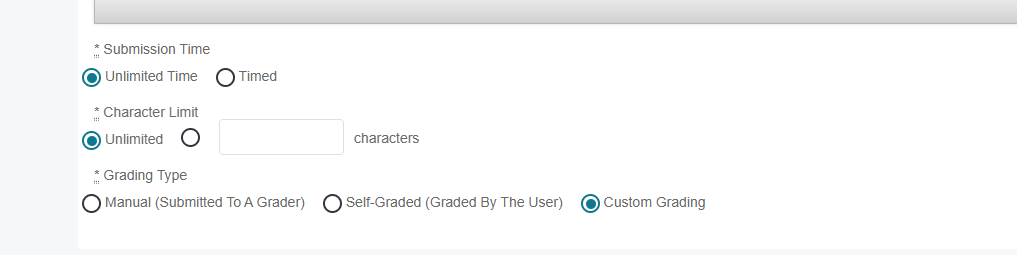
6. Select one of the options below to designate Character Limit.
- Unlimited - default value, no restrictions on the number of characters used in essay response.
- Number of characters - if selected, input the maximum number of characters allowed in an essay response. Learners will see a character count / out of the max number of allowed characters (i.e. 5000/10000). Submit button will not be clickable if the number of characters exceeds the maximum. (Not Applicable for File Submission)

7. Select the graded submissions Grading Type.
- Manual (Submitted to a grader) through BenchPrep, accessible to appropriate graders via BluePrint.
- Self-Graded (Graded by the learner).
- Custom Grading - select only if your platform is integrated with an external grading system. This type of grading can only support Written Submissions.

8. Choose Yes or No to indicate whether the graded submission is eligible for feedback
prior to submitting for scoring (only visible for Manual grading type).
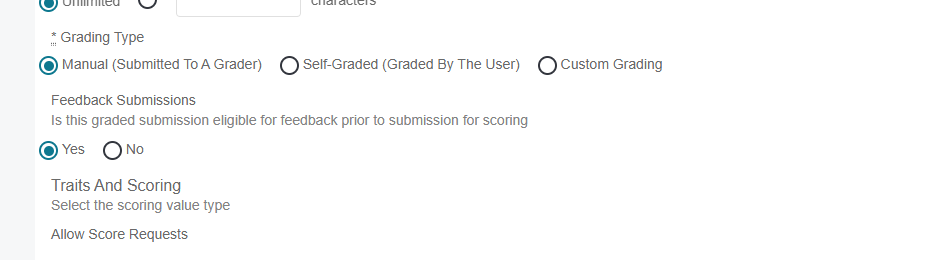
9. Choose Percentage or Numerical Range to designate the Scoring value for the Default Overall trait as well as any additional traits you want to create. A trait is a set of gradable criteria for feedback or score, such as “punctuation” or “clarity of argument.” Score Range is not displayed for Percentage scoring.
NOTE: At least one additional graded submission topic trait is required for Self-Graded graded submissions.

10. To add additional graded submission topic traits, select the Add another graded submission trait link.
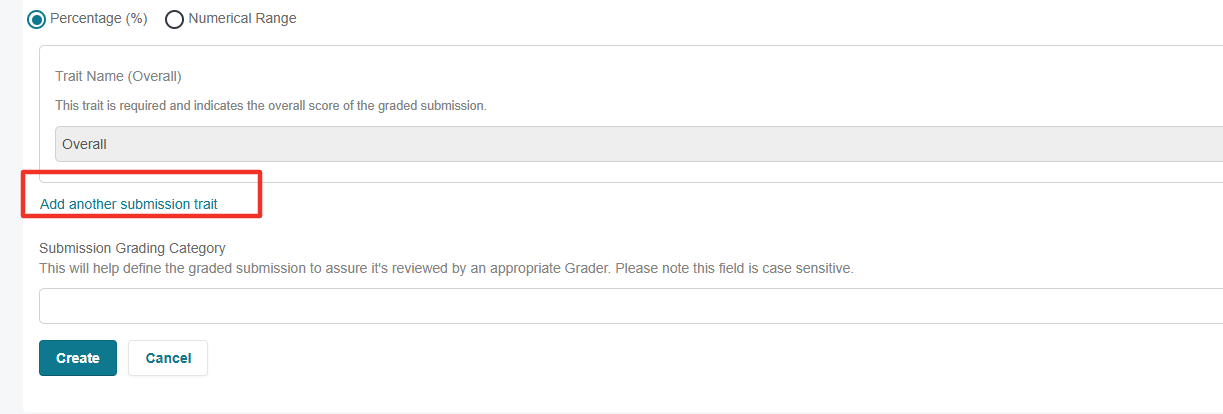
- Fill out Trait Name.
- Set Score Range (if scoring is set to Numerical Range).
11. Next, fill out the graded submission Grading Category to define the graded submission and ensure it is reviewed by appropriate graders (optional field visible for Manual grading type only. There is no character limit and special characters are allowed). Using graded submission Grading Categories enables graded submissions to be grouped by defined criteria and ensures only graders authorized to grade that category can claim and review the graded submission.

12. Select Create on the bottom of the page.
13. Publish Changes to the Course.
The graded submission is now available for learners!
Reordering graded submissions
To change the order that graded submissions appear in your course, follow these steps:
- In BluePrint, find the appropriate course and click on the Course Name.
- Select graded submissions on the left hand side.
- Drag and drop the graded submissions in the order that you'd like for them to appear.
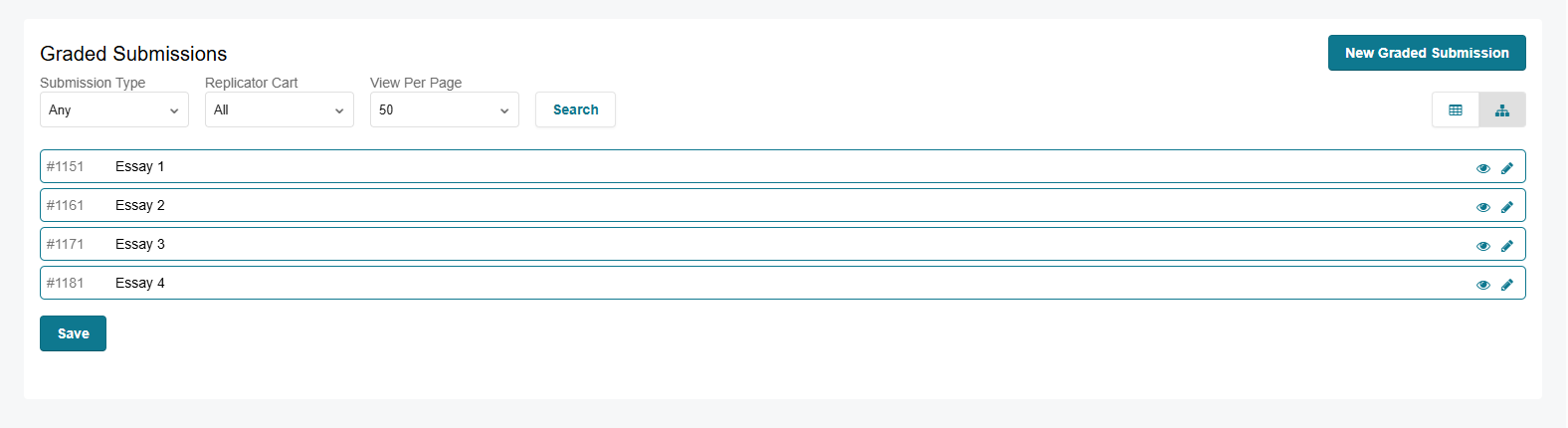
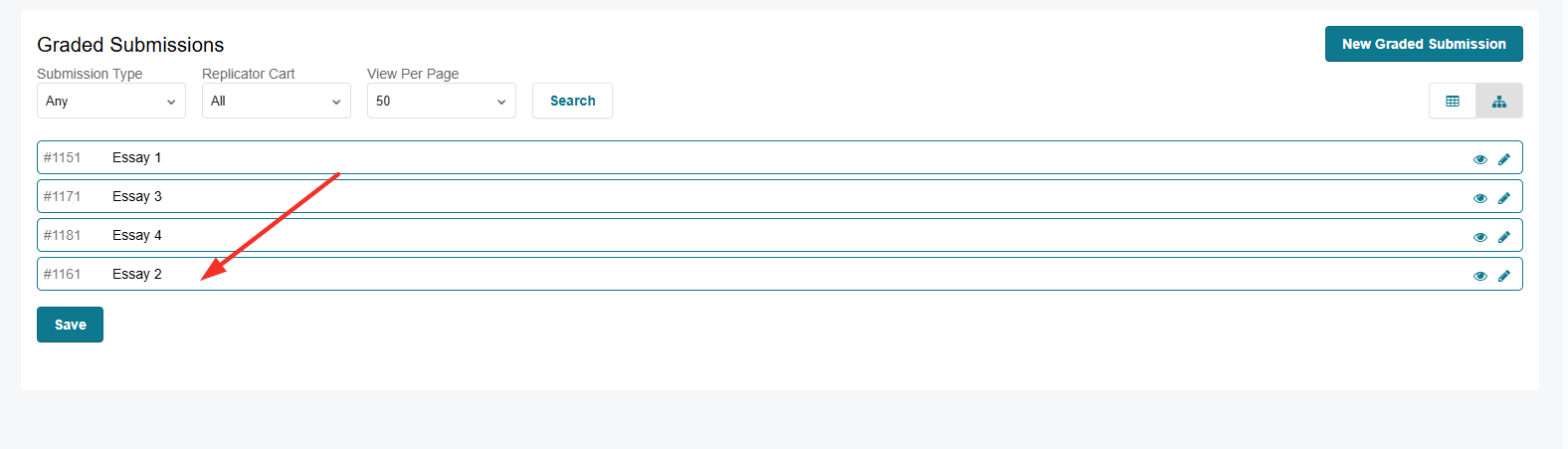
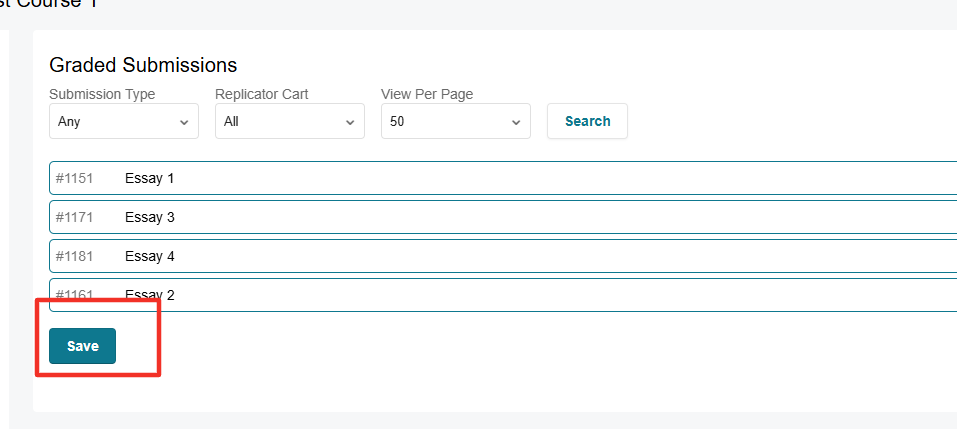
- Click on Save.
- Publish Changes to the course. Your graded submissions in BluePrint will now appear in the same order in the Learning Platform.

