


Knowledge Base in Progress: We're actively updating this article to reflect the current Zoom integration functionality in Console. While the instructions have been updated, some details are still being verified, and additional guidance and screenshots will be added as they become available.
After learners attend a Zoom meeting associated with an In-Course Event, administrators can review their attendance information in BenchPrep Console. This includes viewing participation details received from Zoom, matching attendance records to BenchPrep learners, and overriding attendance requirements when needed.
This article explains how learners join Zoom meetings through the Learning Platform and how administrators review and manage their attendance in Console.
Before proceeding, make sure the Zoom integration is configured and attendance tracking is enabled for the applicable In-Course Event. For setup instructions, see Getting Started with Zoom Integration. For instructions on creating and configuring events, see Configuring In-Course Events.
How Learners Attend Zoom Meetings
Learners can access Zoom meetings through In-Course Events in the BenchPrep Learning Platform.
To attend a Zoom meeting, learners can:
- Open the course associated with the In-Course Event. Click on the Live Classes menu option on the left hand side.
- Locate and open the applicable event.
- Click Attend to open the Zoom meeting.
Note: The Attend button becomes available 30 minutes before the event's scheduled start time. Before that, the button remains disabled.
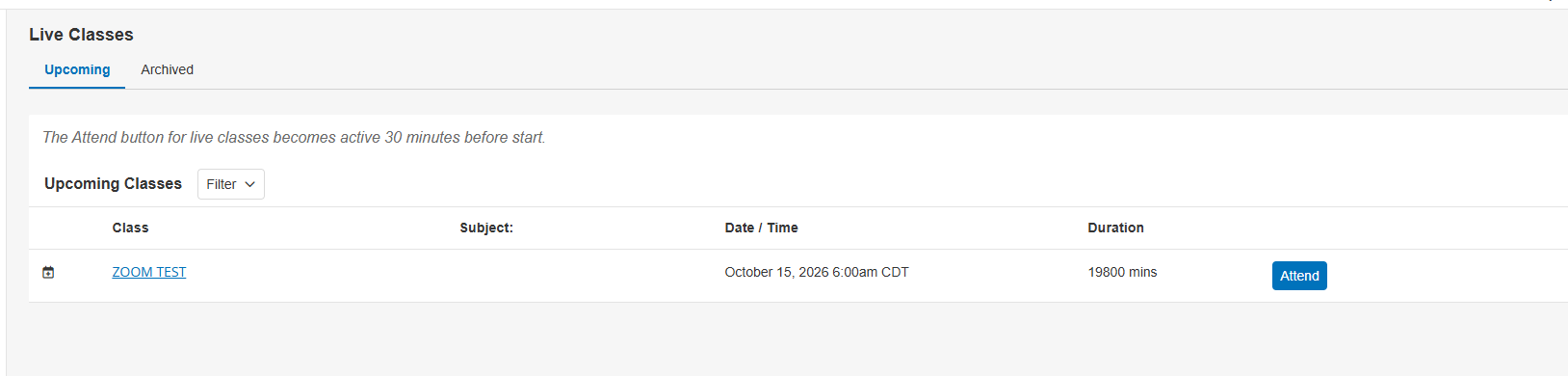
If attendance tracking is enabled for the event, BenchPrep tracks when the learner clicks Attend. When the Zoom integration is configured, additional attendance information can be collected from Zoom after the meeting ends.
Note: Clicking Attend does not necessarily confirm that a learner attended the Zoom meeting. Zoom attendance data provides additional information about participation in the meeting.
Viewing Event Registrants
The Registrants tab in Console displays BenchPrep users associated with an In-Course Event, along with their attendance information.
To view event registrants, follow these steps:
- Navigate to Console, expand the Learning tab, and click on Events.
- Click on the In-Course tab.
- Select the applicable event.
- Click on the Registrants tab.
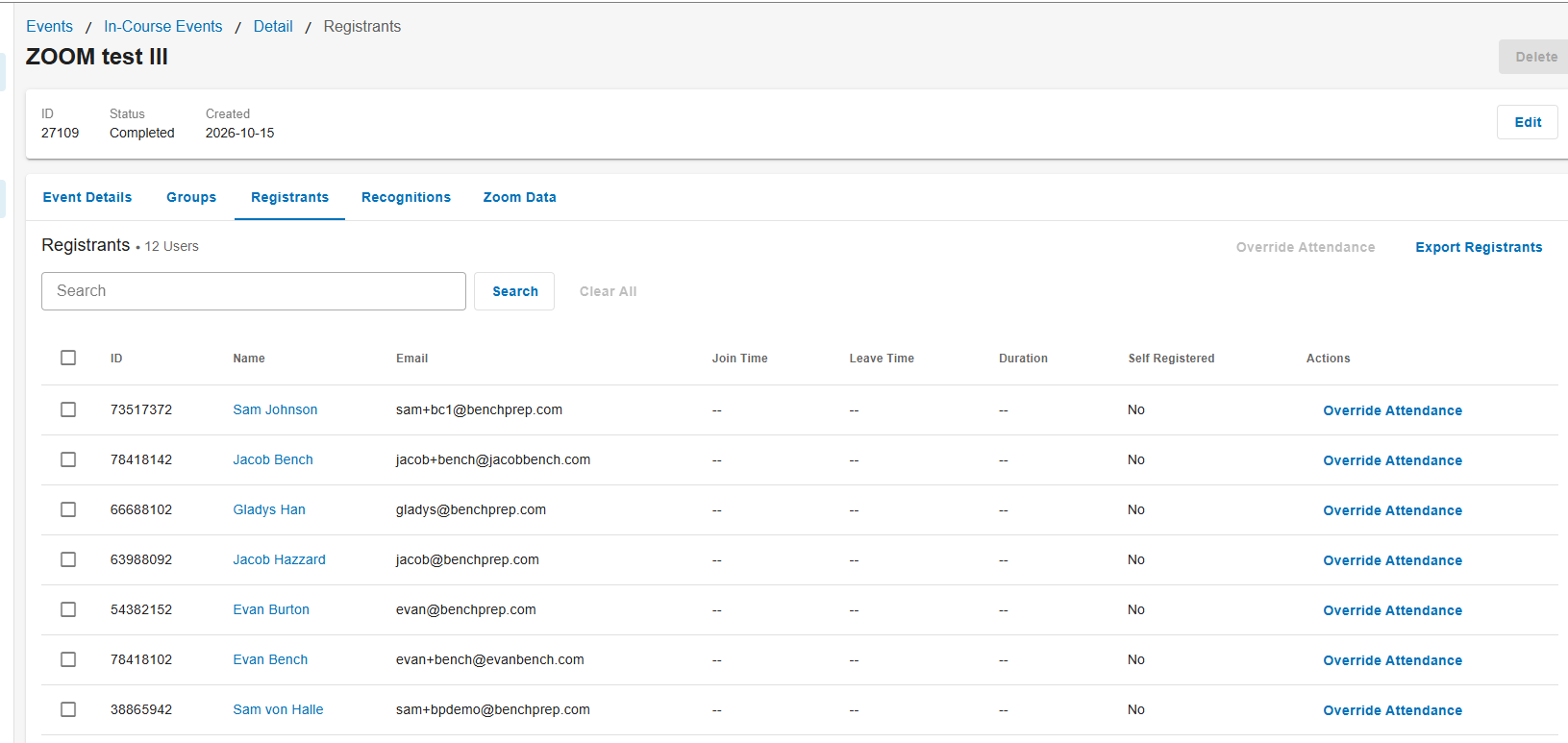
The Registrants tab displays the following information:
- ID: The learner's BenchPrep user ID.
- Name: The learner's name.
- Email: The email address associated with the learner's BenchPrep account.
- Join Time: The recorded time the learner joined the event.
- Leave Time: The recorded time the learner left the event.
- Duration: The recorded duration of the learner's attendance.
- Self Registered: Indicates whether the learner registered for the event using the Register button, when event registration is enabled.
Note: When a meeting begins, BenchPrep automatically adds learners enrolled in the associated course to the Registrants list, even if they have not registered for or attended the event. This allows attendance to be tracked when learners access the Zoom meeting through another method, such as a shared meeting link or direct invitation. The Self Registered column indicates whether a learner used the Register button, not whether they attended the meeting.
Use the search bar to locate a specific learner. To download the registrant information, click on Export Registrants.
If a learner attended the Zoom meeting but their attendance information is missing from the Registrants tab, review the Zoom Data tab. This may occur if the learner joined Zoom as a guest, their name matches another participant's name, or the name or email address used in Zoom does not match their BenchPrep profile.
Viewing Zoom Attendance Data
After a Zoom meeting ends, BenchPrep receives attendance information from Zoom. This information is available in the Zoom Data tab of the associated In-Course Event. Attendance data may not be available immediately after the meeting ends, as Zoom must first process and send the information to BenchPrep.
To view Zoom attendance data, follow these steps:
- Navigate to Console, expand the Learning tab, and click on Events.
- Click on the In-Course tab and select the applicable event.
- Click on the Zoom Data tab.
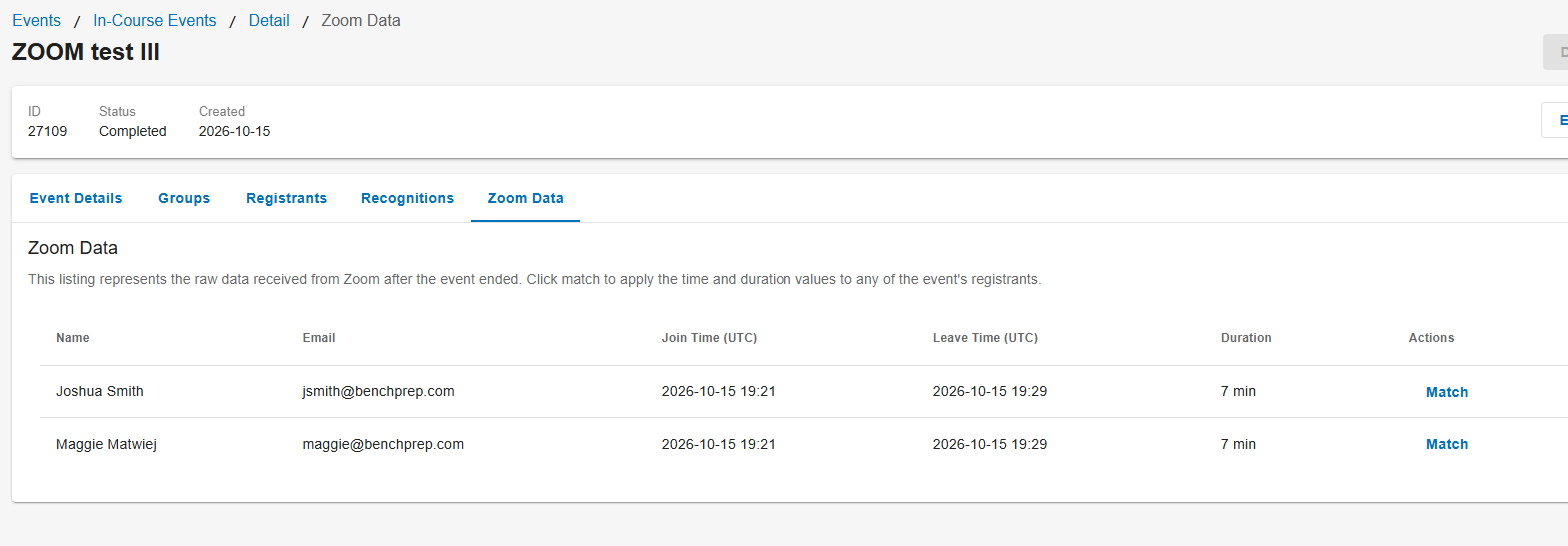
The Zoom Data tab displays the following information received from Zoom:
- Name: The participant's name in Zoom.
- Email: The email address associated with the Zoom participant.
- Join Time (UTC): The time the participant joined the Zoom meeting.
- Leave Time (UTC): The time the participant left the Zoom meeting.
- Duration: The amount of time the participant attended the meeting.
The Zoom Data tab contains the raw attendance records received from Zoom. These records may include participants who are not enrolled in the BenchPrep course, such as the meeting host.
Important: The Zoom Data tab and Registrants tab display different information. Zoom Data shows the participants reported by Zoom, while Registrants shows the BenchPrep users associated with the event. A participant appearing in Zoom Data does not necessarily mean their attendance has been associated with a BenchPrep learner.
Matching Zoom Attendance to a Learner
When a learner attends a Zoom meeting, BenchPrep uses the information received from Zoom to associate their attendance with their BenchPrep account.
If a learner joins the Zoom meeting using a different email address from the one associated with their BenchPrep account, their attendance may not automatically appear in the Registrants tab.
Administrators can use the Match feature to associate the Zoom attendance record with the correct BenchPrep learner.
To match Zoom attendance to a learner, follow these steps:
- Navigate to Console, expand the Learning tab, and click on Events.
- Click on the In-Course tab and select the applicable event.
- Click on the Zoom Data tab.
- Locate the Zoom participant whose attendance you want to associate with a learner.
- Click on Match under Actions.
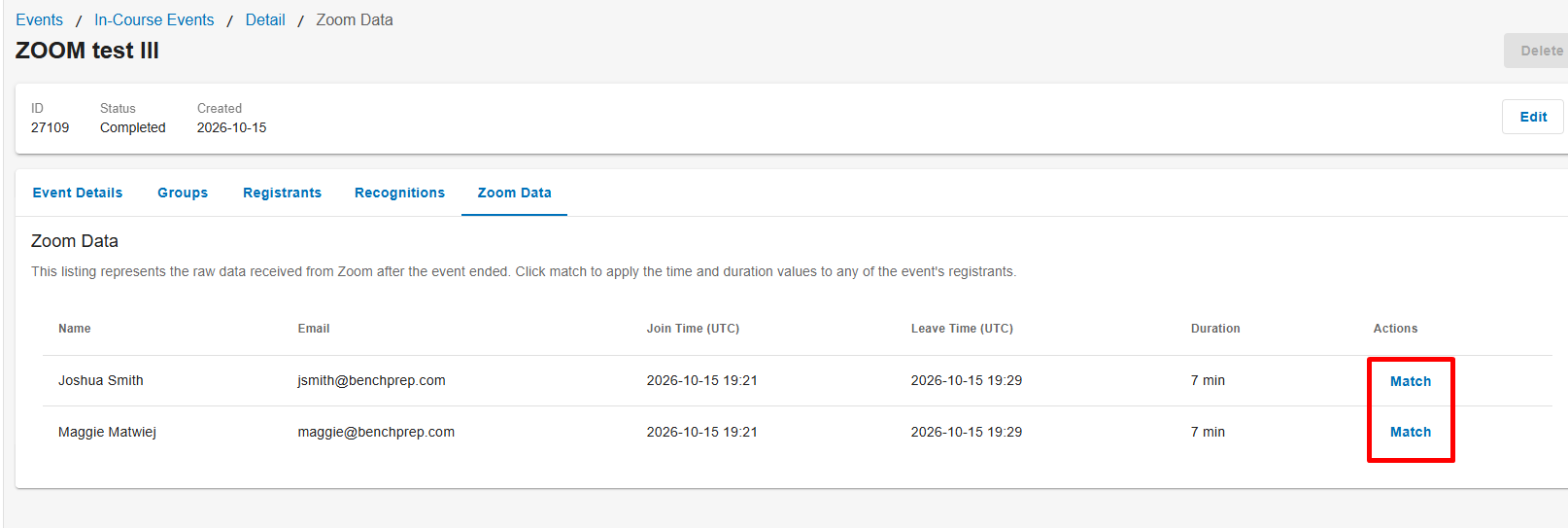
- In the Match Zoom Attendance To Registrant window, search for the learner's BenchPrep account or locate them in the list.
- Select the correct learner.
- Click on Match.
Once matched, the learner's record in the Registrants tab is updated with the attendance information received from Zoom, including their join time, leave time, and duration.
Example: A learner's BenchPrep account uses one email address, but they join the Zoom meeting using a different email address. Their attendance appears in the Zoom Data tab but is not associated with their BenchPrep record. An administrator can use Match to select the correct BenchPrep account and apply the Zoom attendance information.
Note: Zoom Data may include participants who do not have access to the BenchPrep course, such as the Zoom meeting host. Only match attendance records to the appropriate BenchPrep learners.
Overriding Learner Attendance
The Override Attendance option allows administrators to trigger actions associated with an In-Course Event, such as awarding a recognition or unlocking course content through a milestone, without requiring the learner to meet the configured attendance criteria.
To override a learner's attendance, follow these steps:
- Navigate to Console, expand the Learning tab, and click on Events.
- Click on the In-Course tab and select the applicable event.
- Click on the Registrants tab.
- Locate the learner and click on Override Attendance under Actions.
- Review the confirmation message and click on Confirm.
Important: Overriding attendance automatically triggers any recognitions or milestone-based content unlocking associated with the event, regardless of whether the learner has met the attendance requirements.
Note: If a learner attended the Zoom meeting but their attendance was not automatically associated with their BenchPrep account, review the Zoom Data tab first. You may be able to use Match to associate their actual Zoom attendance information instead.
To override attendance for multiple learners, select the checkboxes next to the applicable learners in the Registrants tab, then click on Override Attendance above the table. Review the confirmation message before proceeding.
```

