


 210
210
Viewing Course Reports Insights
The Course Report delivers a complete picture of course performance, including exam and quiz results, learner engagement, and progress across all learning formats — providing instructors with the insights they need to guide success.
In order to view the Course Reports tab you must have a custom role with “Read Reports” and Read Content Package” permissions. Users with a Console Admin role will see all courses in a tenant.
If you manage multiple branches and groups (users with Branch Manager, Group Manager role or any other custom role with applicable permissions assigned at Branch and Group access context) the Course Report Dashboard will automatically display the courses associated with the branches and groups you oversee, eliminating the need to switch access contexts to view data for each group individually.
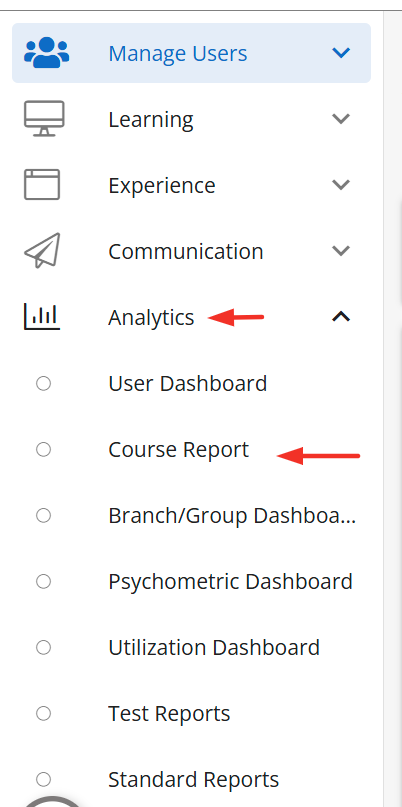
To view the Course Report please click on Analytics and then select Course Reports.
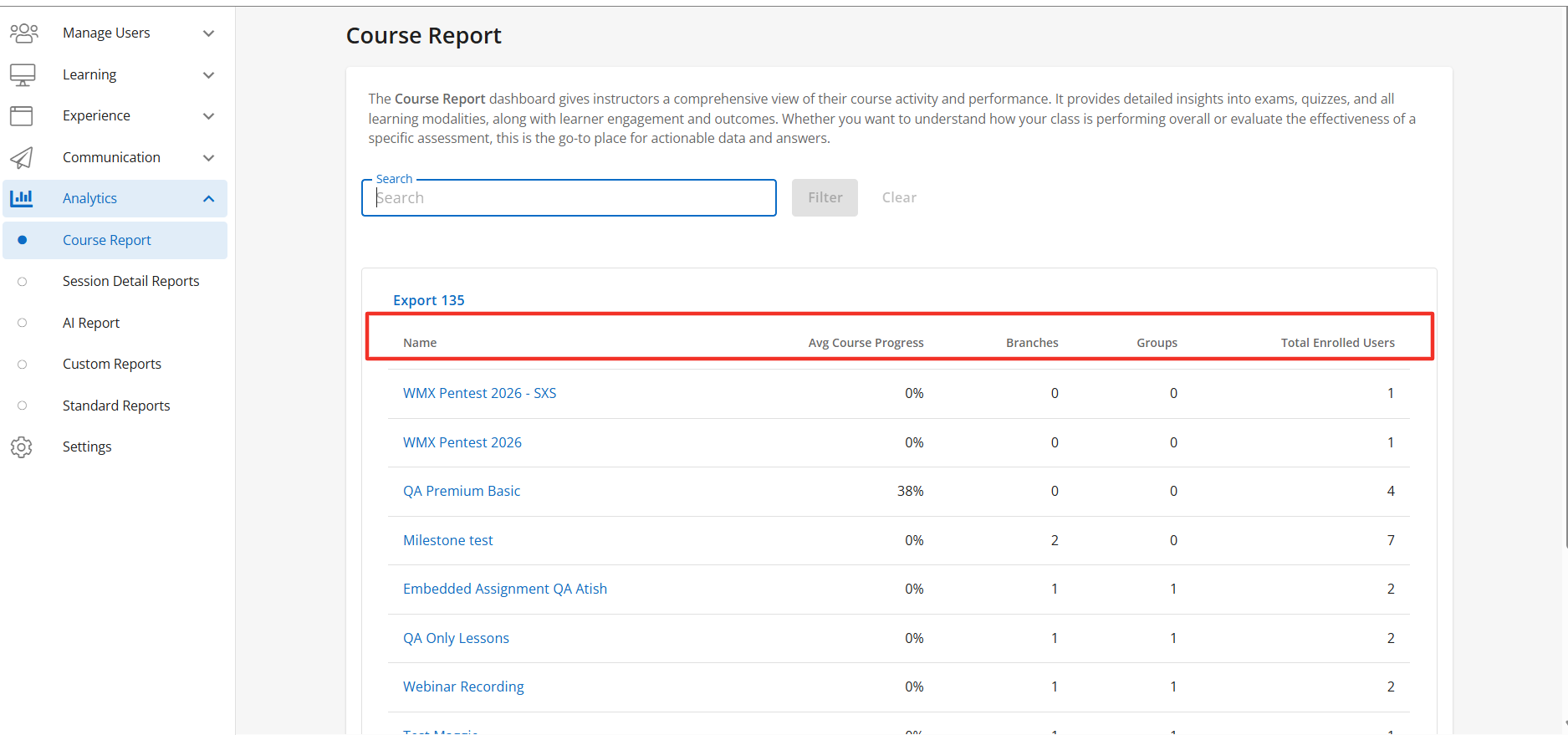
The Course Report section displays the following fields when the Course Report Table is enabled:
- Course Name - Name of the course.
- Average Course Completion - The average course completion % for all active learners with active course enrollment.
- Branches - Number of branches with access to the course.
- Groups - Number of groups with access to the course.
- Total Enrolled Users - Total number of active learners with active course enrollment learners enrolled in the course.
The Course Report Table is a sub-feature of the Course Overview Tab, to learn more about how to manage this feature please click here.
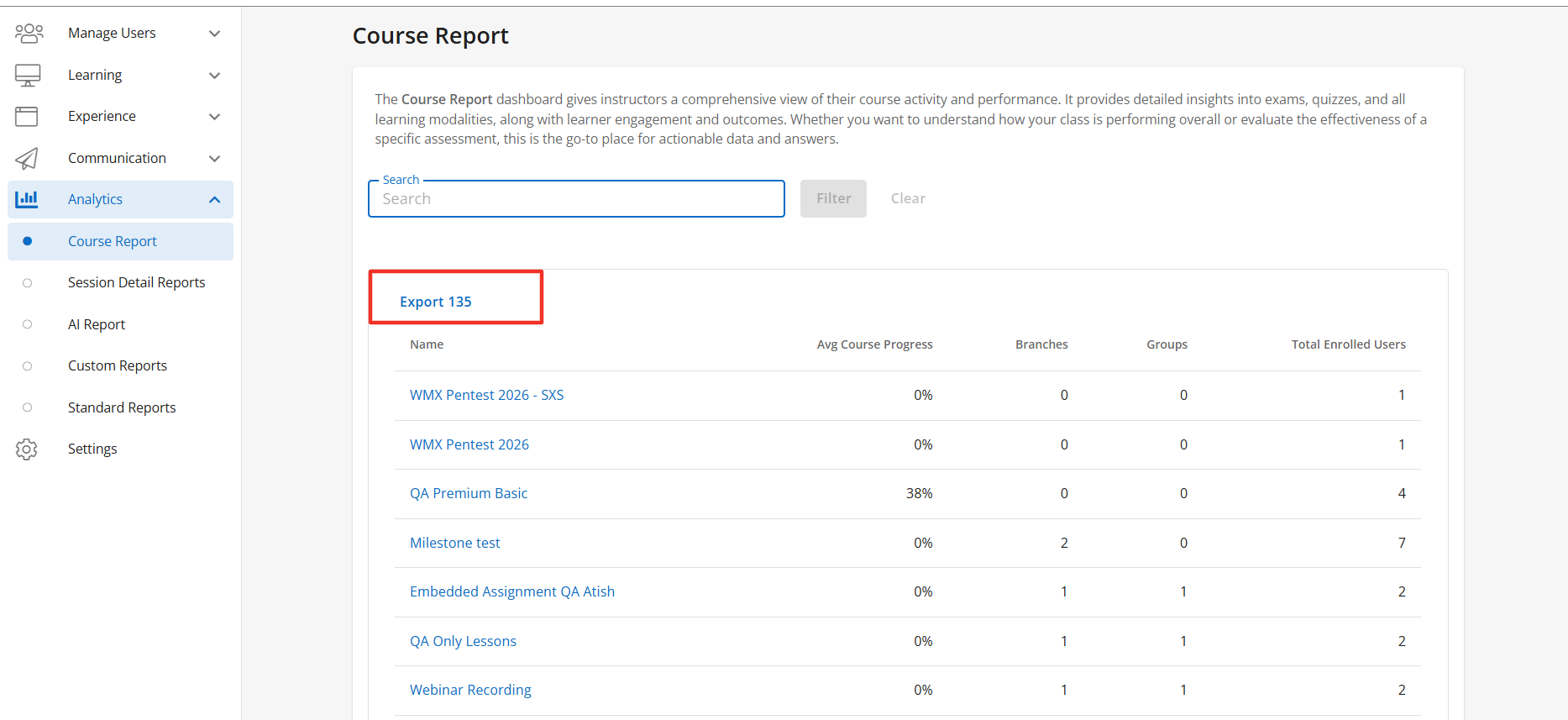
You also have the ability to Export all data from this page. Simply click on the Export button above the Name column and the CSV will automatically download.
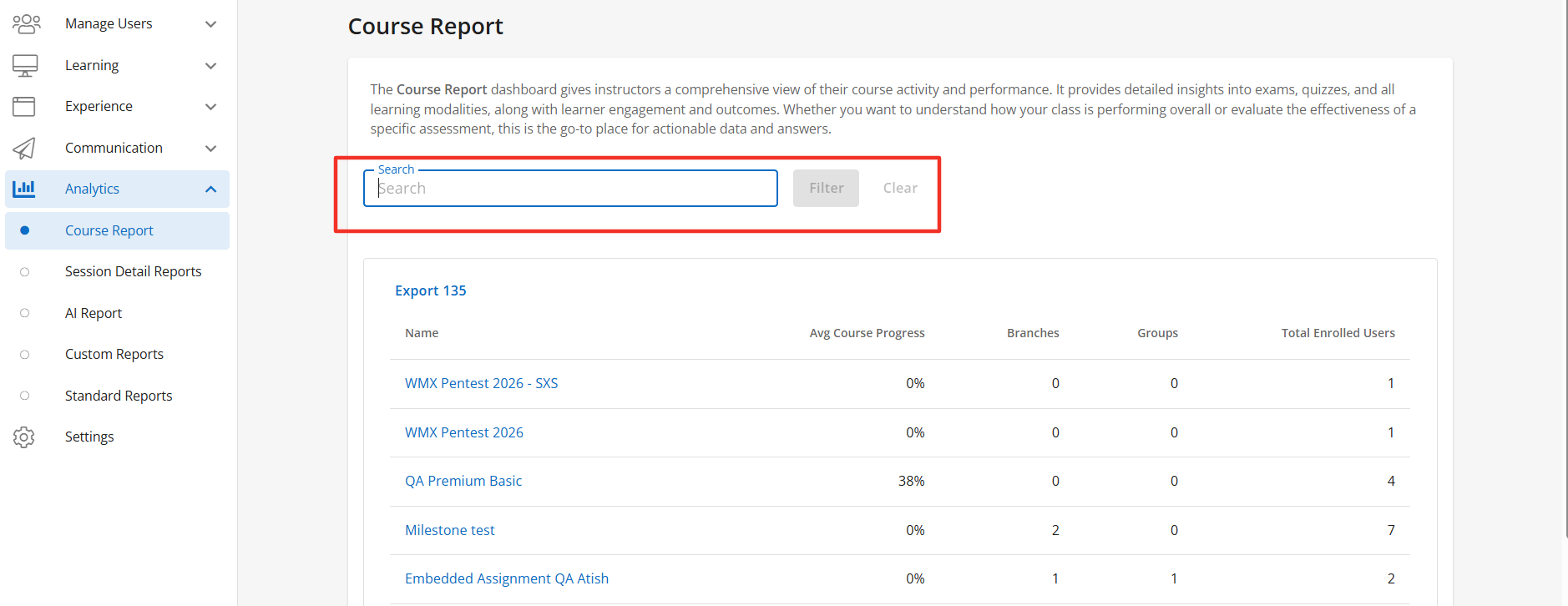
To filter for a specific course click the search bar and enter the name of the course you want to view and click filter.
If enabled the Enrollment Data Points will display for the selected course. The Enrollment Data Points is an overview of specific data points of all the active learners within the selected course. The Enrollment Data Points display the following when enabled:
-
Average Course Progress
-
Total Enrolled Users
-
Average Practice Score
-
Average Exam Score
-
Average Time Spent
-
Average Questions Completed
-
Average Study Task Completed
-
Average Curriculum Tasks Completed
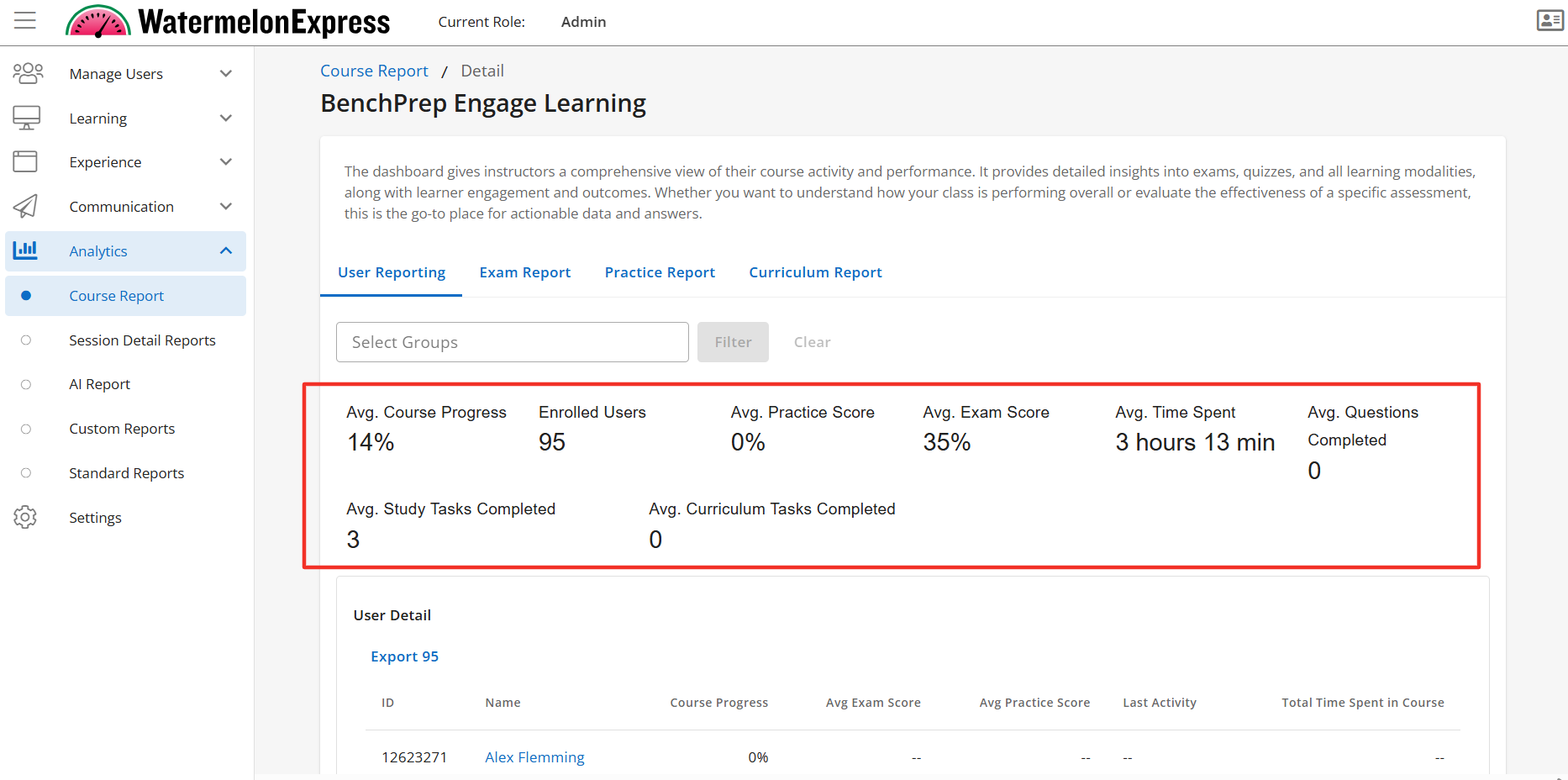
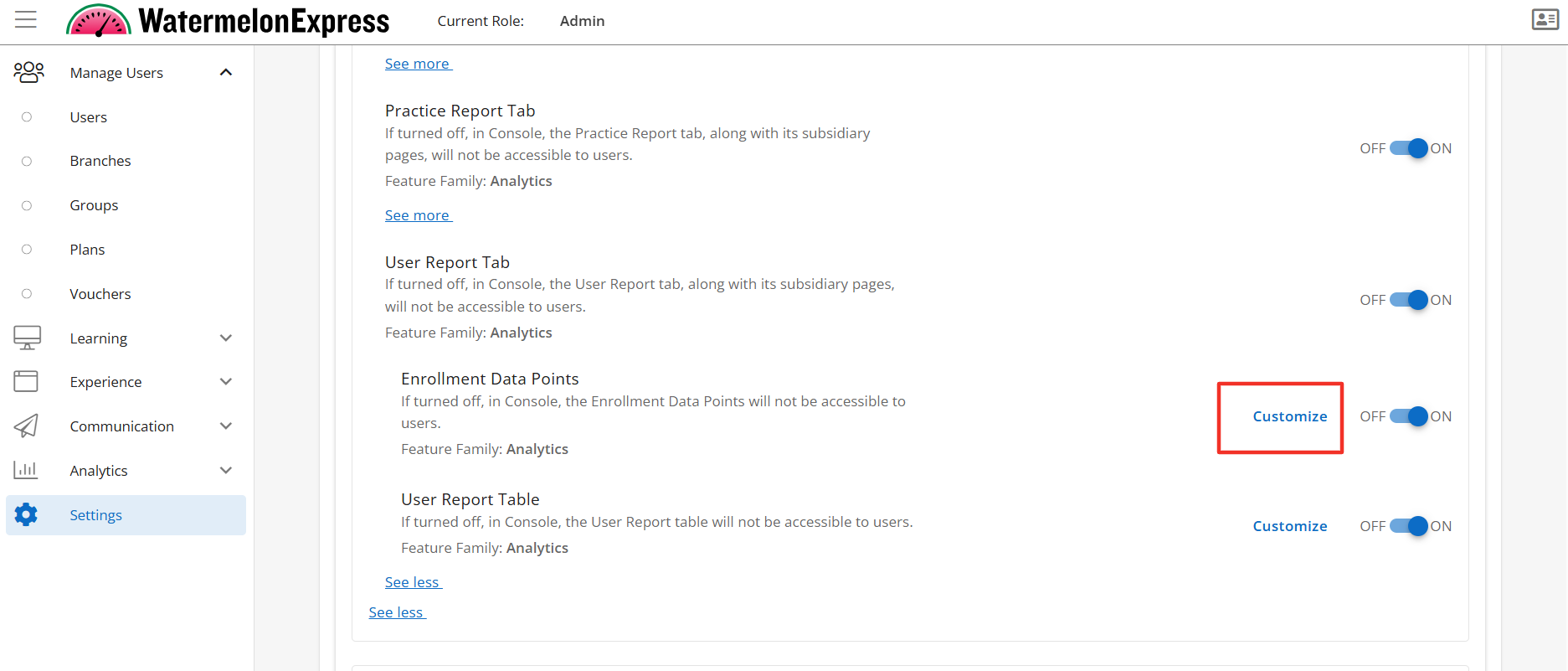
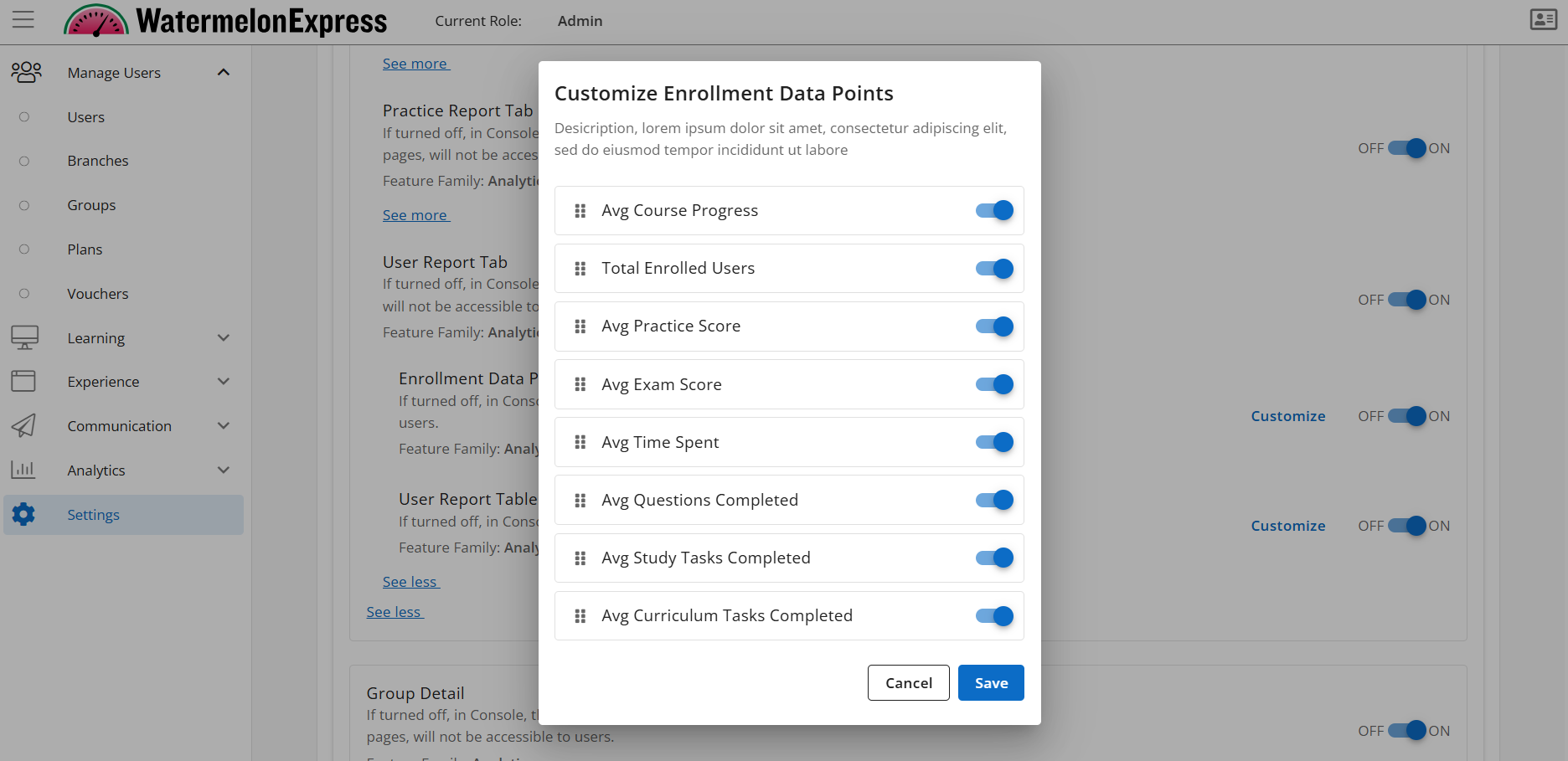
Any of the above data points can be customized while in Console by clicking on the Customize link when viewing the feature access.
Once you have selected a course the User Report Tab, Exam Report Tab, and the Practice Report Tab will display when enabled. Other feature accesses enabled like Curriculums will also display. To learn more about managing these features click here.
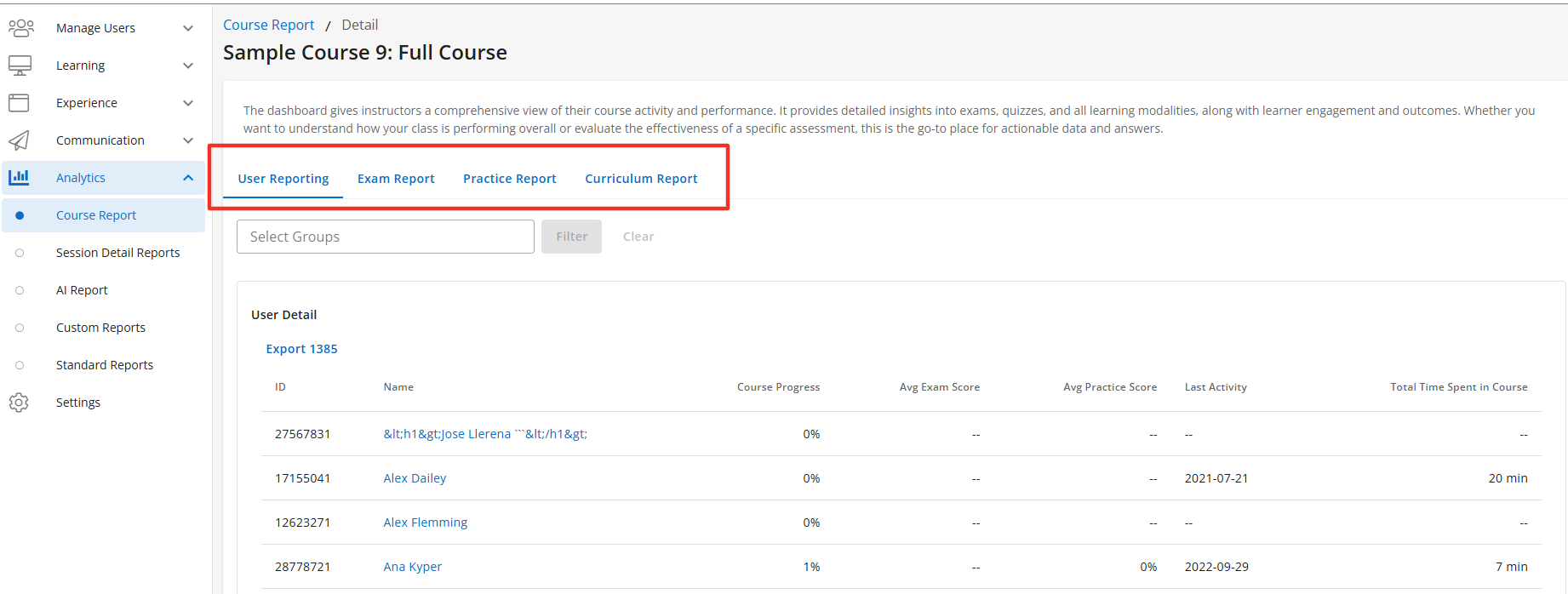
You also have the ability to filter each tab by groups. To filter the tabs by groups click on the filter and then select the group you want to view.
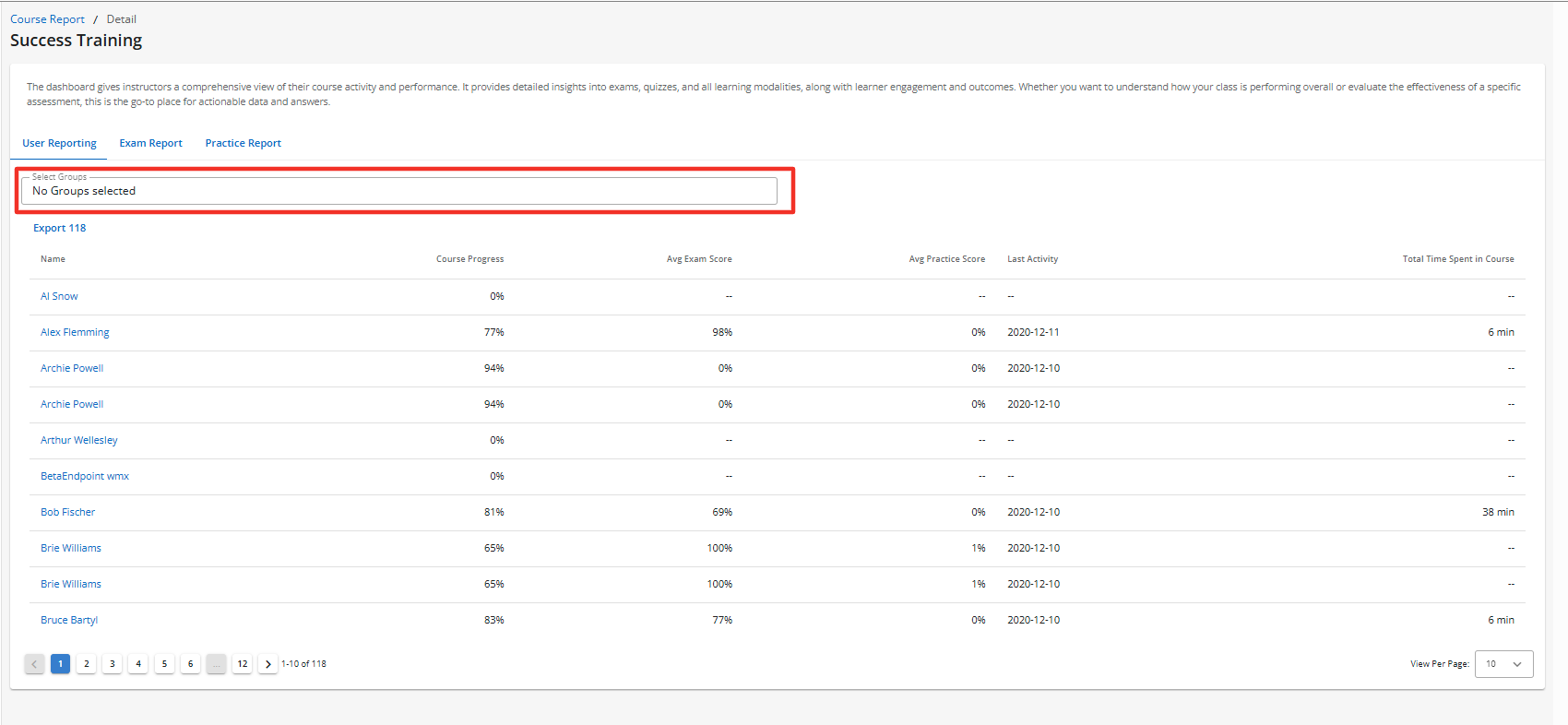
The User Report Tab displays the following fields when the User Report Table is enabled:
- ID - The learners BenchPrep user id.
- Name - Name of the learner.
- Course Progress - Displays the avg. course progress for the learner in the selected course. Course progress is determined by the Study Plan progress within the course. If a Study Plan is not used it is determined by the number of content items completed with the course divided by available content items.
- Avg. Exam Score -Displays the average exam scores (factoring “percent correct” score from exams in started, paused and completed states, including reset exams) for all exams taken by the learner.
- Avg. Practice Score - Averages out the practice scores for the learner in the course. The calculation involves taking the sum of practice scores, which includes correct, incomplete, and total answers recorded in practice sessions, and dividing it by the total number of practice sessions.
- Time Spent - Based on the learner’s active sessions.
- Email - Displays the learners email address.
- Last Time Active - Displays the last time a learner completed an activity in the selected Branch. An activity consists of taking action (i.e. completing, creating, editing, or deleting) for one of the following:
- Confidence levels (lessons, flashcards, or questions)
- Practice questions
- Exams
- Essays
- Bookmarks
- Highlights
- Notes
- Resets (practice questions or exams)
- Continuous learning cycle (if applicable)
- Total Questions Completed - The number of questions the learner completed.
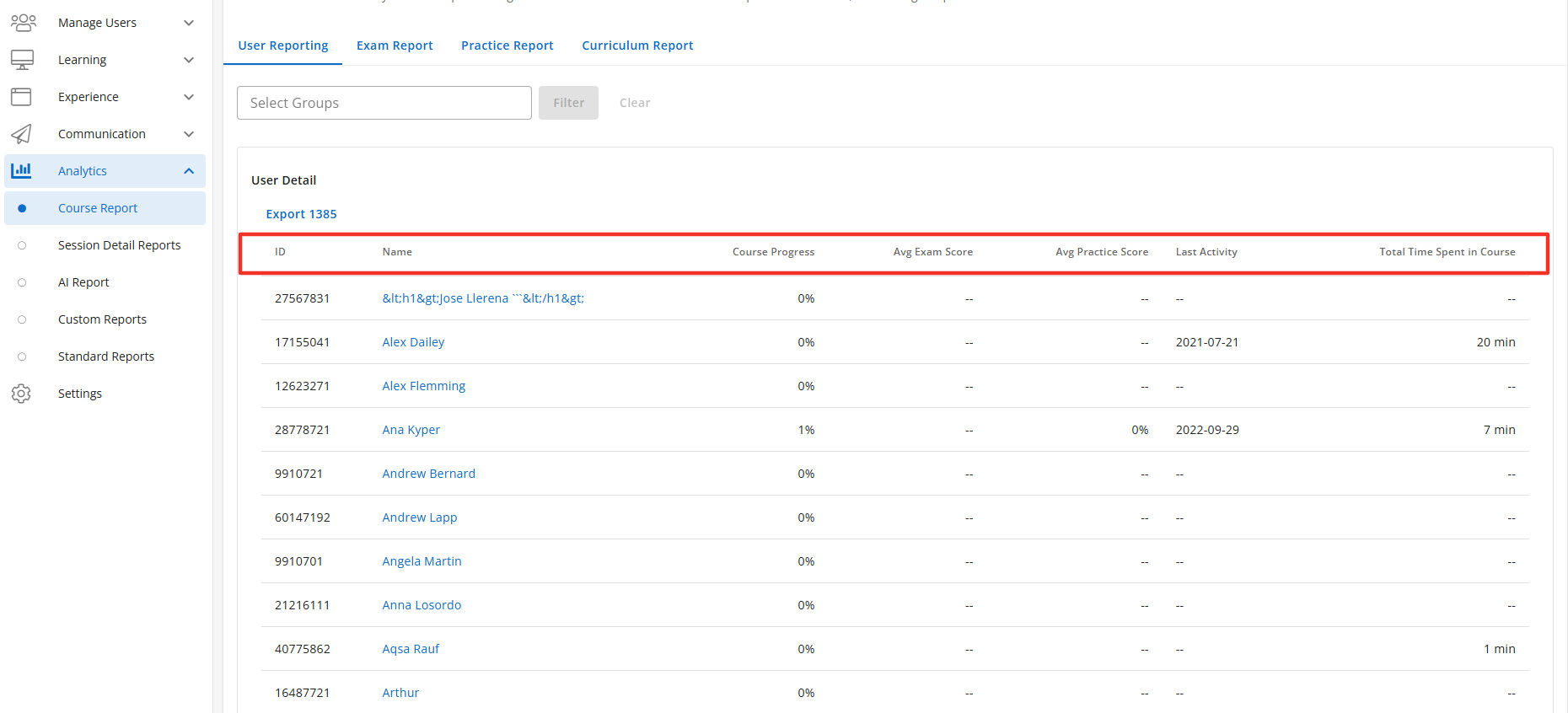
The User Report Tab is a sub-feature of the Course Overview Tab, and the User Report Table is a sub-feature of the User Report Tab to learn more about how to manage these features please click here.
The Exam Report Tab displays the following fields when the Exam Report Table is enabled:
-
Name - Name of the exam.
-
Avg. Score - Displays the average exam scores (factoring “percent correct” score from exams in started, paused and completed states, inclusive of reset exams) for all learners in this course.
-
# of learners taken - The number of learners that have taken the exam.
-
Last Attempt - Displays the date a learner within your scope context last attempted the exam.
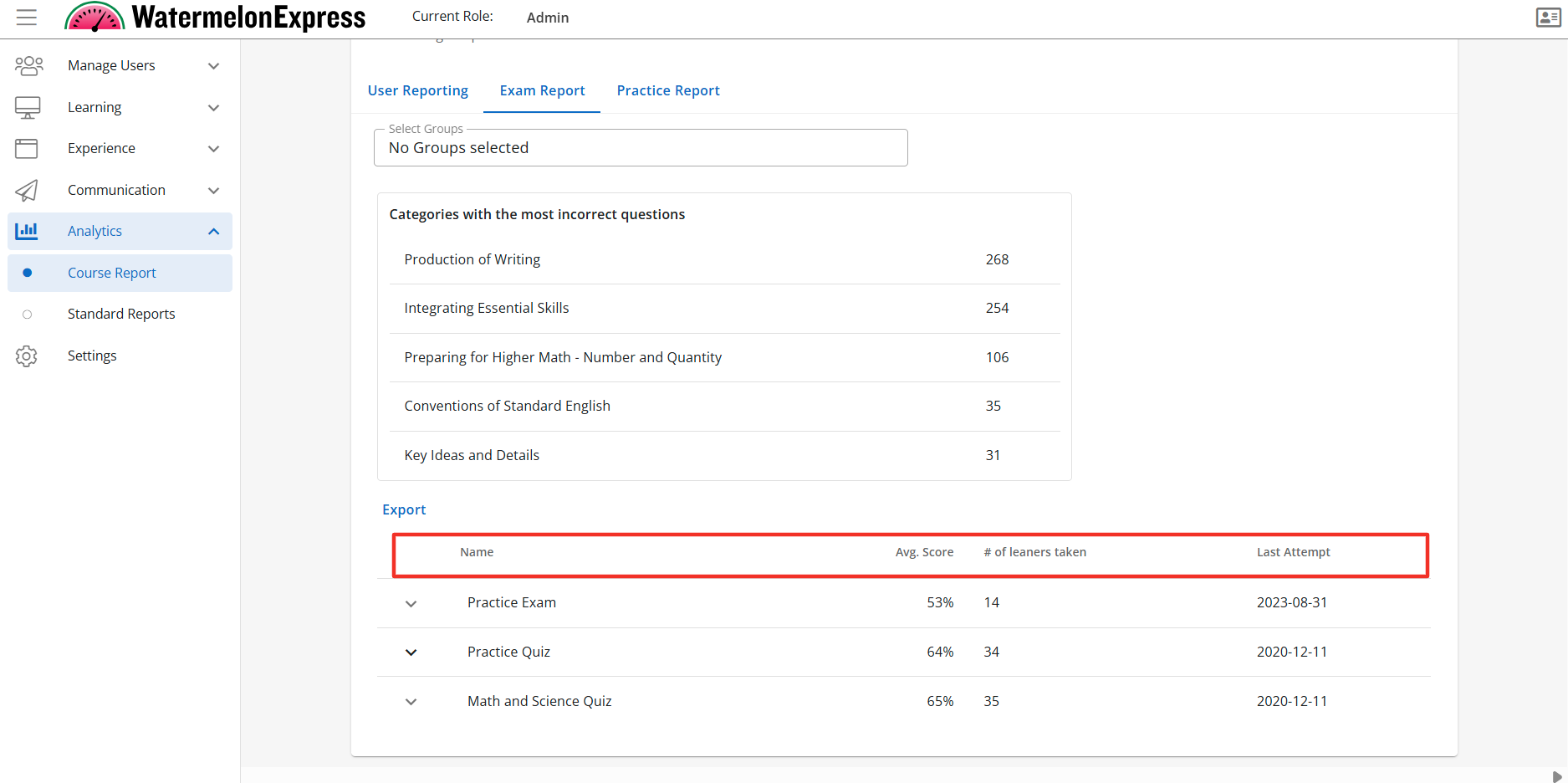
When you expand the Exams it will display questions the users have taken when expanded. These questions display the same columns as the Exam Report Table.
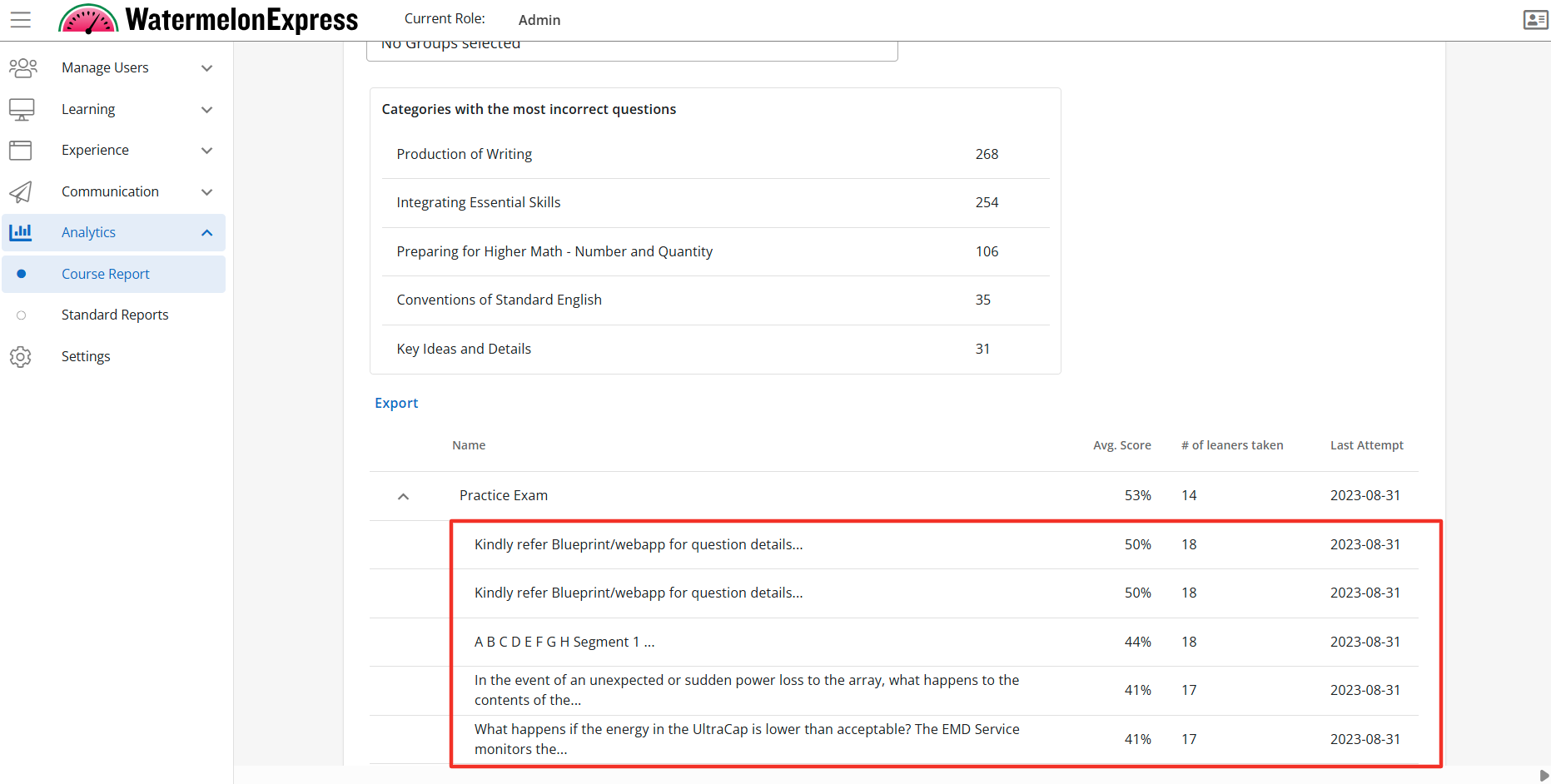
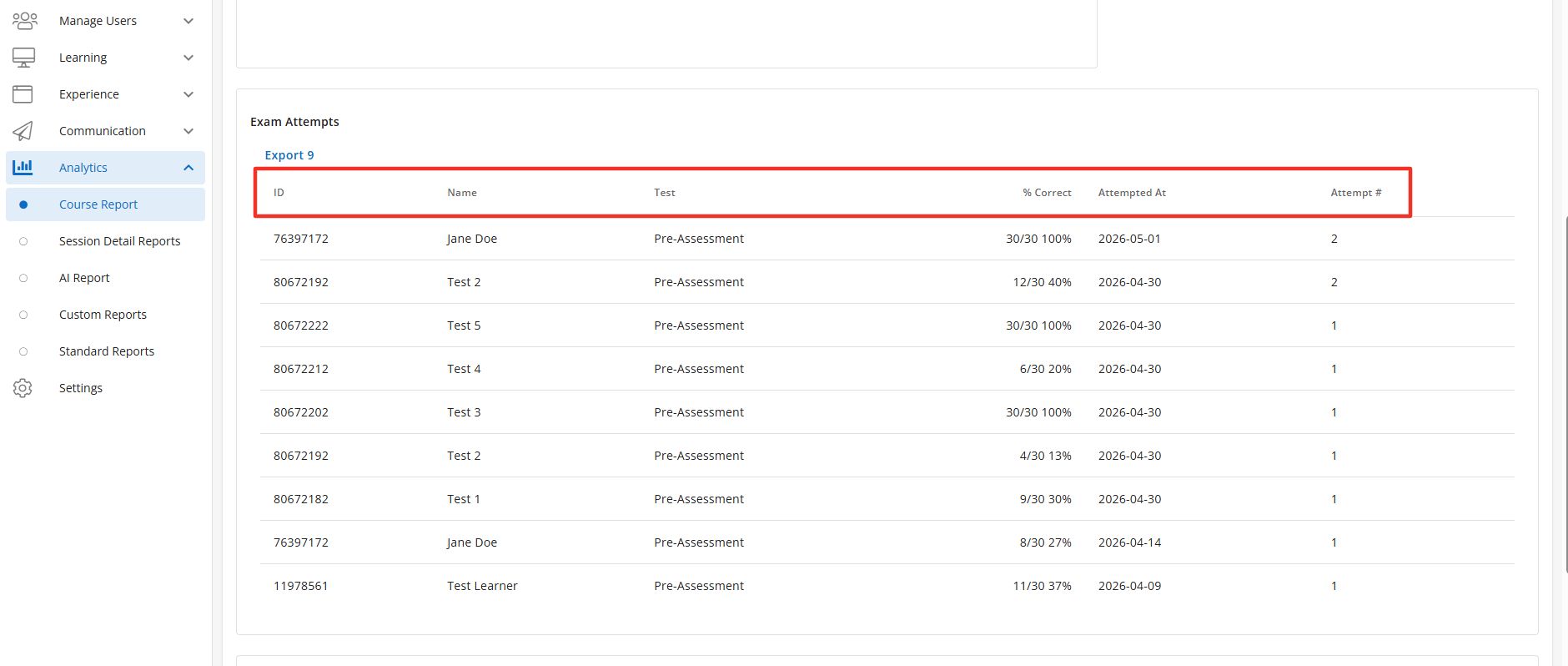
The Exam Tab can also display the Exam Attempts Table when enabled. Only completed attempts are included. If an exam is paused, then was reset the attempt will not be included in the count or in the calculation. To view questions in the exam click on the exam expander. The Exam Attempts table will display the following fields:
-
ID - The learners BenchPrep user id.
-
Name - Name of the learner.
-
Test- Name of the Exam.
-
% Correct - The percentage of questions the learner correctly answered.
-
Attempted At - Displays the number of attempt
-
Attempt # - Displays the number of total attempts.
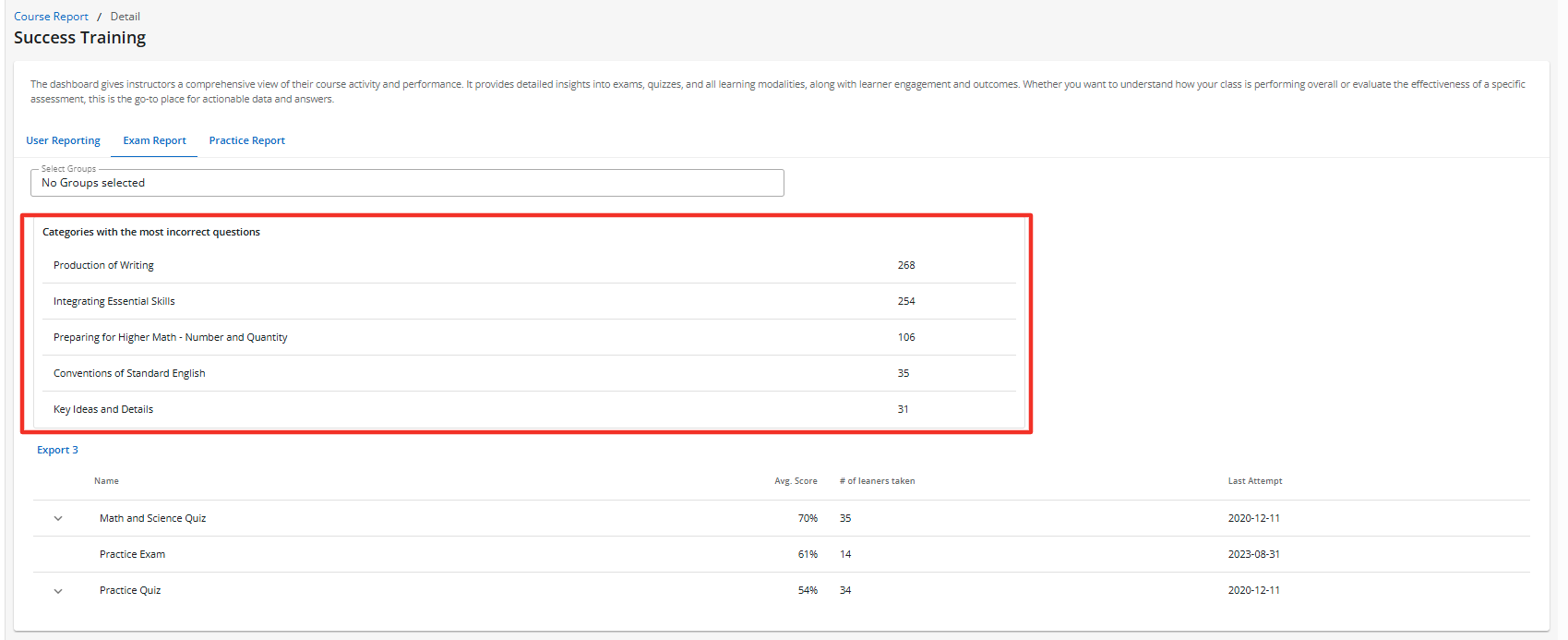
The Exam Tab also displays a listing widget that displays the Categories with the most incorrect questions for a quick overview of the top 5 questions categories with the most incorrect corrections. The widget will display the name of the categories and how many questions were missed in the category. This provides a quick overview of question category performances.
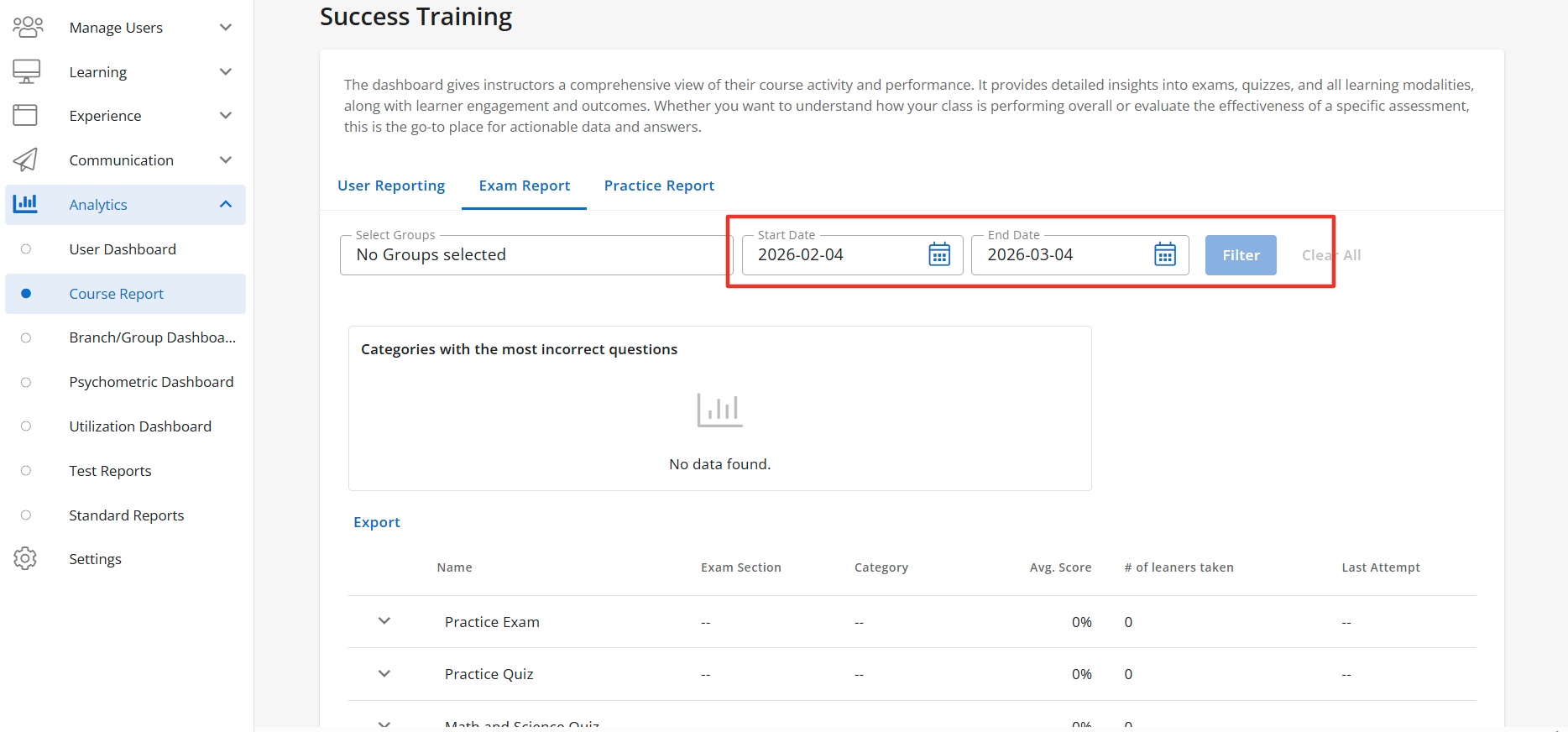
The Exam Report Tab will also display a date range filter allowing a user to customize the data they are viewing. The Exam Report date filter is set to display the last 30 days by default.
The Exam Report Tab is a sub-feature of the Course Overview Tab, and the Exam Report Table is a sub-feature of the Exam Report Tab to learn more about how to manage these features please click here.
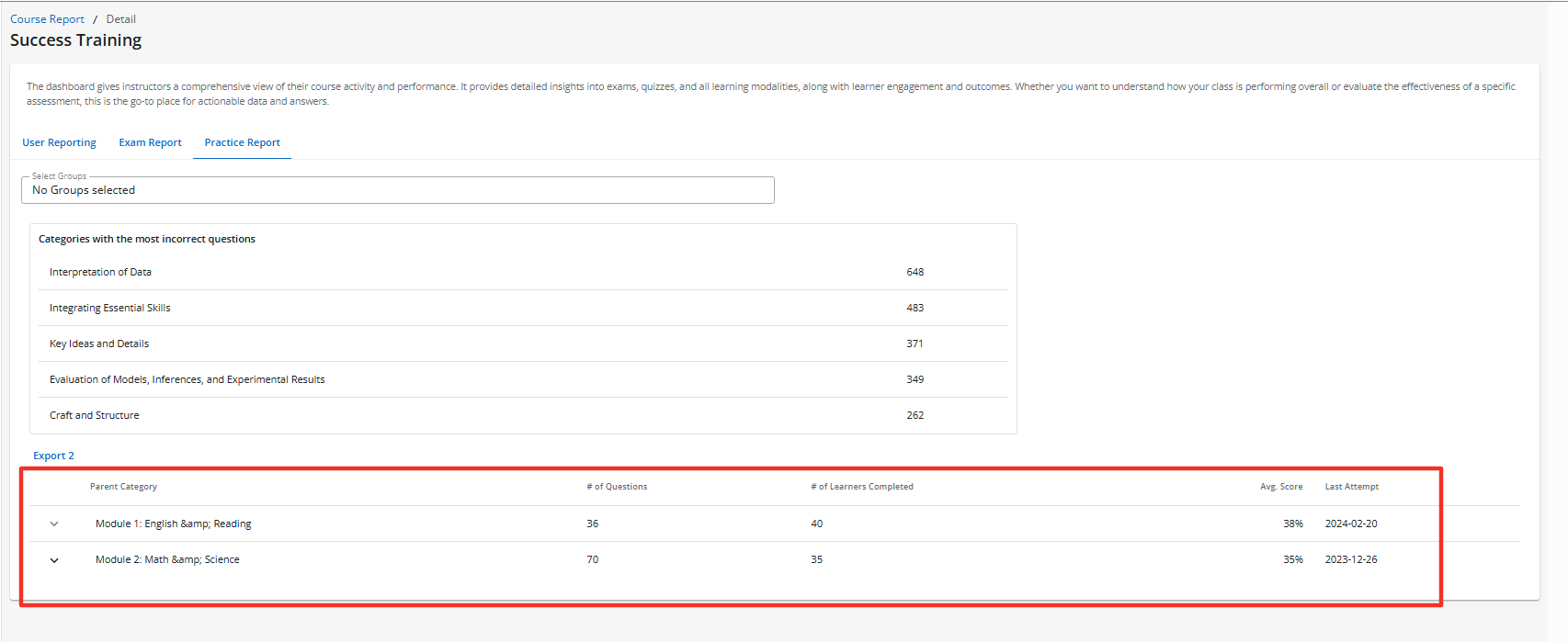
The Practice Report Tab displays the following fields when the Practice Report Table is enabled:
- Name - The question category name. Including Parent and child categories.
- Questions Taken - The number of questions taken in the category or sub category.
- Percentage Correct - Percentage of questions answered correctly.
- Last Attempt - The date the user last attempted Practice questions in the Question Category or Sub Category.
When enabled the Course Practice Session will display within the Practice Tab. The Course Practice Sessions displays data points from all active learners within the selected course. The Course Practice Session displays the following fields:
- Name - Displays the name of the learner.
- ID - Displays the BenchPrep id of the learner.
- Attempted At - The date the learner completed the session.
- % Correct - Displays the number of questions correct and the percentage correct for each session.
- Time Spent - The total time spent in minutes for the learner's session.
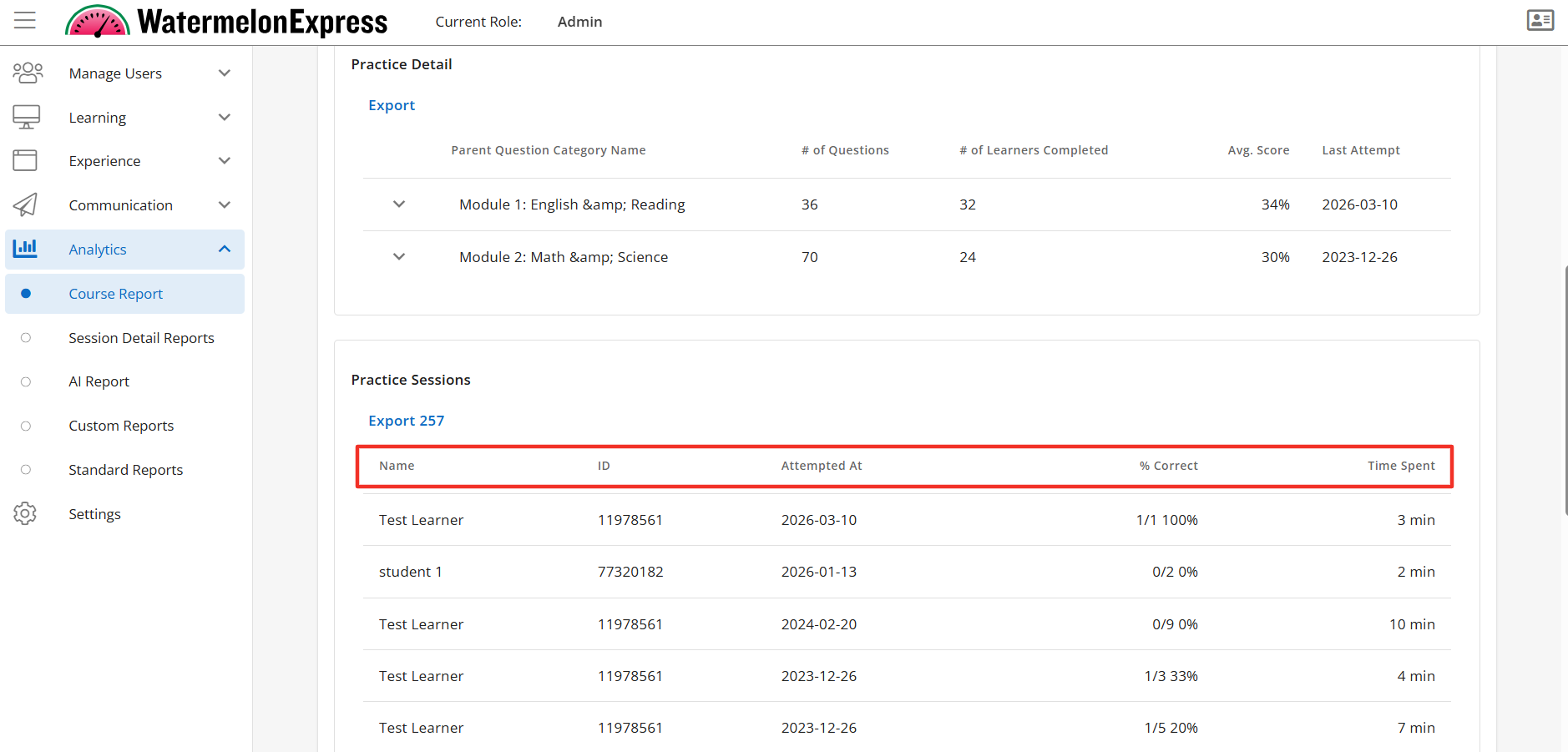
The Course Practice Session is a sub-feature of the Course Overview Tab, and the Practice Report Tab. To learn more about how to manage these features please click here.
The Practice Report Tab also displays a listing widget that displays the Categories with the most incorrect questions for a quick overview of the top 5 questions categories with the most incorrect corrections. The widget will display the name of the categories and how many questions were missed in the category. This provides a quick overview of question category performances.
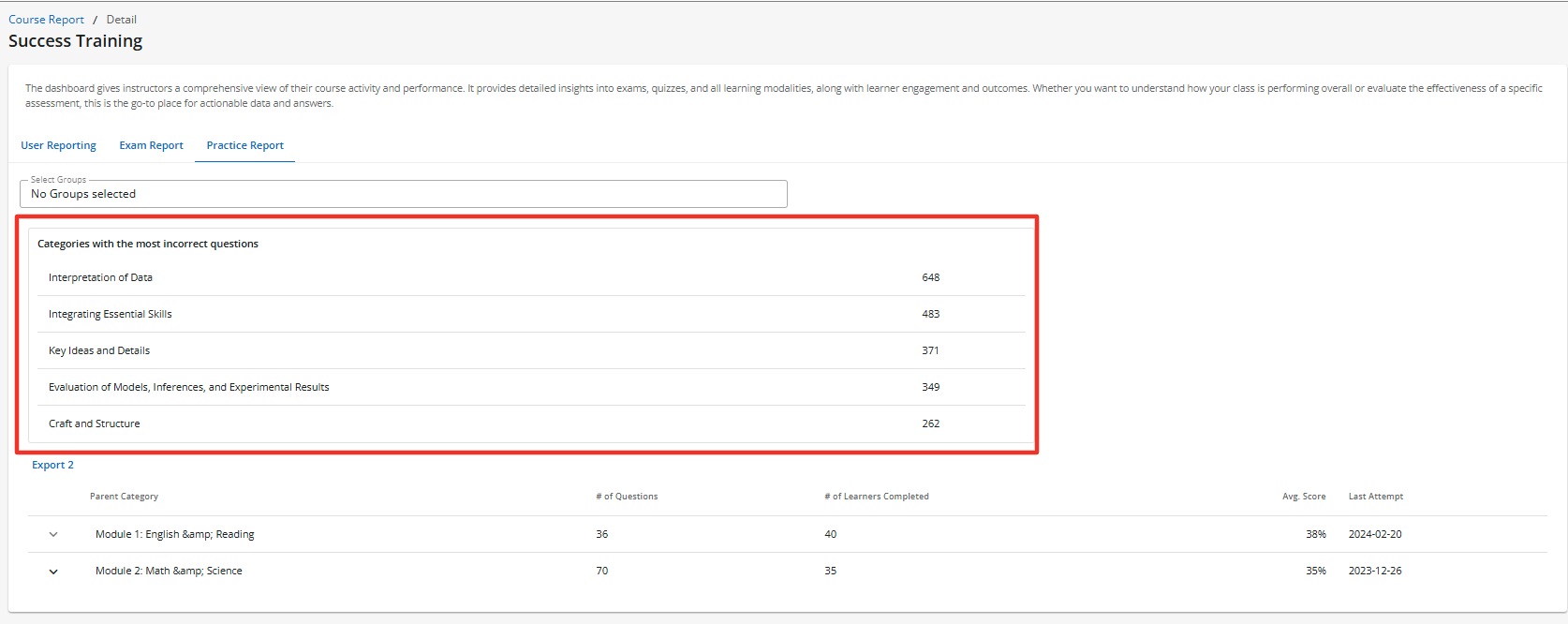
The Practice Report Tab is a sub-feature of the Course Overview Tab, and the Practice Report Table is a sub-feature of the Exam Report Tab to learn more about how to manage these features please click here.
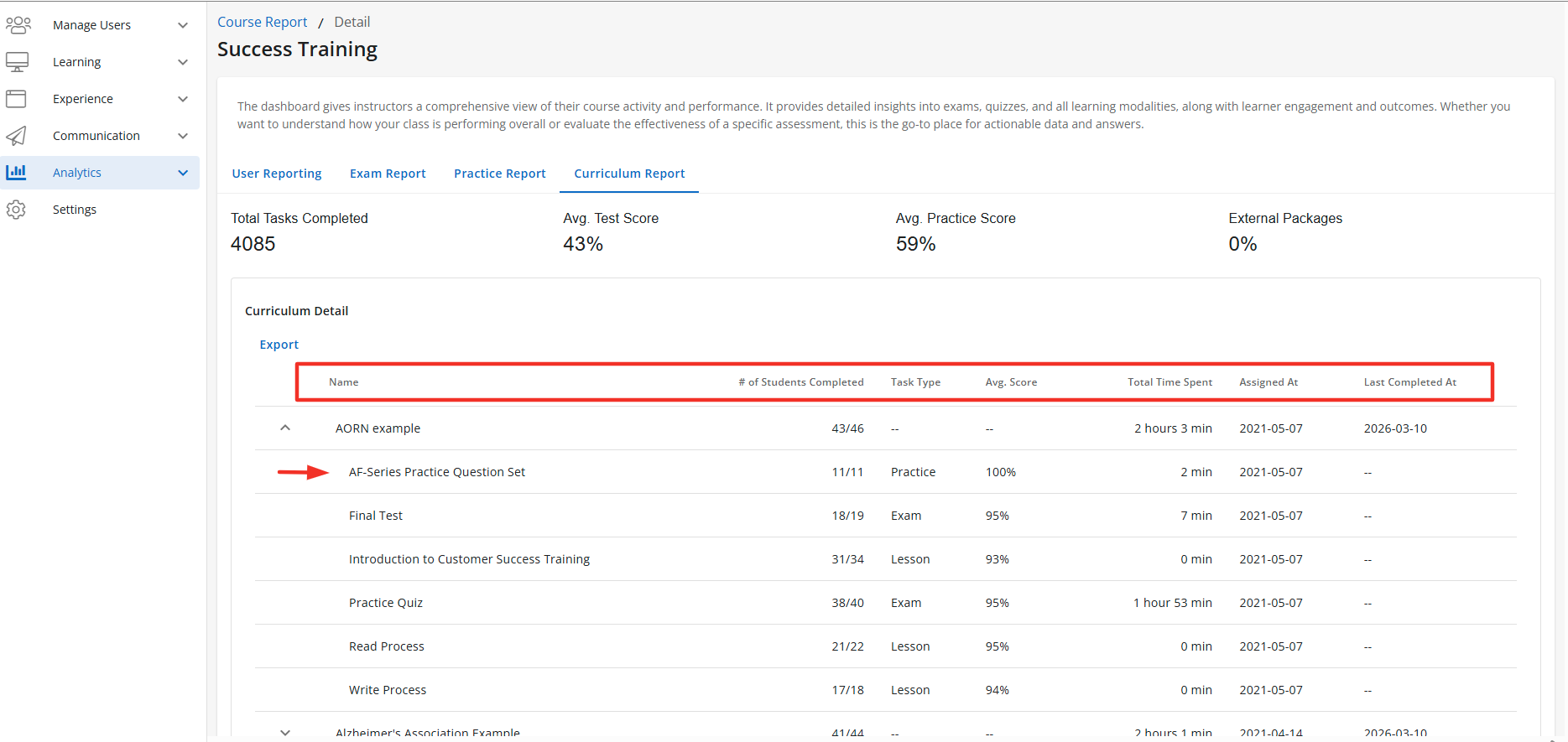
The Curriculums Report Tab displays the following fields when the Curriculum Report Table is enabled. The table and all available data points can be filtered by group and date:
- Name - Name of the Curriculum. When drilling down into the curriculum it will display the name of the tasks within the curriculum.
- # of Students Completed - displays the total number of learners who have completed the curriculum.
- Task Type - Displays the type of task the user completed like lesson, Exam, and Practice.
- Avg. Score - Displays the average score of all learners who completed the task.
- Total Time Spent - Is the total time spent for all learners on the curriculum.
- Assigned At - Displays the date the task was assigned.
- Last Completed At - Displays the date a learner last completed the task
- When viewing the Curriculum Report Table you have the ability to expand the Curriculum and view individual task within the curriculum.
The Curriculum Tab will also display the Total Task Completed of the learner. The Total Task Completed displays the total number of task completed by learners in the course.
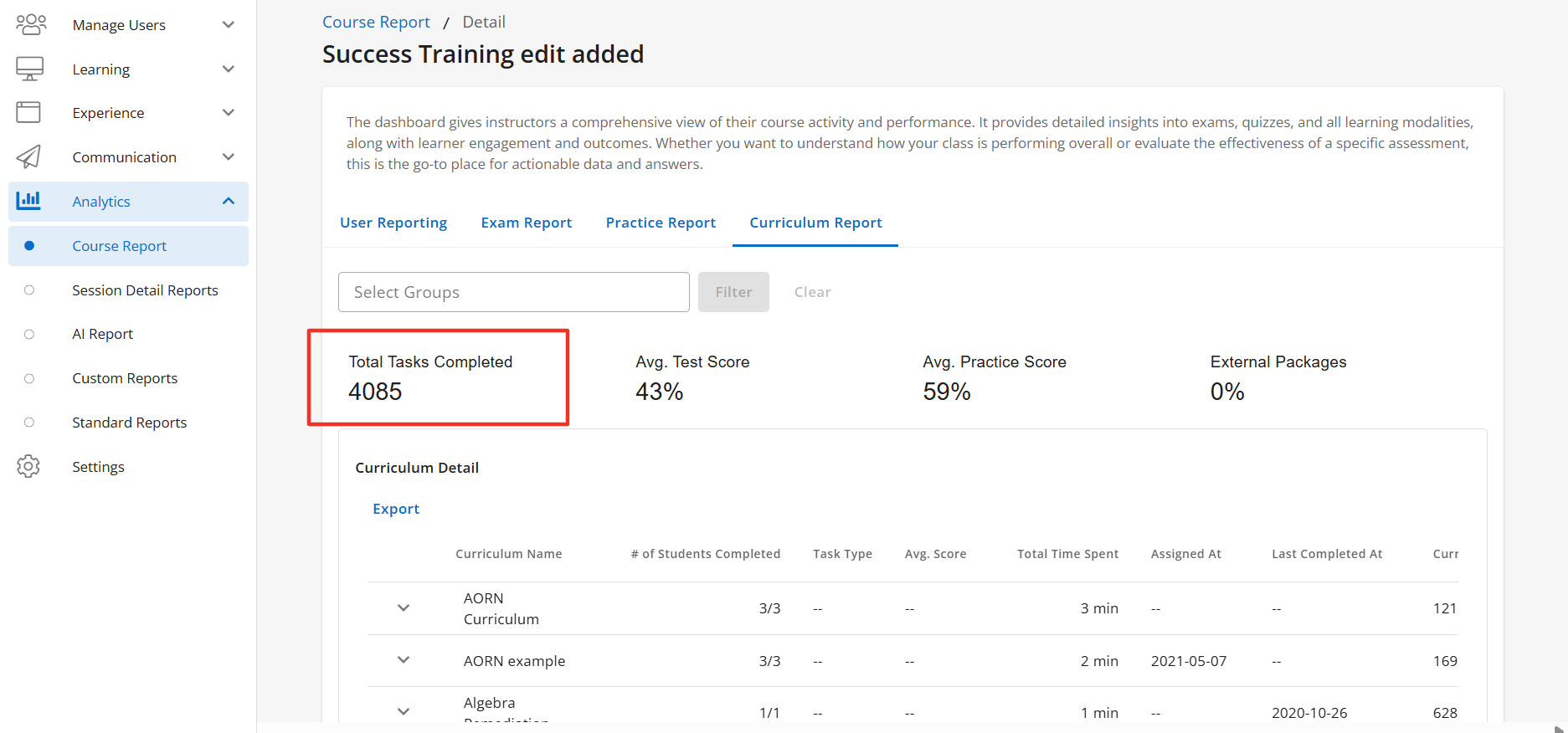
The Total Task Completed is a sub-feature of the Curriculum Tab, to learn more about how to manage this feature please click here.
The Curriculum Tab will also display the Average Test Score of the learner. The percentage shown is the average score the leaner received after completing any tests within the curriculum. Paused tests are not factored into the average test score.
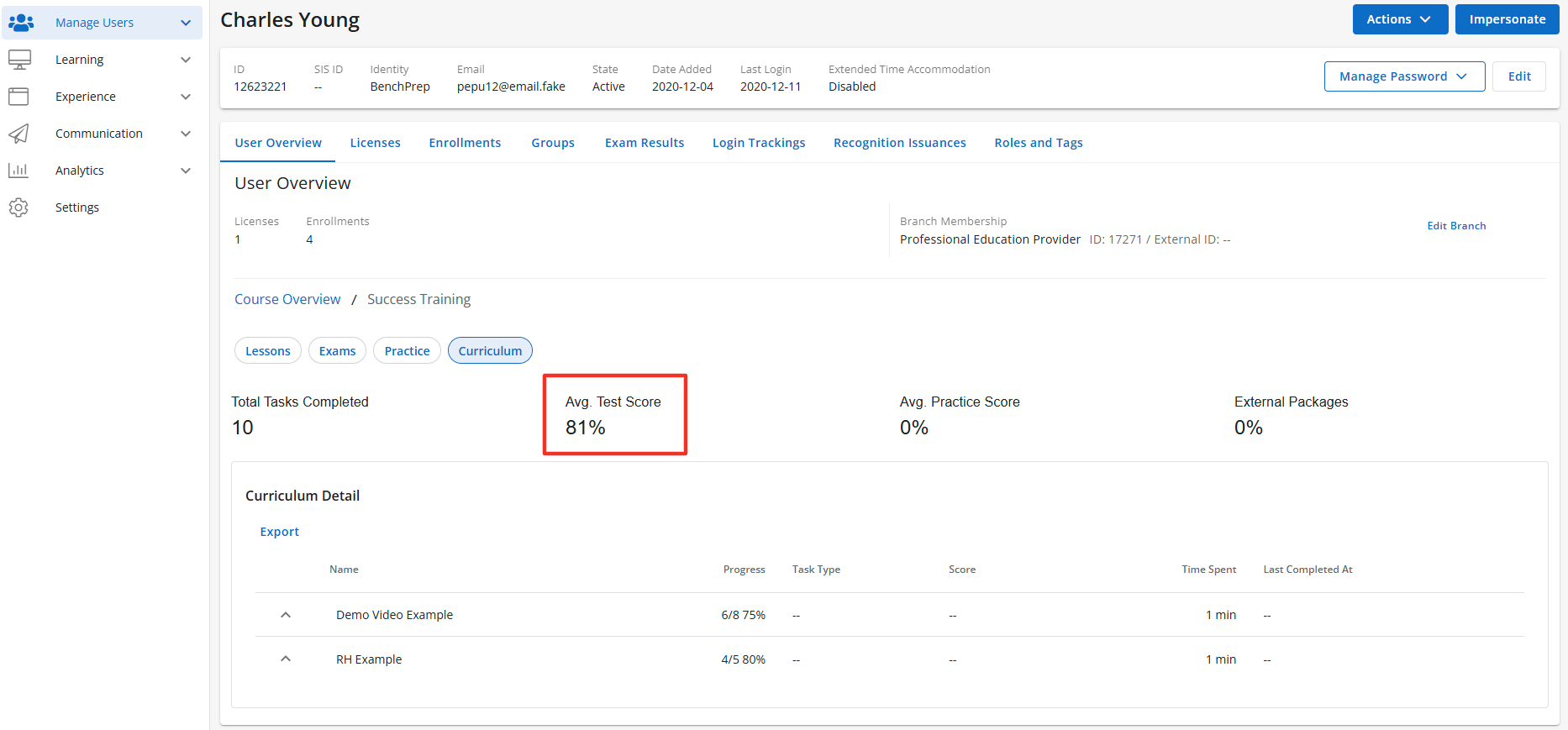
The Avg. Test Score is a sub-feature of the Curriculum Tab, to learn more about how to manage this feature please click here.
The Curriculum Tab will also display the Average Practice Score of the learner. The percentage shown is the average score the leaner received after completing any practice questions within the curriculum.
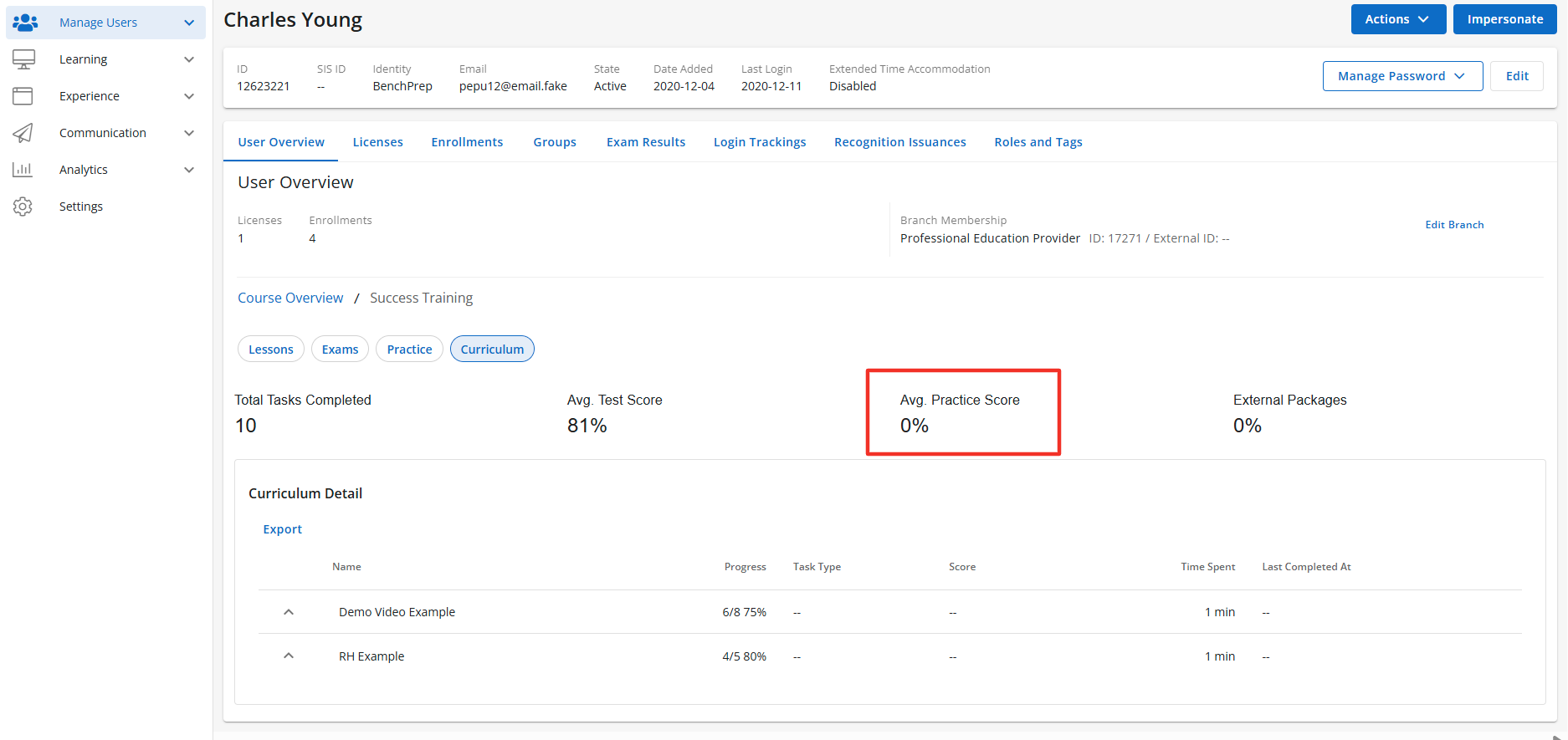
The Avg. Practice Score is a sub-feature of the Curriculum Tab, to learn more about how to manage this feature please click here.
The Curriculum Tab will also display the External Packages of the learner. The percentage shown is the average progress across all external packages.
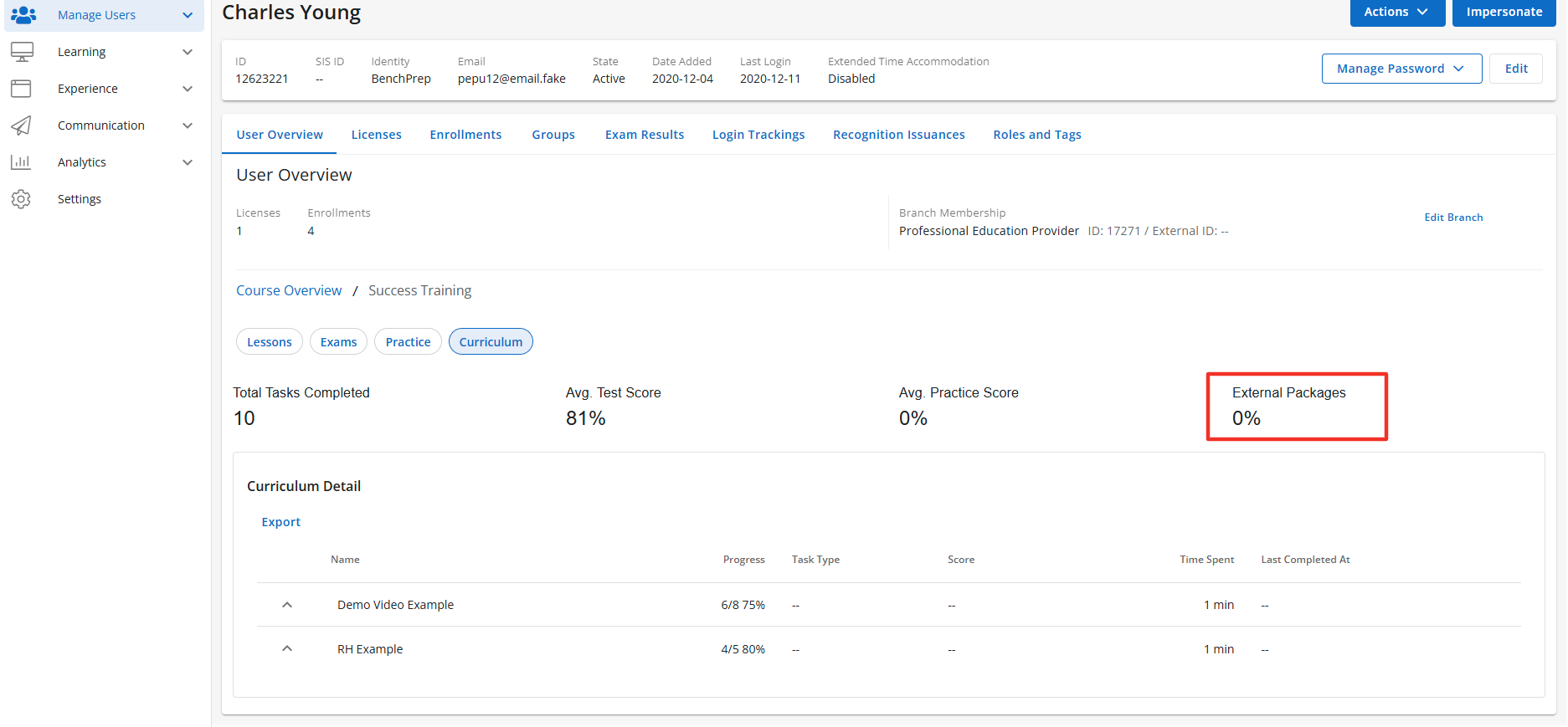
The External Packages is a sub-feature of the Curriculum Tab, to learn more about how to manage this feature please click here.

