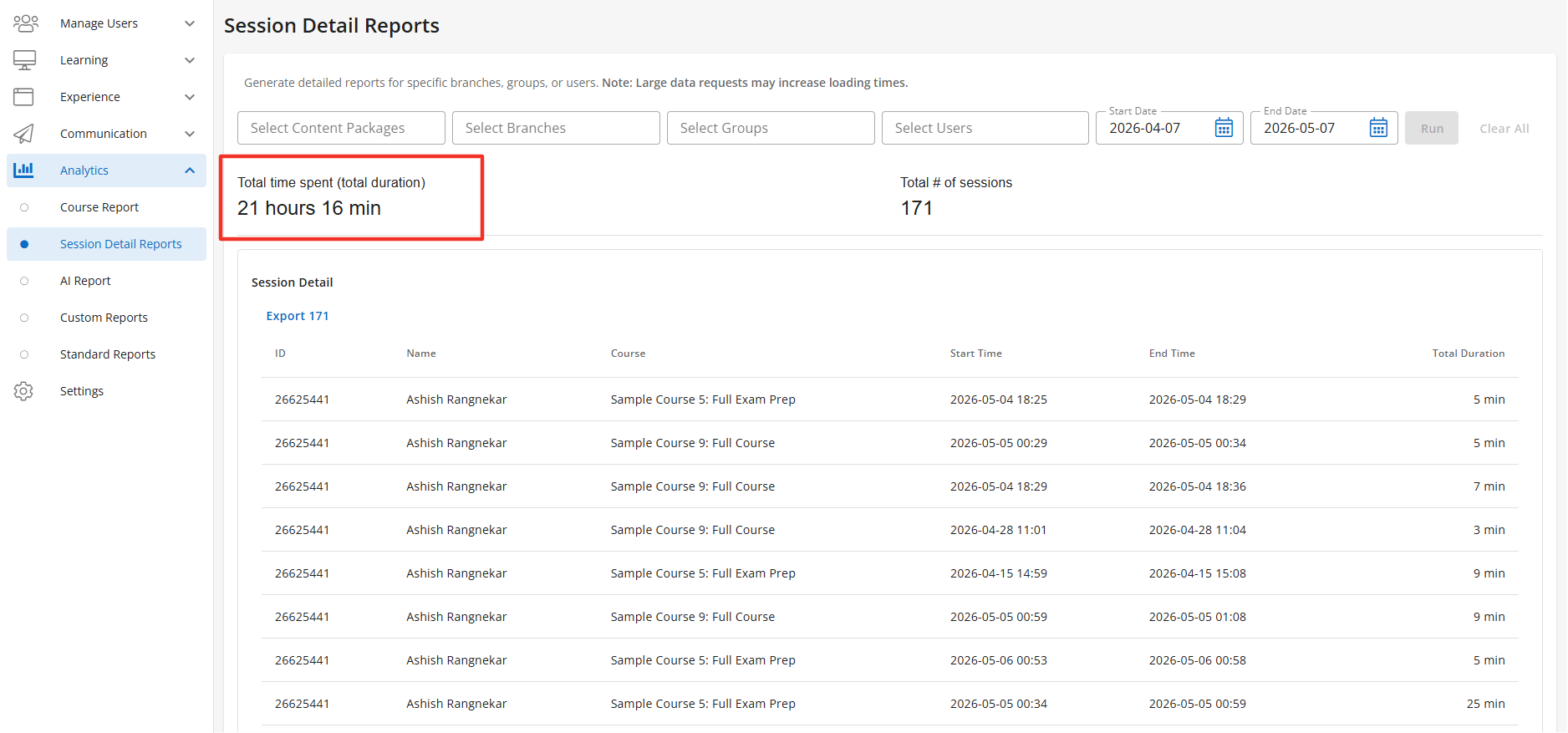
The Session Details Report is a feature access of the Analytics tab in Console.
Session Detail Reports functions like a stopwatch, tracking time based on what a learners is actively viewing in their browser. A session begins when the learner logs in and ends when they log out or are automatically logged out after 24 hours of inactivity, with the duration reflecting total time in the system. Total Time is calculated by combining time spent across all activities during the session, including quizzes (taking or reviewing tests), inbox (viewing messages or achievements), home (home page), practice (answering questions), lessons (instructional content), reset reports, study plan (course page), search, achievements (badges), discussions, flashcards, and games.
When viewing the Sessions Details report the platform uses your browser’s time setting to display data of the users. When exporting the data it is exported directly from our database, the data is not adjusted to a specific time zone, because the data relies on the non-converted raw times which displays in UTC.
To learn more about the Session Details Report and how to manage the feature click here.
In order to view the Session Details Report tab you must have a custom role with “Read Reports” permission. Users with a Console Admin role will see all reports within the Analytics section.
The Session Detail Reports displays the Session Details Table when enabled. The table can be filtered by the following:
- Content Packages
- Branches
- Groups
- User
- Start Date and End Date (by default the filter will display the last 30 days).
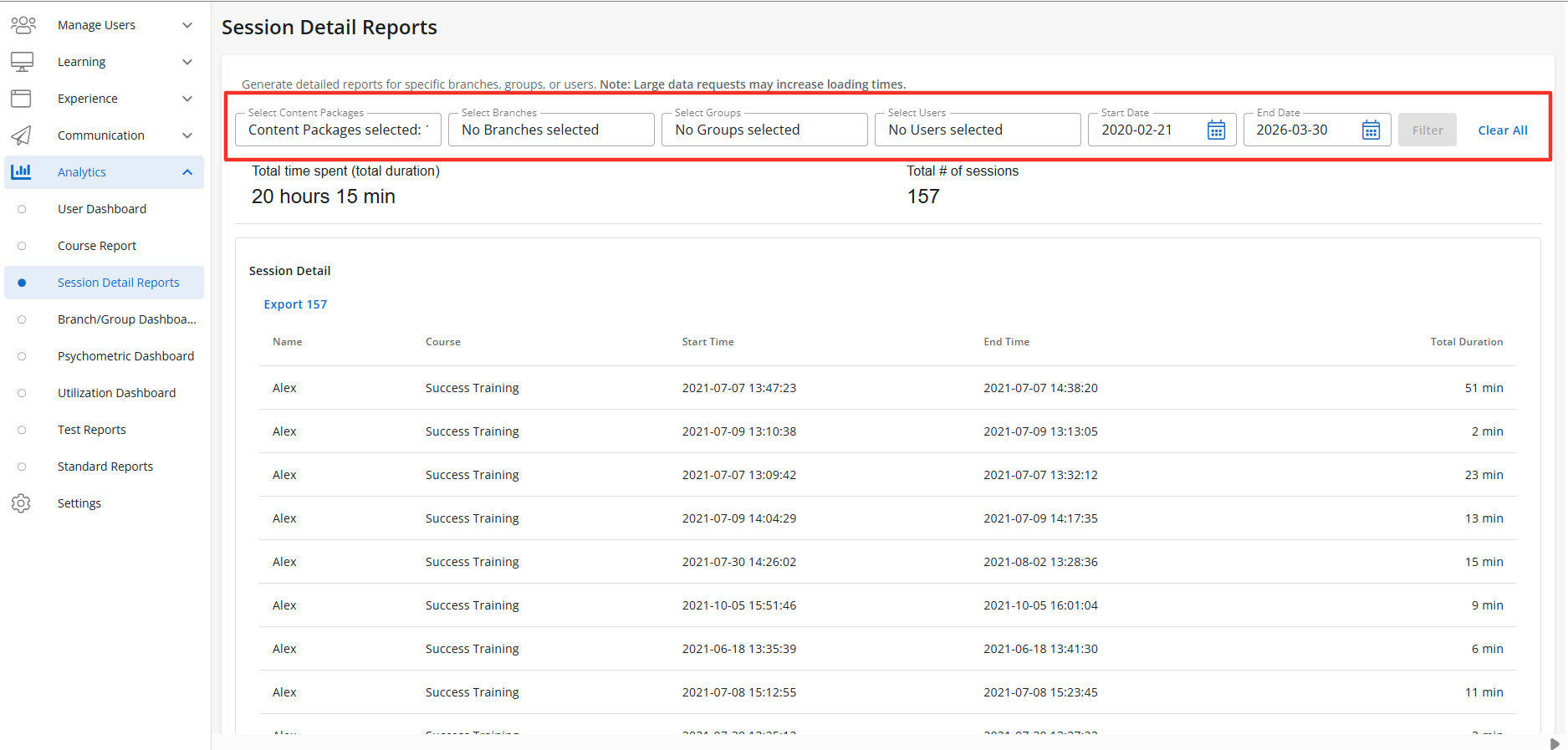
When enabled the Sessions Detail Table will display in the Session Detail Report tab. The Sessions Detail Table is a sub-feature of the Session Detail Report tab. To learn more about how to manage this sub-feature click here.
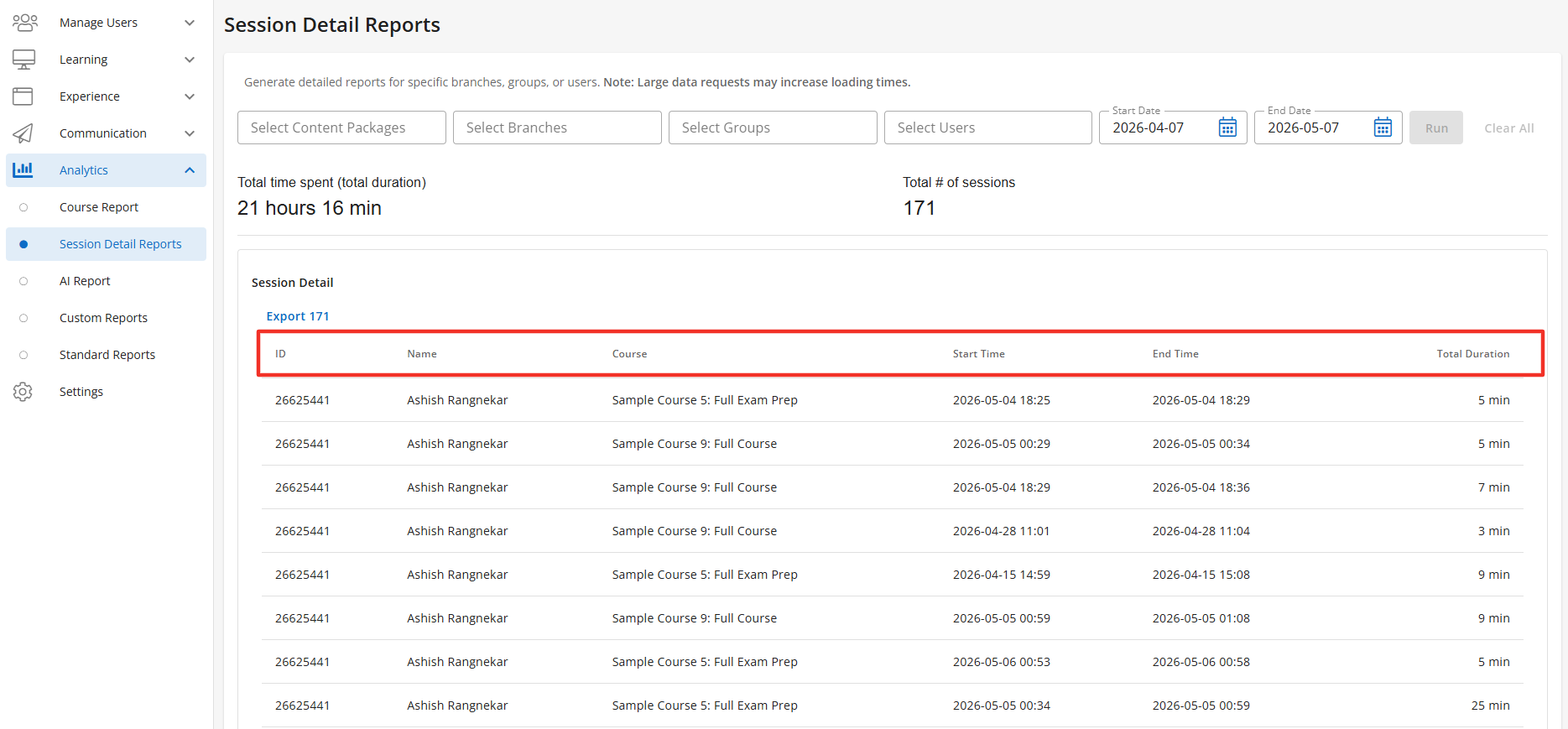
The Session Details Report displays the following data points when enabled in the Session Detail Table:
- User ID - The learners BenchPrep id.
- SIS ID - Displays the learners SIS ID (If applicable).
- Name - Name of user for recorded session.
- Branch Name - Displays the name of the Branch the learner belongs to.
- Group - Displays the name of the group the learner belongs to
- Course - Name of course session took place in.
- Start Time - Time the session begins. (displays in UTC)
- End Time - Time the session ends. (displays in UTC)
- Total Time Spent in Course - The total time the learner spent in the course.
- Total Time Spent in Lessons - The total time the learner was spent in lessons.
- Total Time Spent in Practice - The total time the learner spent in practice sessions.
- Total Time Spent in Tests - The total time the learner spent in tests.
- Total Time Spent in Search - Total time the learner spent using the search function.
- Total Time Spent in Idle - Total time the learner spent idle on the platform.
- Total Time Spent in Inbox - Total time spent in messages/inbox.
- Home - Total time the learner spent on the Home Page/Dashboard.
- Reset Report - Time spent on reset report.
- Course - Time Spent in Course Level Navigation.
- Total Test Completed - The number of test the learner completed.
- Achievements - Total time spent viewing Achievements.
- Flashcards - Total time spent using or viewing Flashcards.
- Discussions - Total Time Spent on Flashcards.
- Games - Total time the learner spent playing games.
- Session ID - Displays the id of the session
- Total Duration - Total time user spent in the session. The Total Duration displays in minutes.
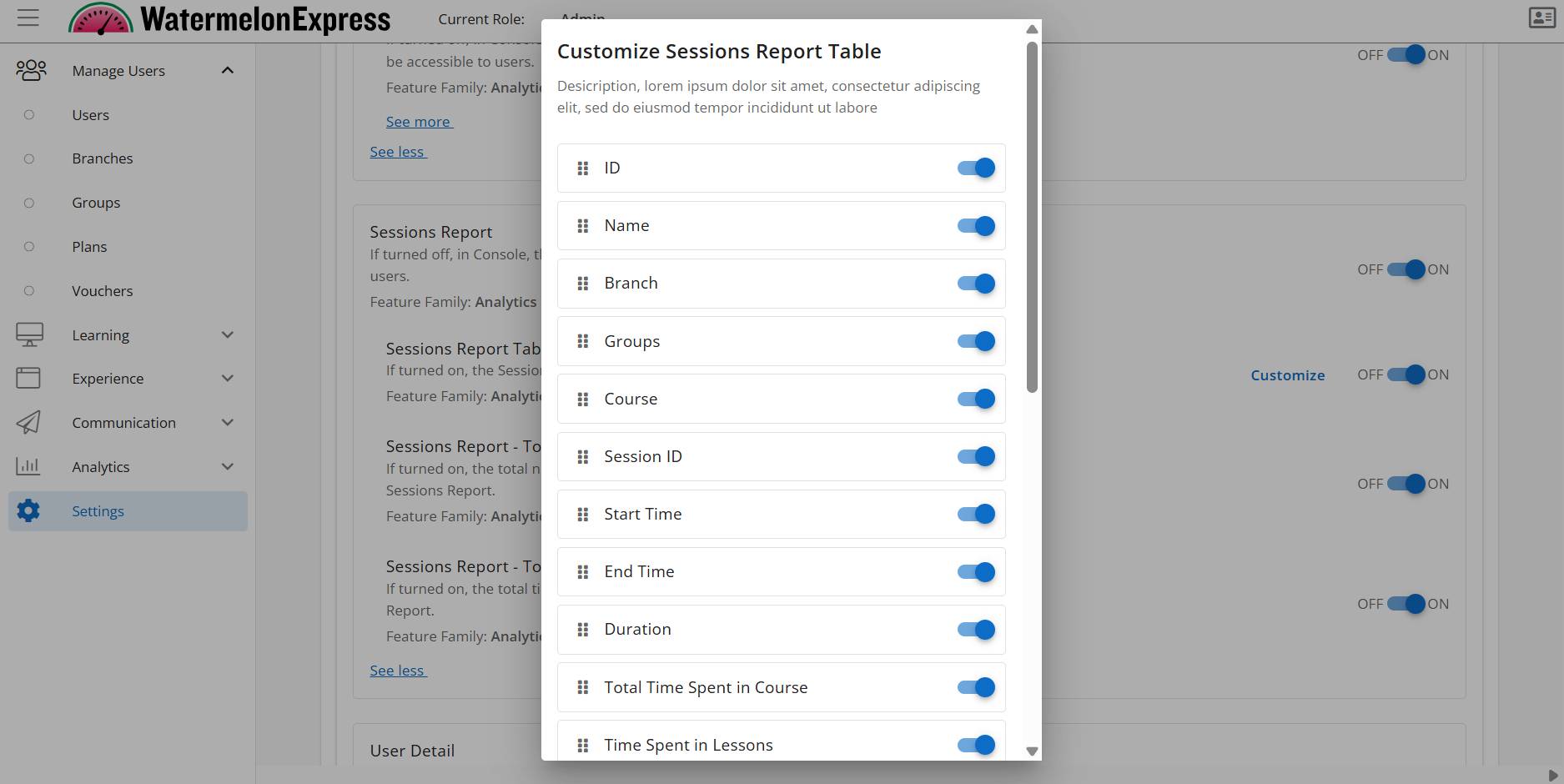
The columns displayed in the table can be customized by clicking the customize link on the Feature Access within Console.
You also have the ability to Export all data from this table. Simply click on the Export button above the Name column and the CSV will be sent to you via email.
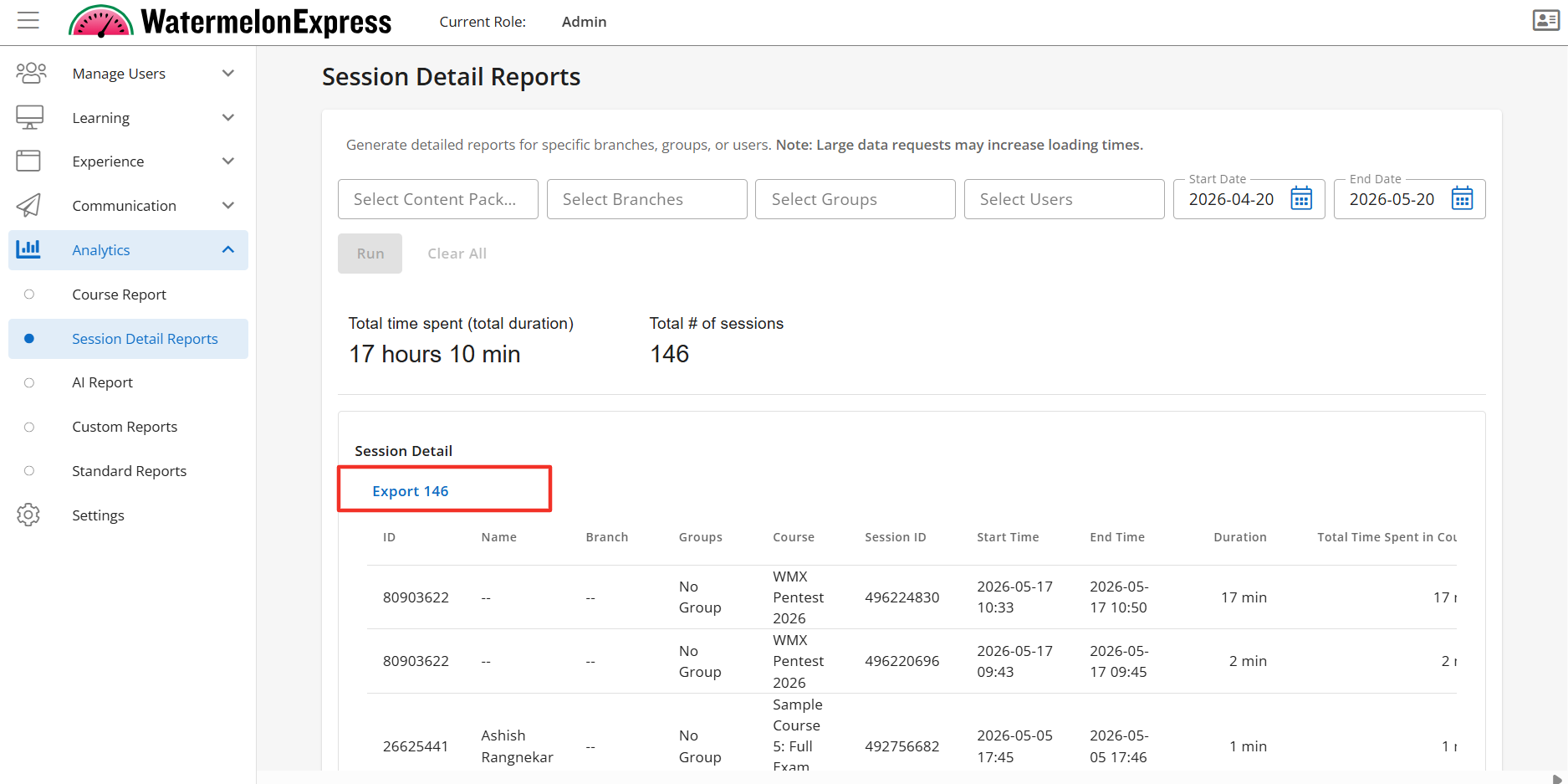
The Session Details Report also has 2 additional sub-features that will be displayed when enabled. These sub-features are Sessions Report - Total Number of Sessions Data Point and Sessions Report - Total Time Spent Data Point.
The Total Number of Session Data Point displays the total number of combined sessions for all users and will display above the Sessions Detail Table.
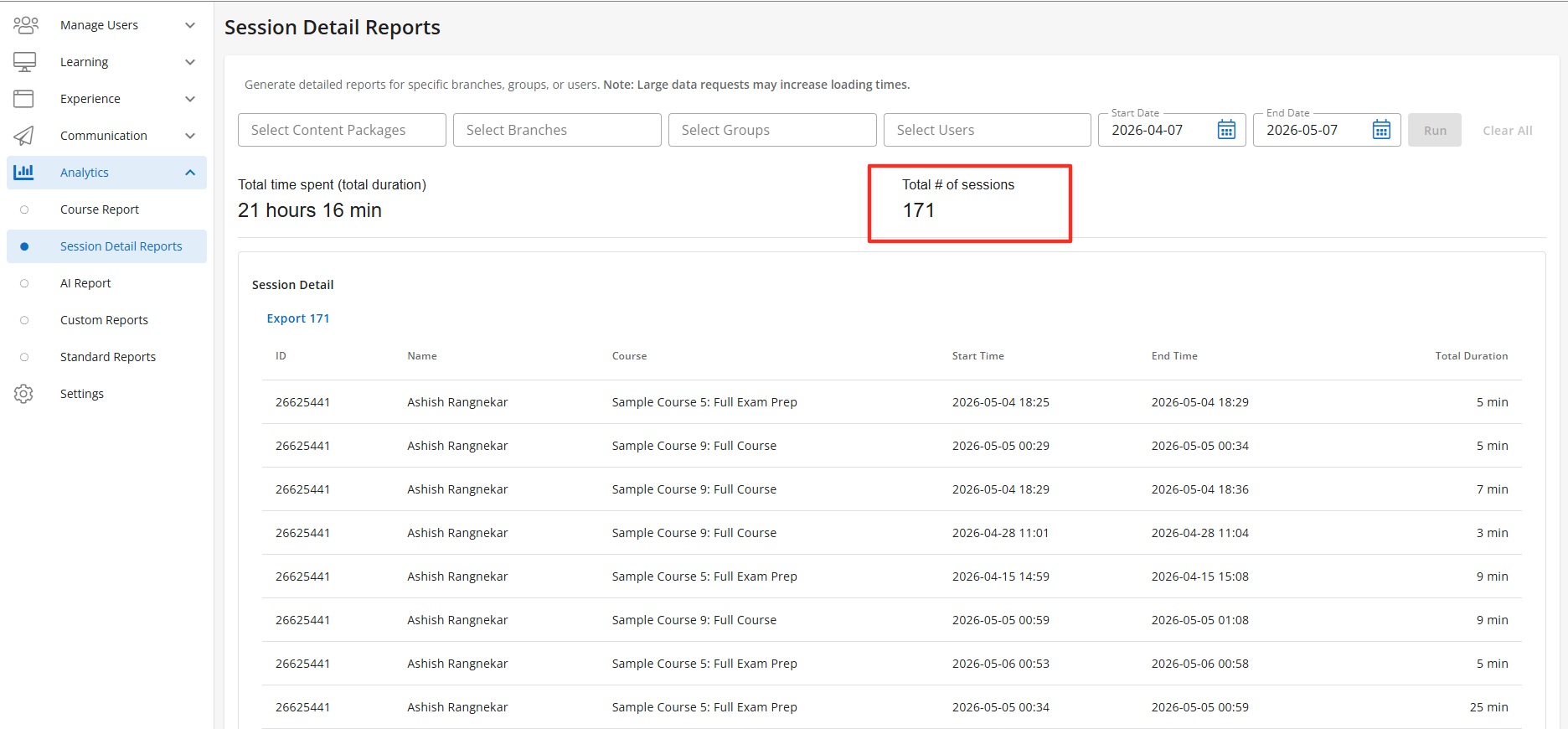
The Total Time Spent will display the total duration for all sessions for all users. This time is displayed in hours and minutes and will display above the Sessions Details Table.