


Cloze questions allow authors to create interactive fill-in-the-blank questions directly within the question content using inline dropdowns, text fields, and numeric inputs. This question type is especially useful for testing knowledge in context, reinforcing applied understanding, and creating more engaging learner experiences by combining multiple response types within a single question.
This format works well when learners need to complete a sentence, interpret information, or enter one or more answers inline without breaking the flow of the question.
Supported Input Types
Cloze questions support the following inline input types:
- Dropdown (Select): Predefined answer choices inserted inline
- Text Entry: Free-response text input
- Numeric Entry: Numeric-only input field
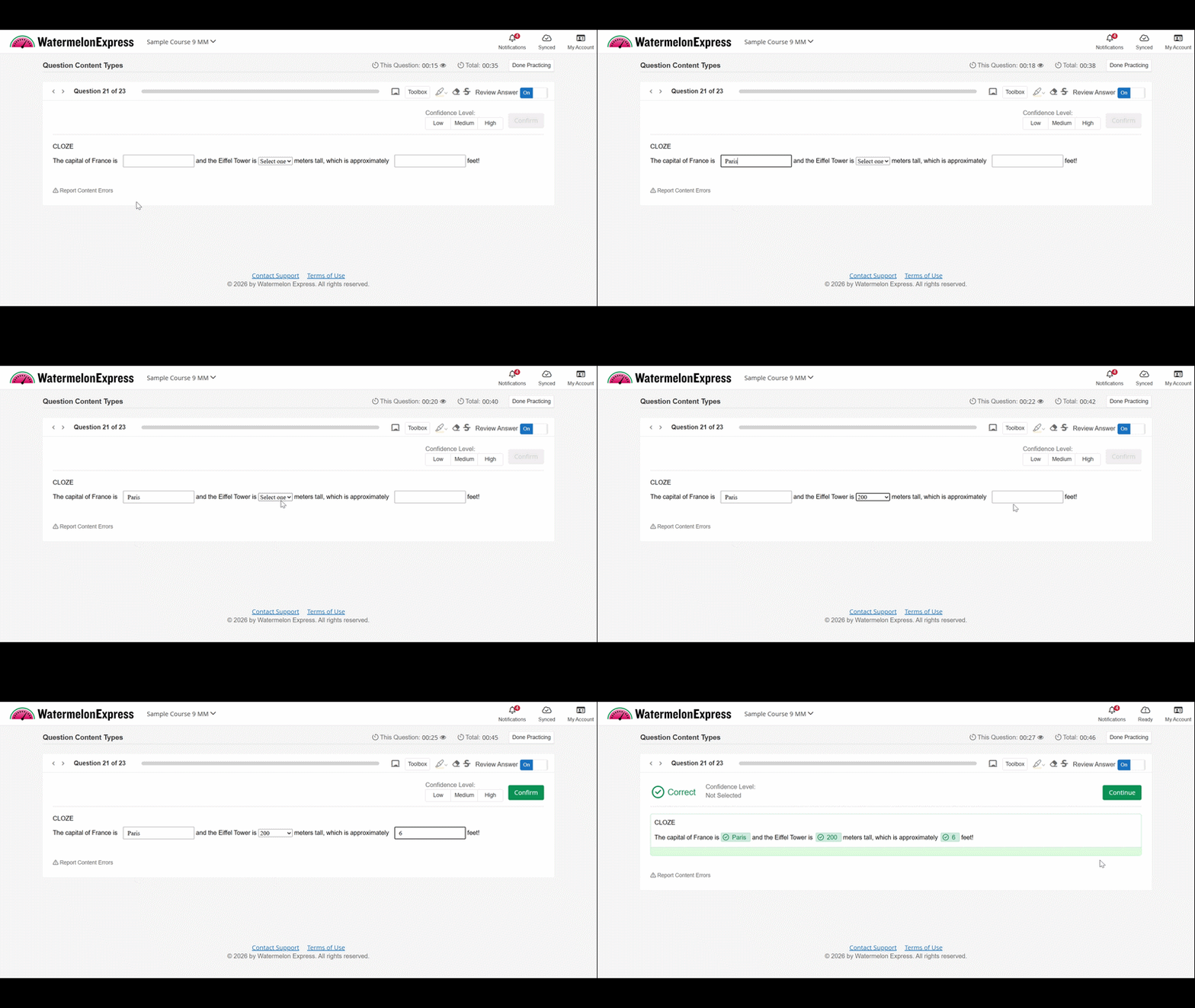
Multiple input types can be combined within a single question.
Creating a cloze Question
To create cloze questions in BluePrint, follow the instructions below:
- Navigate to the Questions tab of your course and click New Question.
- In the WYSIWYG editor, click Templates and select the Cloze Question option.
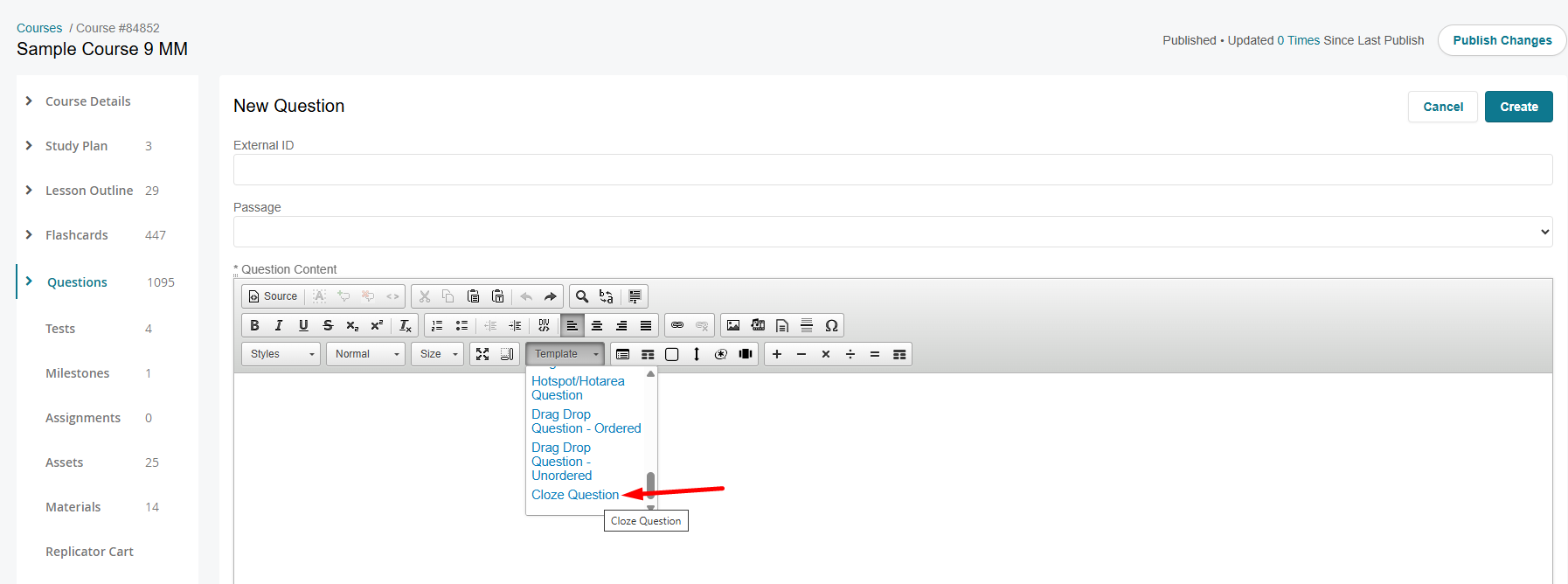
- Review the template content. The template includes instructions for building the question and examples of dropdown, text, and numeric inputs.
- You can work directly from this template as a guide. Once you understand the structure:
- Remove the instructional text.
- Modify or delete example content.
- Keep and reuse the formatted input elements (dropdowns, text fields, numeric fields) as needed for your question.
- Edit the question content to match your desired prompt, ensuring your inline blanks are placed correctly.
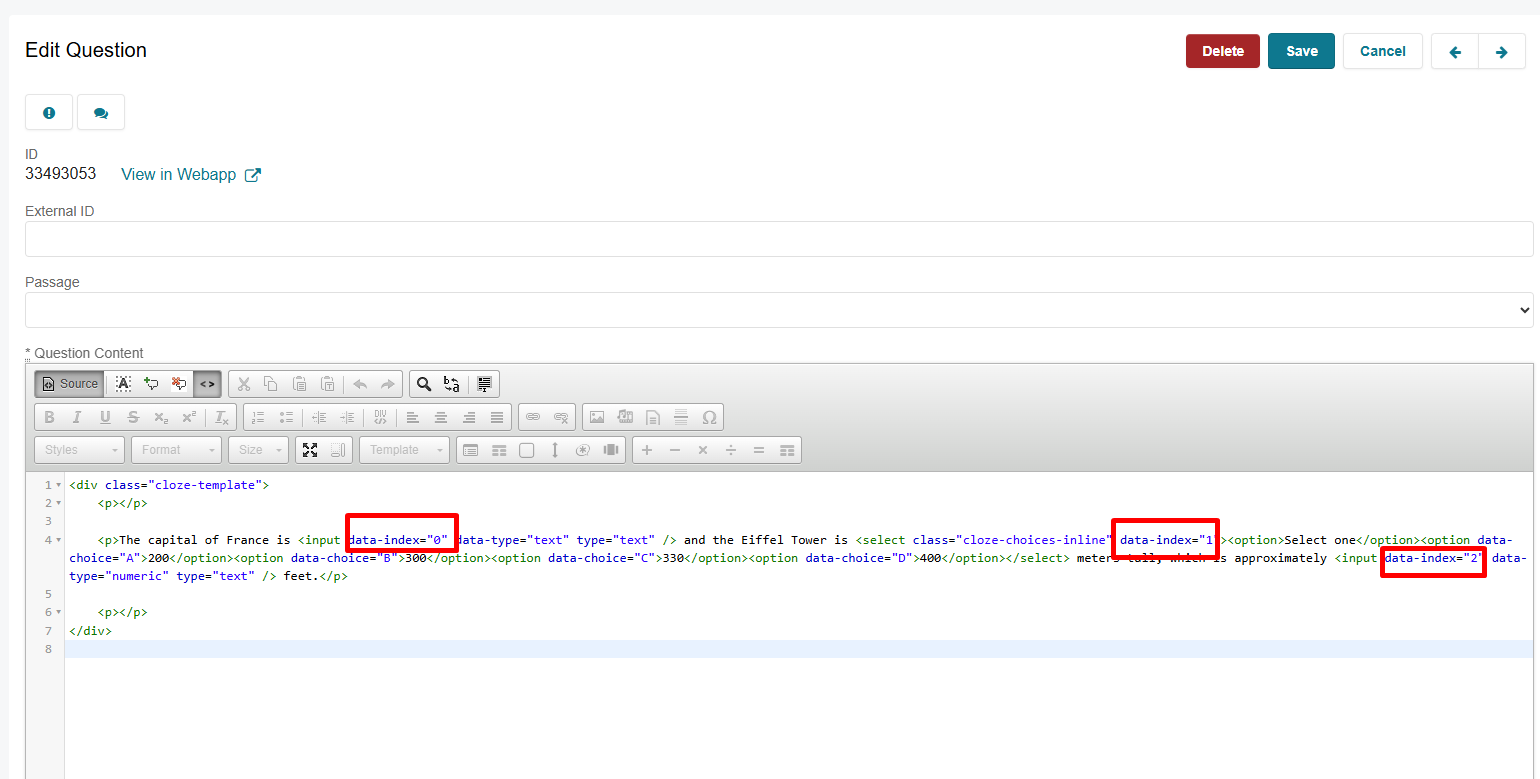
- Ensure to update data index values for each input field in the source code. See the Note section below.
- Fill out the Answer Explanation Content section.
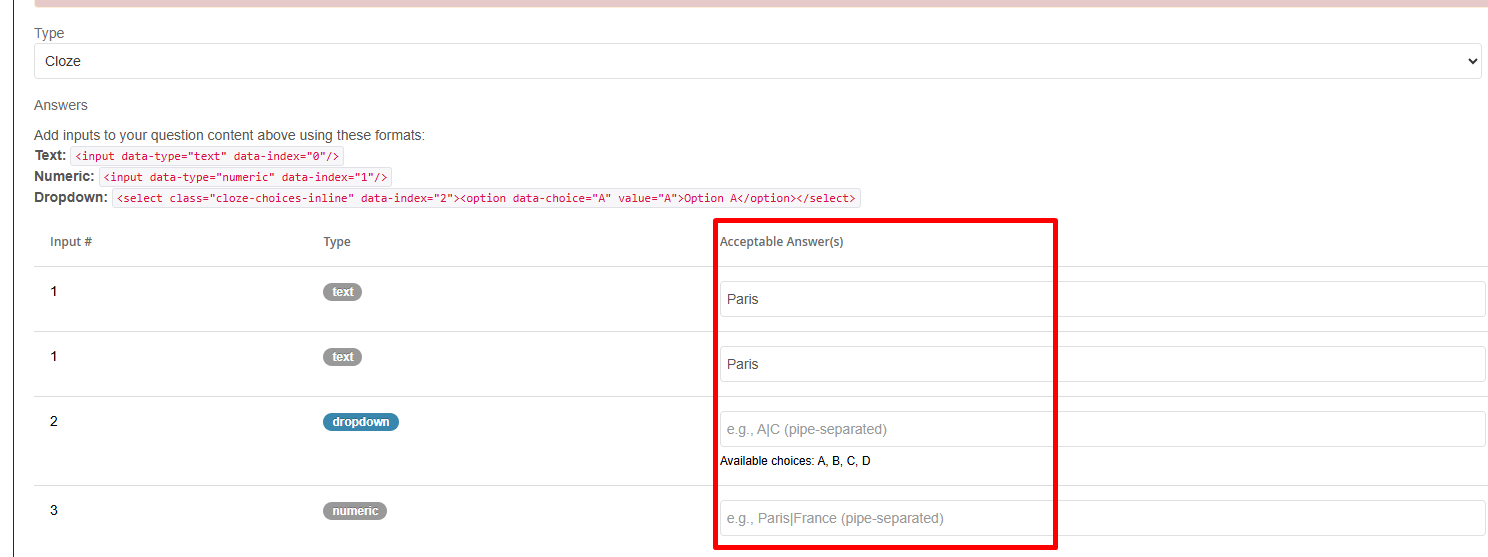
- Select Cloze as the question type from the dropdown.
- In the Answers section, enter the correct answer(s) for each blank
- Answers should follow the order of the blanks in the question
- Use | to include multiple acceptable answers for a single blank
- Click Create to finish Creating your new question.
Note: If you are using multiple inline blanks (dropdown, text, or numeric) in a single question, ensure that each data-index value is unique and sequential, starting from 0 (e.g., 0, 1, 2, 3...). You may need to verify this in the Source Code view.
The data-index determines the order in which answers are evaluated, so keeping them sequential ensures that each blank correctly maps to its corresponding answer in the Answers section.
Note: For cloze question type, the sidebar is automatically hidden and the Hide Sidebar option is not available in the UI.

