


Setting up the AI Assistant requires collaboration with the BenchPrep team. Your Customer Success Manager (CSM) will work closely with you to ensure your configuration and branding align with your goals. Organizations may choose to use either a BenchPrep-managed OpenAI API key or provide their own OpenAI API key (Bring Your Own Key) as part of the setup process.
Setup Steps
After AI Assistant functionality has been enabled, you can manage configuring and branding the Assistant to fit your needs. Console Admins or users with read:ai_tutor_configurations and update:ai_tutor_configurations along with read:content_package permissions (for course-level AI Tools management) can manage AI Assistant configuration. Review the terms before proceeding, as they outline important considerations for selecting which courses the AI Assistant may use as reference content.
Tenant-level AI Tools
AI Tools allow administrators to manage the content the AI Assistant can reference when responding to learner questions. Currently, Referential Courses are the available AI Tool type.
At the tenant level, Referential Courses are the courses that have been imported into your tenant and are available for AI Assistant to reference.
When a course is selected as a referential source, the AI Assistant ingests and syncs course content from BluePrint, including lessons (with support for math formatted in MathML or LaTeX), flashcards, practice questions, and video transcripts (.VTT files) associated with multimedia assets. Importing a course at the tenant level makes its content available to AI Assistant, but does not automatically enable the AI Assistant within that course.
This serves as a shared content library from which individual courses can select reference material. Once a course has been imported, any updates made in BluePrint will be synced automatically.
Course-level AI Tools
At the course level, the Referential Courses tab within AI Tools determines which tenant-level imported courses the AI Assistant can reference when responding within a specific course.
If a course has been imported at the tenant level, it is automatically added to its own Referential Courses list, allowing the AI Assistant to reference its content by default. Administrators can remove the course from this list if they do not want the AI Assistant to reference its own content.
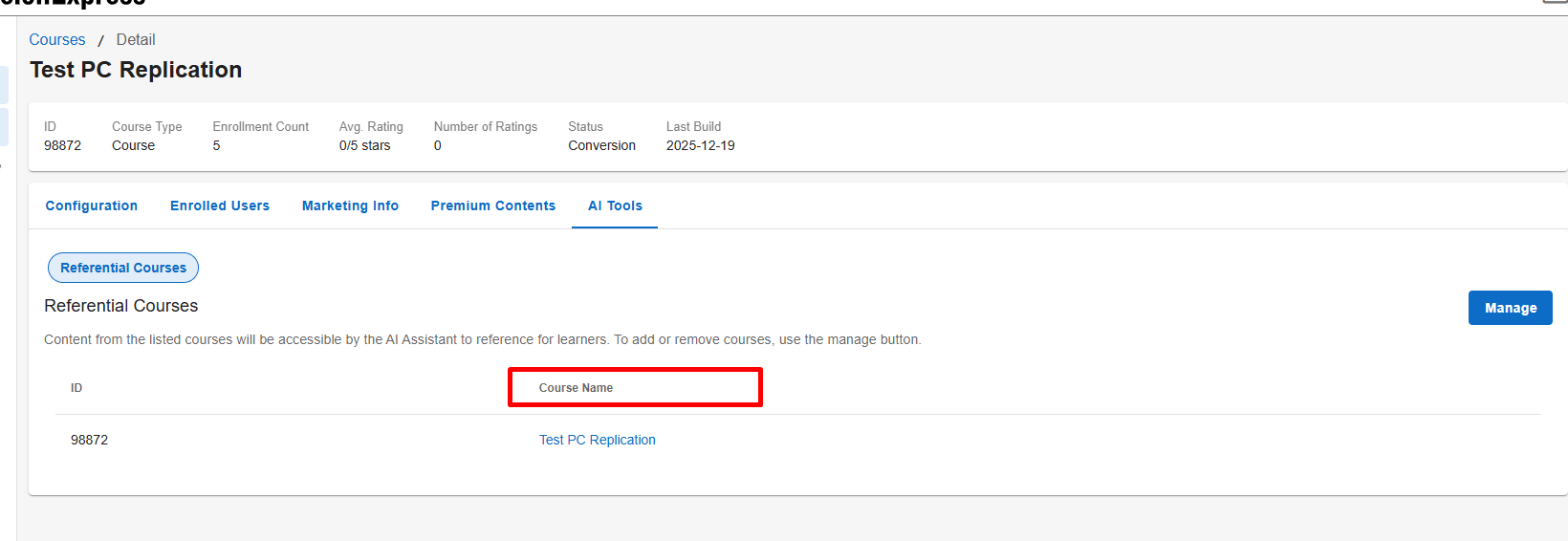
You can also add additional imported courses as referential sources to provide shared or supplemental content. A course itself does not need to be imported, as long as at least one imported referential source is configured for it.
Follow the steps below to configure your AI assistant.
- Decide what you want your AI Assistant to reference
- Course-only (AI Assistant in Course A only references content from Course A)
- Multi-Course (AI Assistant in Course A can reference Course A + Course B and more)
- Shared Referential Source (AI Assistant in Course D references content from Course A without referencing Course D's own content)
- Ingest the courses at the Tenant Level
Import every course you want AI to be able to reference, this will be your content library
- Navigate to Console, click on Settings and then AI Settings.
- Click on the AI Tools tab, then select Referential Courses. The page will list all courses that have already been imported. Click on Manage on the top right.
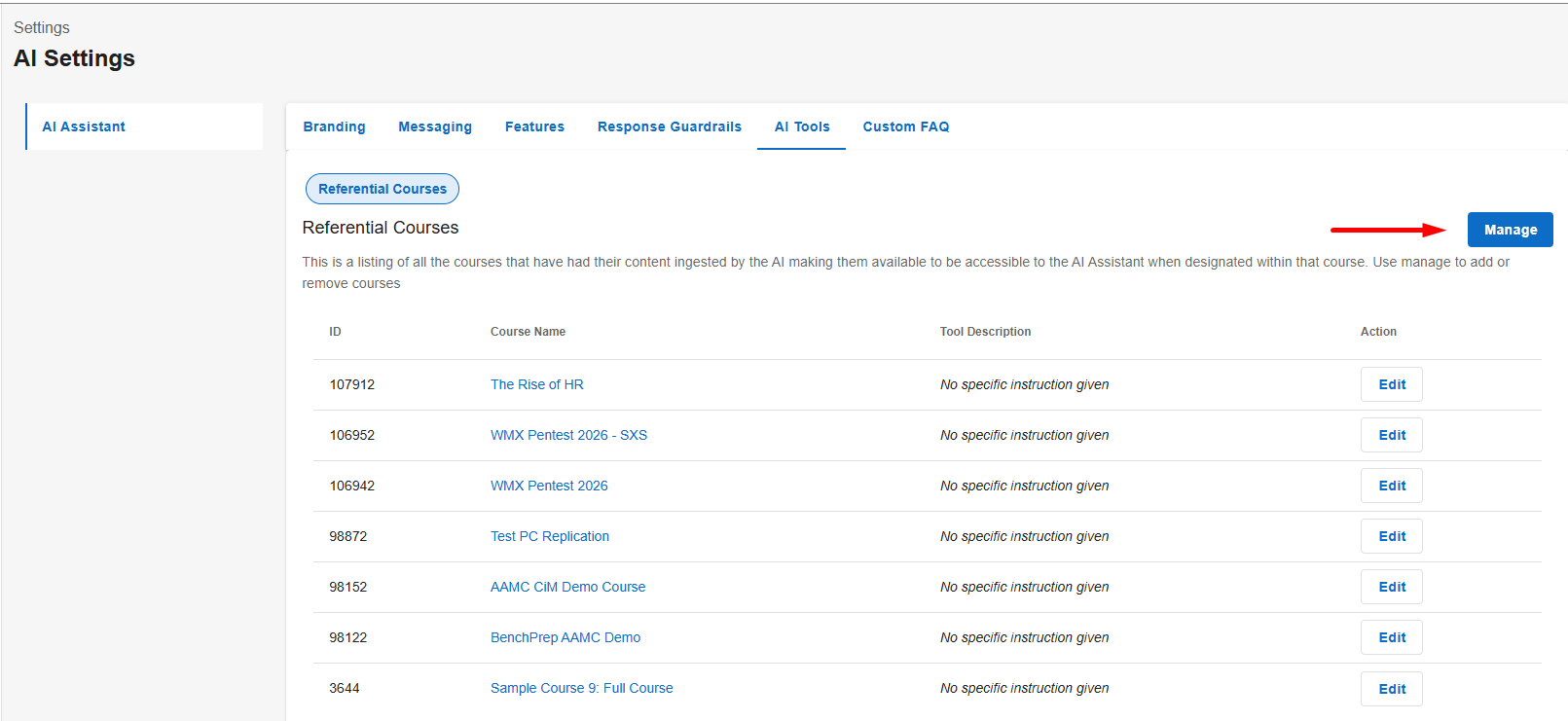
- Move courses from the Available Courses to the Selected Courses section by clicking on the + icon next to a course.
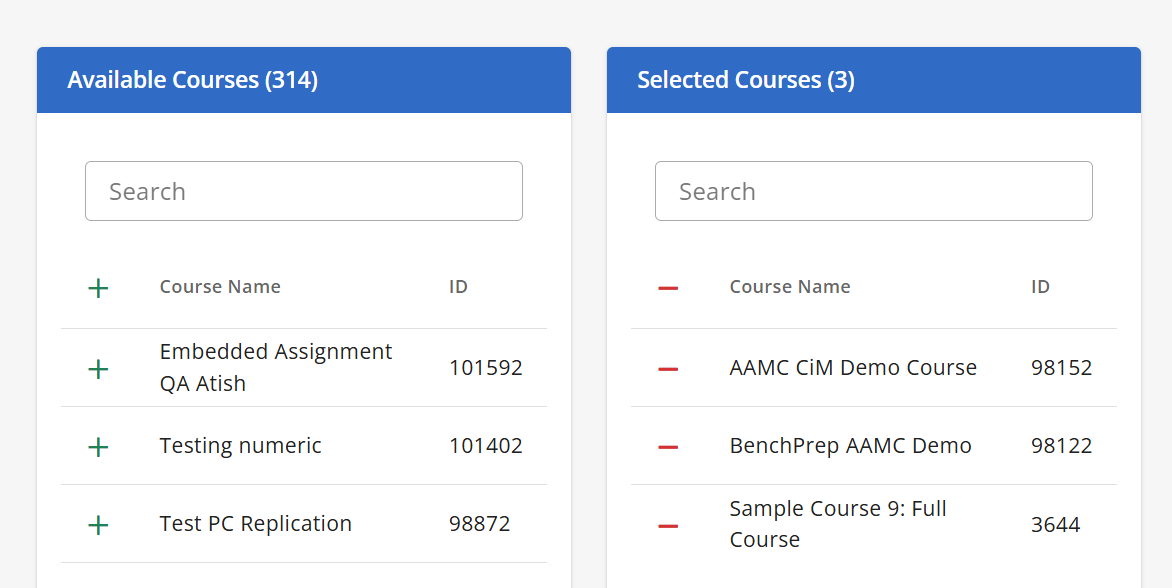
- Click Save. Note: Ingestion can take up to 1 hour.
Configuring Tool Descriptions (Optional)
Tool Descriptions provide instructions to the AI Assistant about when to reference a particular course's content when responding to learner questions. These instructions are not visible to learners.
Tool Descriptions are optional. If no description is provided, the AI Assistant uses its existing logic to determine when to reference the course. More specific instructions can help the AI Assistant select relevant content, but do not guarantee that a particular resource will be used.
- Navigate to Console, click on Settings and then AI Settings.
- Click on the AI Tools tab, then select Referential Courses.
- Locate the course and click Edit.
- Enter instructions in the Tool Description field and click Save.
Examples of Tool Descriptions:
- “Call this tool for questions involving continuing education requirements.”
- “Call this tool when the learner wants more in-depth information about a particular topic.”
- “Call this tool when the learner is seeking multiple-choice questions.”
- “Call this tool for questions related to the final exam.”
Best Practice: Provide clear, specific instructions describing when the course's content is relevant. The AI Assistant uses these instructions as guidance when choosing which content to reference.
- Optional. Configure Referential Courses for multi-course referencing.
By default, a course imported at the tenant level is automatically included in its own Referential Courses list. You only need to update this list if:
- You want a course to reference additional imported courses, or
- The course itself has not been imported and should reference another imported course, or
- You want to remove a course from its own Referential Courses list so the AI Assistant no longer references that course's content.
- To manage which courses the AI Assistant can reference within a course, follow these steps:
- Navigate to Console, click on Content Packages, locate the course you are enabling AI Assistant for, and click on the course name.
- Click on the AI Tools tab, then select Referential Courses. The page will list all courses that have already been imported.
- Click Manage in the top right.
- To add a course, click the + icon next to it under Available Courses to move it to Selected Courses.
- To remove a course, click the - icon next to it under Selected Courses. You can also remove the current course if you do not want the AI Assistant to reference its own content.
- Click Save.
- Request AI Branding Activation
Contact your BenchPrep CSM to enable AI branding in the Console.
- Configure Settings in Console
Use Console to configure your desired AI Assistant settings. Check out Configuring AI Assistant Tenant Settings and Configuring AI Assistant Branch Settings sections below for step-by-step instructions.
- Turn "Enable AI Assistant" feature access ON.
The feature can be enabled at tenant, course and branch levels.
Configuring AI Assistant Tenant Settings
Once AI configuration has been enabled by BenchPrep, users with a Console Admin or a custom role with create:ai_tutor_configurations, read:ai_tutor_configurations, update:ai_tutor_configurations and delete:ai_tutor_configurations permissions can manage AI Assistant settings for the tenant.
You can also update branding at the branch level for greater customization. By default, settings are inherited from the tenant, but they can be overridden and customized as needed.
To update settings follow these steps:
- Navigate to Console, click on Settings and then AI Settings.
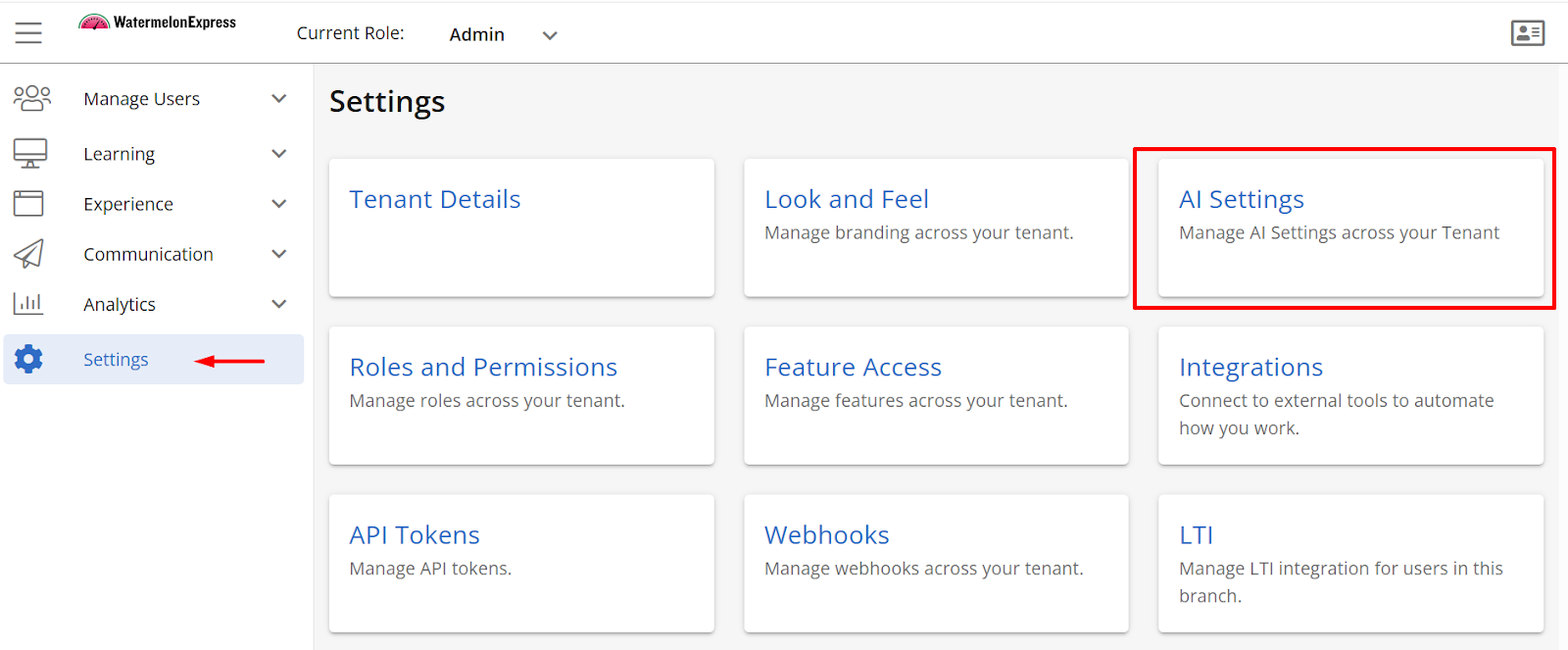
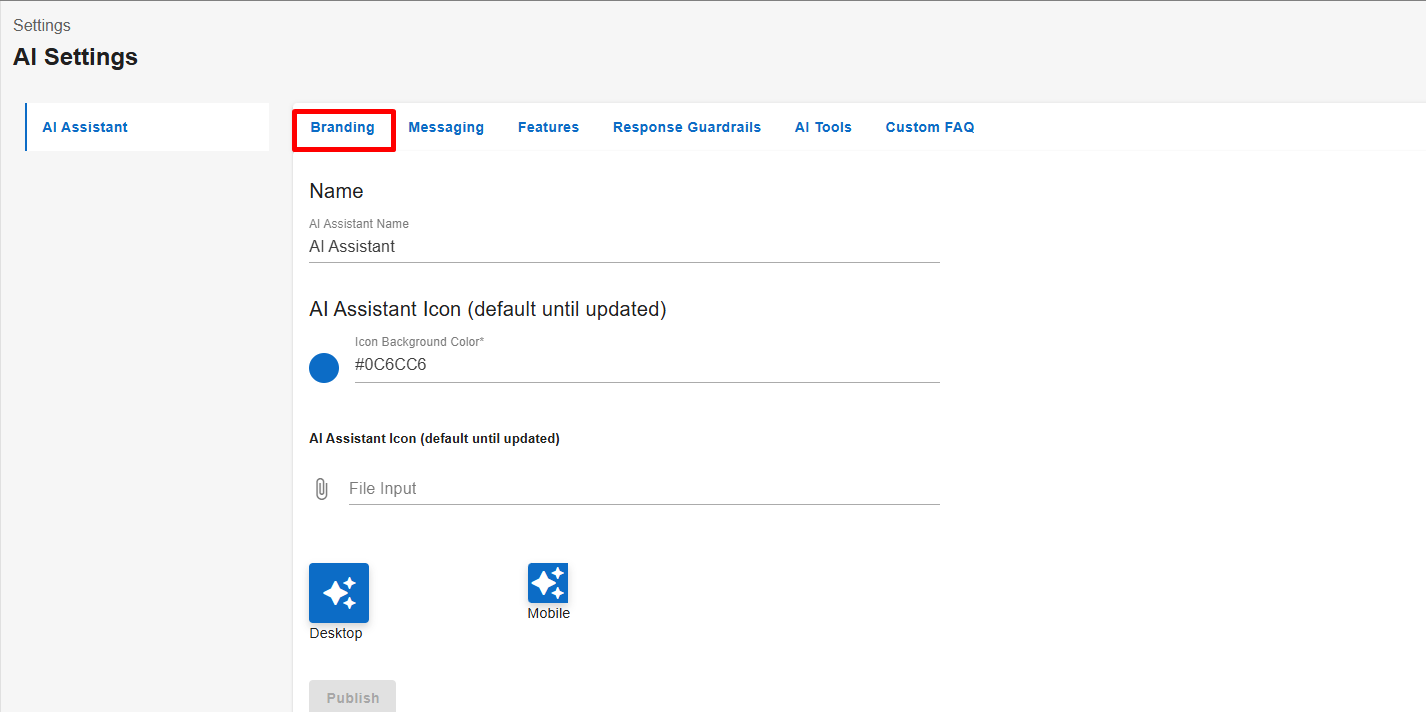
- The AI Assistant has 6 sections to configure: Branding, Messaging, Features, AI Tools, Response Guardrails and Custom FAQ.
- Branding
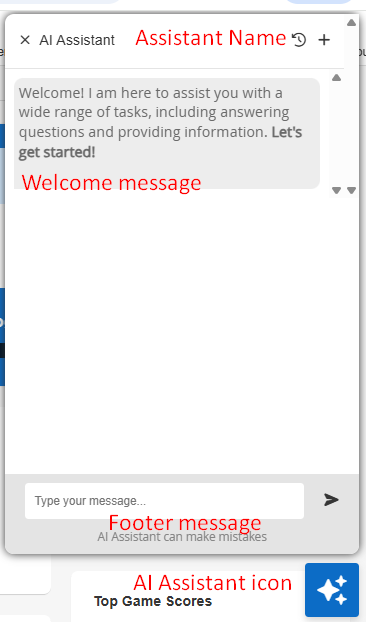
- AI Assistant Name - choose your AI Assistant Name - recommended up to 30 characters
- AI Assistant Icon
- Background Color - update icon color
- Icon image - displayed on desktop and mobile.
- Messaging
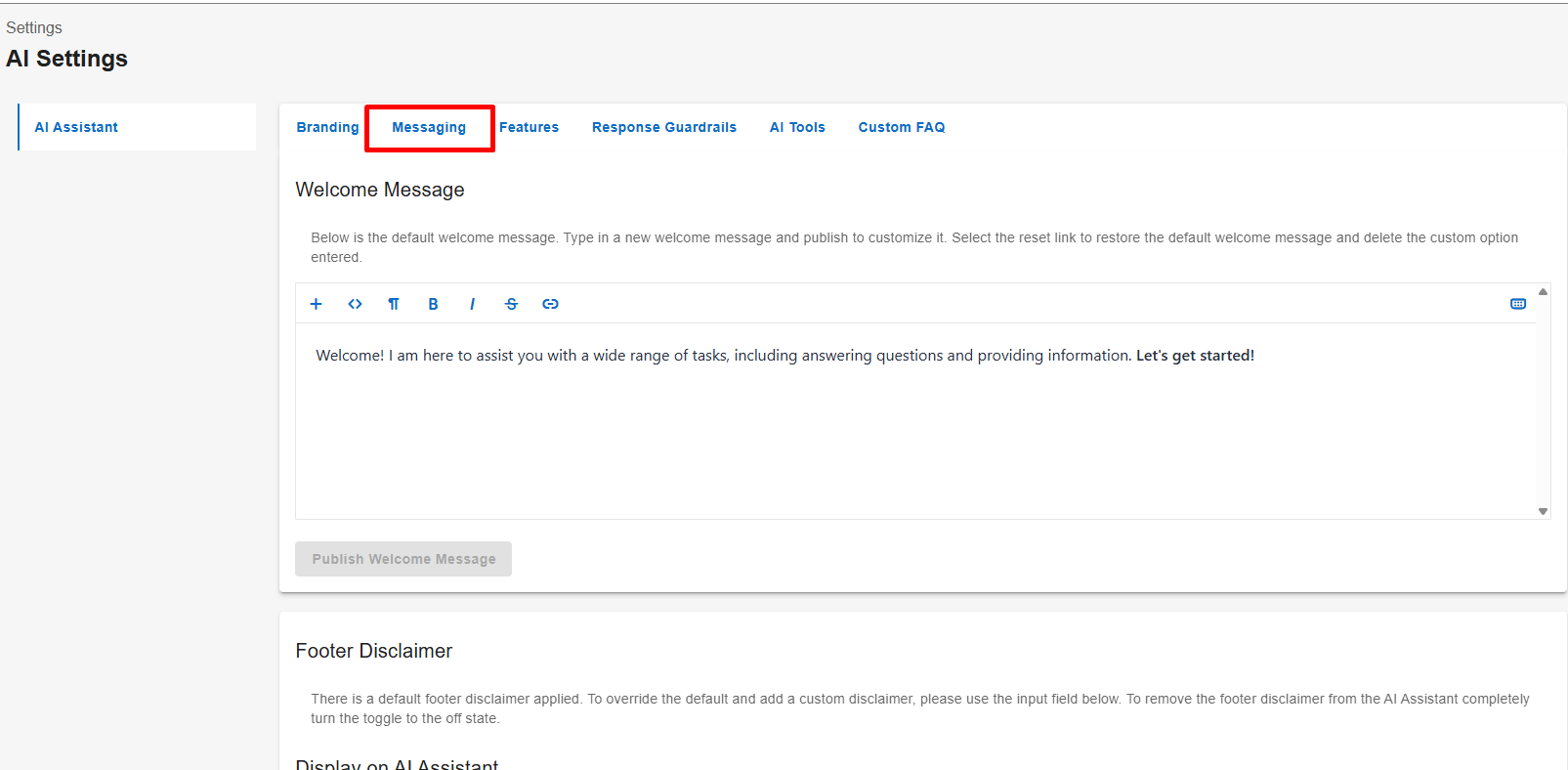
- Welcome Message - configure your welcome message. Click Publish Welcome Message when ready.
- Footer Disclaimer - configure a footer and toggle the setting ON if you would like it to be displayed. 30 characters or less recommended. Click Publish Footer Disclaimer when ready.
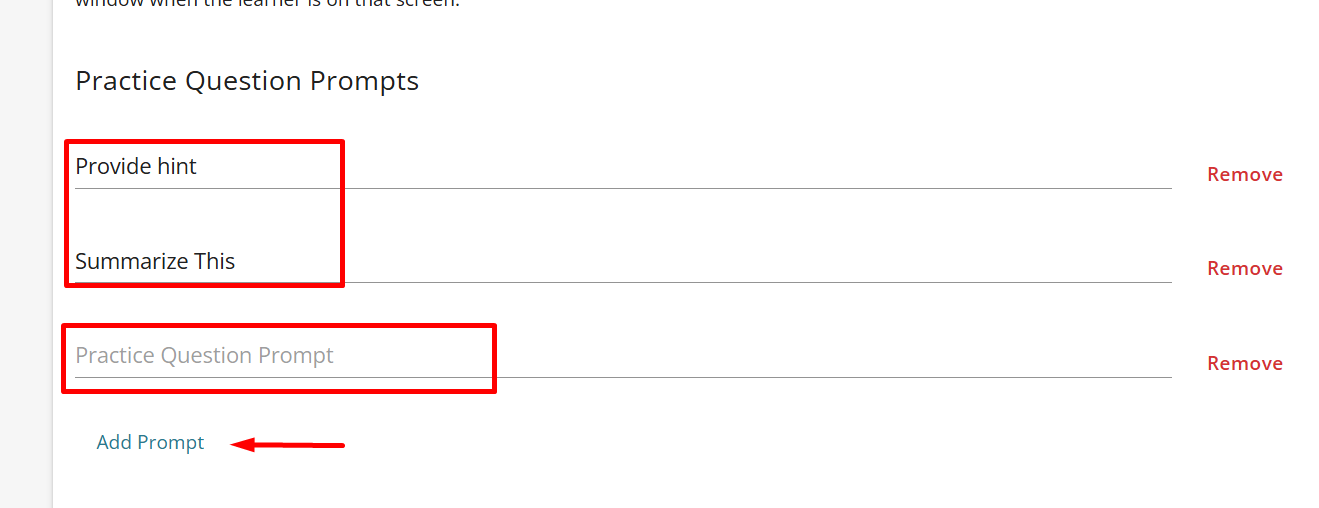
- Prompts - Prompts are optional, pre-determined suggestions that appear as a button when a learner opens the AI Assistant window. You can configure Prompts to appear only on pages related to Practice Questions and Lesson modalities.
- Click Add Prompt link underneath Practice Question and/or Lesson Prompts for the new prompt line to appear. Type in your prompt and click Publish Prompts to update. To delete a prompt click Remove link on the right-hand side.
- Response Message Overrides - The AI Assistant comes with built-in default messages for certain situations. You can override these with your own custom text, so the responses match your organization’s voice and tone.
- No Relevant Information Override - this message appears when the AI Assistant can’t find an answer to the learner’s question. Example: “I was unable to find relevant information. Please make sure your question is related to the course content or you can try rephrasing the question.”
- Jailbreak Override - this message is shown if a learner tries to get the AI Assistant to go outside of its intended use. There are a few standard types of response outcomes where you are able to override whatever message has been generated by the AI. If left blank, the user will see whatever response was generated by the AI.
Click Publish Response Messages when ready.
- Tone of Voice
Select the tone of voice you would like the AI Assistant to use in its responses. Click Publish Tone of Voice when ready.
- Features
Features section allows you to further customize AI Assistant experience by choosing to allow to show references along with the response. References shown in the AI Assistant consist of Lesson titles sourced from course content that are similar to the user's query.
- AI Tools
AI Tools allow you to manage the content the AI Assistant can reference when responding to learners. Select Referential Courses to manage imported courses and configure optional Tool Descriptions. For detailed steps, see Setup Steps above.
- Response Guardrails
Response Guardrails determine how the AI Assistant uses course content versus general knowledge, with Strictly Course Content Only set as the default behavior. To update this setting, select your preferred option and click Publish Response Guardrails.
- Custom FAQs
Custom FAQs allow you to provide learners with additional information directly within the AI Assistant. FAQs can be used to share helpful guidance such as how to use the AI Assistant, best practices, safety reminders, or other information specific to your organization.
To create a Custom FAQ:
- Click on the Custom FAQ tab.
- Click Add FAQ.
- Enter a Header and Content for the FAQ.
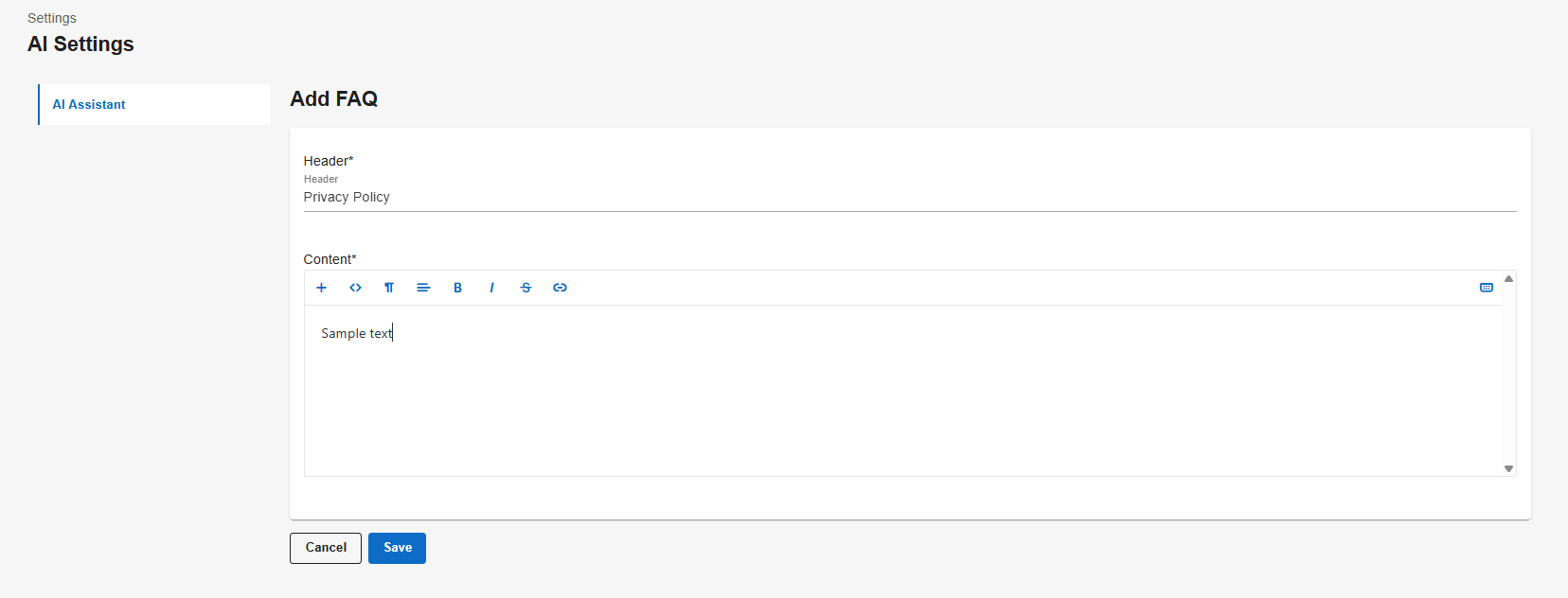
- Click Save.
Once created, FAQs will appear on the Custom FAQs page. From here, you can:
- Rearrange FAQs to control the order in which they are displayed to learners.
- Turn an FAQ ON or OFF to control whether it is available to learners.
- Edit an existing FAQ to update its Header or Content.
- Remove an FAQ when it is no longer needed.
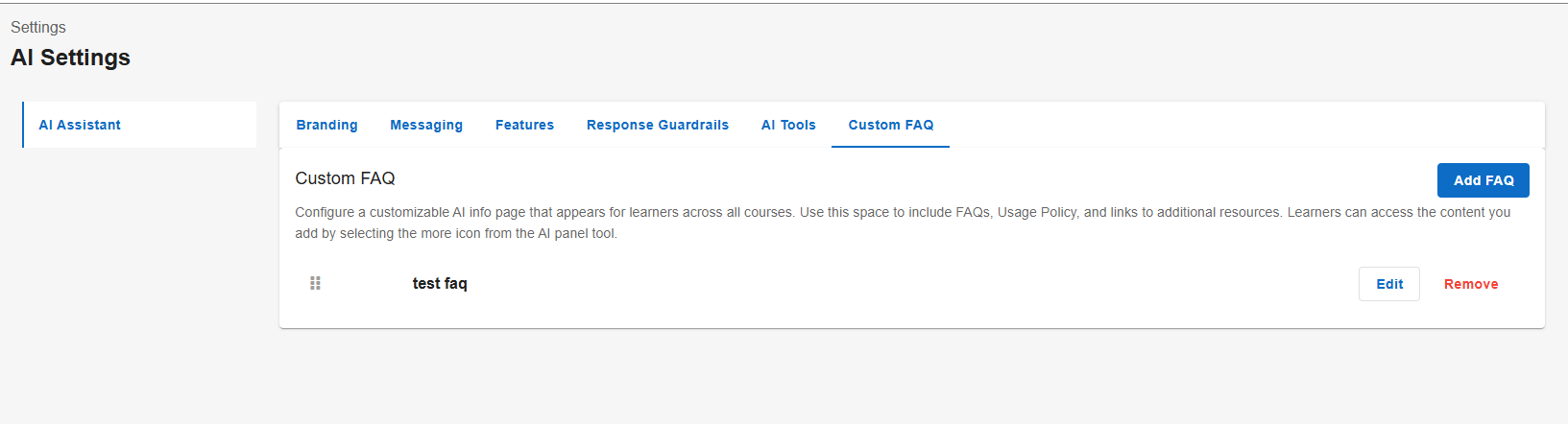
Editing or Removing a Custom FAQ
Click on an existing FAQ to view its details. From the FAQ details page, you can click Edit to update the Header or Content or click Remove to remove the FAQ.
When removing an FAQ, you will be asked to confirm the action before the FAQ is removed.
Enabled FAQs are available to learners from the AI Assistant, providing quick access to the information you have configured.
- Branding
Once your branding is set and BenchPrep has completed the configuration, the AI Assistant will be ready for use in your selected courses! If you would like to configure branding for a specific branch, refer to the section below for instructions.
Configuring AI Assistant Branch Settings
Branch AI Assistant branding will inherit Tenant Branding, but it can be updated for a branch to allow for more customization. A Console Admin or a user with a custom role with create:ai_tutor_configurations, read:ai_tutor_configurations, update:ai_tutor_configurations and delete:ai_tutor_configurations permissions assigned to a specific branch can manage the branding for that branch.
To update branding for a specific branch follow these steps:
- Navigate to Console, click on Branches under Manage Users section.
- Locate the Branch you would like to update AI Assistant Branding for and click on the Name.
- Select the Settings button.
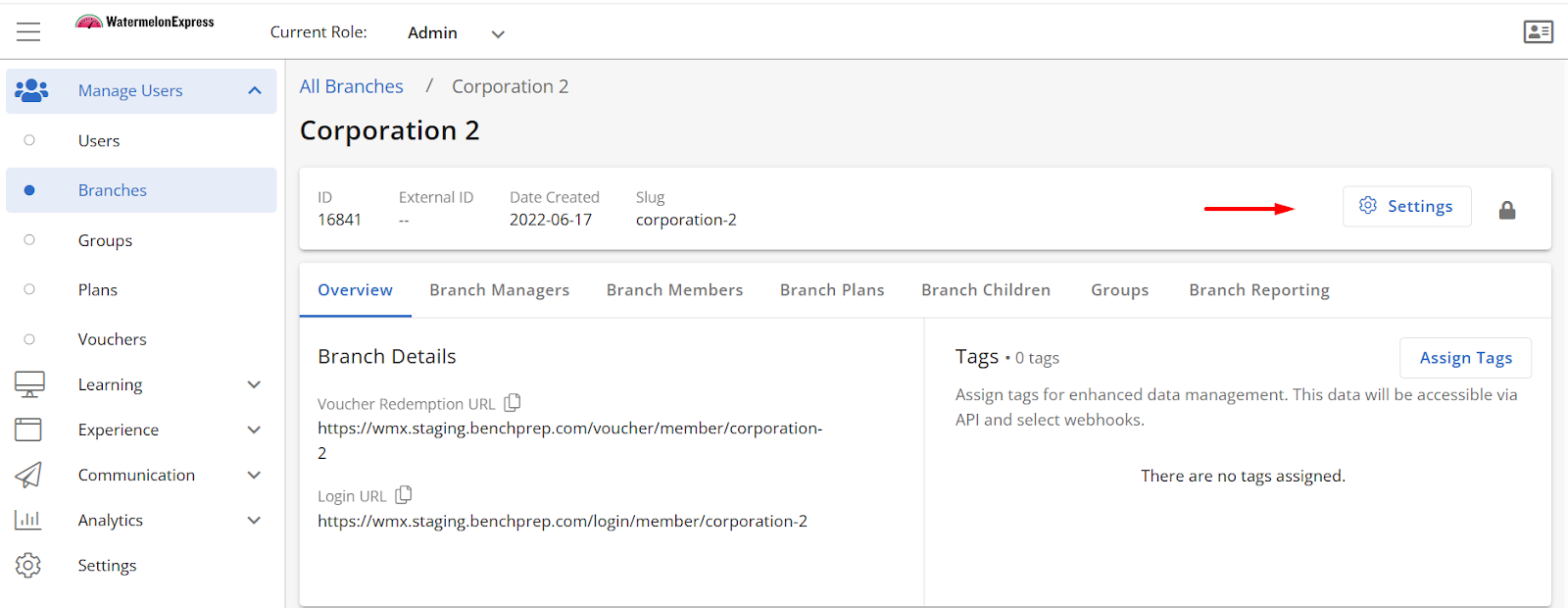
- Follow steps 1 - 3 from "Configuring AI Assistant Tenant Settings" section above to configure branding for a specific branch.

